# DoubleZero
> Documentation for connecting to and operating on the Malbec Labs / DoubleZero network — validator and tenant setup, multicast, rewards, geolocation, and contributor operations.
# Welcome
Source: https://docs.doublezero.xyz/
# Welcome to DoubleZero
DoubleZero is a high-performance decentralized protocol and network, optimized for distributed systems, like blockchains. Users of DoubleZero enjoy an integrated service for highly- optimized transmission and pre-processing of distributed systems data.
## Who is DoubleZero for?
### Contributors
DoubleZero contributors have network capacity in the form of underutilized private fiber links and hardware (e.g. switches and FPGA devices). Configuring these resources to extend the DoubleZero network creates an integrated information service. Using the DZ protocol, network contributors stitch this network capacity into a dynamic and expansive global mesh network and receive token incentives for their contribution.
### Users
DoubleZero users participate in distributed systems, such as blockchains, that require high-performance network connectivity. Interconnecting a blockchain system with DoubleZero, users gain a bundling of optimization features to accelerate their network I/O.
In its initial implementation, the DoubleZero network is compatible with blockchain validator clients as well as RPC and MEV infrastructure providers. These user systems undergo admission control by verifying their uniquely identifying public key addresses on their respective ledgers before allowing them access to the network. As the network evolves to include user systems from other ecosystems, additional identification and authentication strategies will be added tailored to each user project community.
## Benefits
The only alternative to DoubleZero is the public internet. Compared to the public internet, the DoubleZero network offers two improvements to blockchains.
*First*, inbound transactions can be edge-filtered in a non-discretionary way at the network
contributor hardware level (i.e. removal of spam and duplicates) prior to being sent over to users (e.g., blockchain nodes) of the DoubleZero network. This allows blockchains to benefit from shared system-wide filtration resources rather than needing each individual validator to provision sufficient resources. As a result, validators can reallocate their resources towards directly revenue-generating activities. This feature is not yet functional.
*Second*, outbound messages are routed more directly and prioritized to improve efficiency. This is possible since in DoubleZero the routing logic of global data movement is optimized for speed, unlike the public internet. Thus, validators benefit from reduced jitter, which is defined as the amount of variation in latency between two data cable endpoints. In essence, blockchain nodes can send and receive blocks faster.
Taken together, these DoubleZero network benefits can achieve levels of performance that are otherwise unobtainable via the public internet.
For more details, see the [DoubleZero Protocol](https://doublezero.xyz/whitepaper.pdf) whitepaper.
## Next Steps
* *For Users* - Start with our [Quick Connect Wizard](quick-connect.md) to create a custom setup based on user type or go straight to [initial setup](setup.md) and follow the setup flow manually.
* *For AI agents* - Connect Claude, Cursor, ChatGPT, or Codex to the [DoubleZero MCP](mcp.md) and ask it to walk you through setup.
* *For Contributors* - See how to [Contribute](contribute-overview.md) additional capacity to grow the DoubleZero network further.
* *More Information* - Read more about what makes up the [Architecture](architecture.md) of the DoubleZero network.
---
# Setup
Source: https://docs.doublezero.xyz/setup/
# How to set up DoubleZero
!!! info "Terminology"
New to DoubleZero? See the [Glossary](glossary.md) for definitions of terms like [doublezerod](glossary.md#doublezerod), [IBRL](glossary.md#ibrl-increase-bandwidth-reduce-latency), and [DZD](glossary.md#dzd-doublezero-device).
!!! warning "By connecting to the DoubleZero I agree to the [DoubleZero Terms of Service](https://doublezero.xyz/terms-protocol)"
## Prerequisites
!!! warning inline end
For validators: DoubleZero needs to be installed directly on your validator host, not in a container.
- Internet connectivity with a public IP address (no NAT)
- x86_64 server
- Supported OS: Ubuntu 22.04+ or Debian 11+, or Rocky Linux / RHEL 9+
- Root or sudo privileges on the server where DoubleZero will run
- Optional but useful: jq and curl for debugging
## Connecting to DoubleZero
DoubleZero Testnet and DoubleZero Mainnet-Beta are physically distinct networks. Please choose the appropriate network during install.
When onboarding to DoubleZero you will establish a **DoubleZero identity**, represented by a public key called the **DoubleZero ID**. This key is pat of how DoubleZero recognizes your machine.
## 1. Install DoubleZero Packages
Follow these steps depending on your operating system:
### Ubuntu / Debian
The current recommended deployment for Mainnet-Beta is:
```bash
curl -1sLf https://dl.cloudsmith.io/public/malbeclabs/doublezero/setup.deb.sh | sudo -E bash
sudo apt-get install doublezero
```
The current recommended deployment for Testnet is:
```bash
curl -1sLf https://dl.cloudsmith.io/public/malbeclabs/doublezero-testnet/setup.deb.sh | sudo -E bash
sudo apt-get install doublezero
```
### Rocky Linux / RHEL
The current recommended deployment for Mainnet-Beta is:
```bash
curl -1sLf https://dl.cloudsmith.io/public/malbeclabs/doublezero/setup.rpm.sh | sudo -E bash
sudo yum install doublezero
```
The current recommended deployment for Testnet is:
```bash
curl -1sLf https://dl.cloudsmith.io/public/malbeclabs/doublezero-testnet/setup.rpm.sh | sudo -E bash
sudo yum install doublezero
```
??? info "Existing Users Only: Change a package from *Testnet to Mainnet-Beta*, or *Mainnet-Beta to Testnet*"
When you install from one of the package repositories above it is specific to DoubleZero **Testnet** or **DoubleZero Mainnet Beta**. If you swap networks at any point you will need to remove the previously installed package repositories and update to the target repo.
This example will walk through Testnet to Mainnet-Beta Migration
The same steps may be completed to move from Mainnet-Beta to Testnet, by replacing the step 3 with the install command for Testnet above.
1. Find Old Repository Files
First, locate any existing DoubleZero repository configuration files on your system:
`find /etc/apt | grep doublezero`
`find /usr/share/keyrings/ | grep doublezero`
2. Remove Old Repository Files
Remove the old repository files found in the previous step, for example
```
sudo rm /etc/apt/sources.list.d/malbeclabs-doublezero.list
sudo rm /usr/share/keyrings/malbeclabs-doublezero-archive-keyring.gpg
```
3. Install from New Repository
Add the new Mainnet-Beta repository and install the latest package:
```
curl -1sLf https://dl.cloudsmith.io/public/malbeclabs/doublezero/setup.deb.sh | sudo -E bash
sudo apt-get install doublezero=
```
#### Check the status of `doublezerod`
After the package is installed, a new systemd unit is installed, activated and started. To see the status you may run:
```
sudo systemctl status doublezerod
```
### Configure Firewall for GRE and BGP
DoubleZero uses GRE tunneling (IP protocol 47) and BGP routing (tcp/179 on link-local addresses). Ensure your firewall allows these protocols:
Allow GRE and BGP through iptables:
```bash
sudo iptables -A INPUT -p gre -j ACCEPT
sudo iptables -A OUTPUT -p gre -j ACCEPT
sudo iptables -A INPUT -i doublezero0 -s 169.254.0.0/16 -d 169.254.0.0/16 -p tcp --dport 179 -j ACCEPT
sudo iptables -A OUTPUT -o doublezero0 -s 169.254.0.0/16 -d 169.254.0.0/16 -p tcp --dport 179 -j ACCEPT
```
Or allow GRE and BGP through UFW:
```bash
sudo ufw allow proto gre from any to any
sudo ufw allow in on doublezero0 from 169.254.0.0/16 to 169.254.0.0/16 port 179 proto tcp
sudo ufw allow out on doublezero0 from 169.254.0.0/16 to 169.254.0.0/16 port 179 proto tcp
```
## 2. Create New DoubleZero Identity
Create a DoubleZero Identity on your server with the following command:
```bash
doublezero keygen
```
!!! info
If you have an existing ID you would like to use, you may follow these optional steps.
Create doublezero config directory
```
mkdir -p ~/.config/doublezero
```
Copy or link the `id.json` you want to use with DoubleZero to the doublezero config directory.
```
sudo cp ~/.config/doublezero/
```
## 3. Retrieve the server's DoubleZero identity
Review your DoubleZero Identity. This identity will be used to create the connection between your machine and DoubleZero
```bash
doublezero address
```
**Output:**
```bash
YourDoubleZeroAddress11111111111111111111111111111
```
## 4. Check that doublezerod has discovered DZ devices
Before connecting, be sure `doublezerod` has discovered and pinged each of the available DZ testnet switches:
```
doublezero latency
```
Sample output:
```
$ doublezero latency
pubkey | name | ip | min | max | avg | reachable
96AfeBT6UqUmREmPeFZxw6PbLrbfET51NxBFCCsVAnek | la2-dz01 | 207.45.216.134 | 0.38ms | 0.45ms | 0.42ms | true
CCTSmqMkxJh3Zpa9gQ8rCzhY7GiTqK7KnSLBYrRriuan | ny5-dz01 | 64.86.249.22 | 68.81ms | 68.87ms | 68.85ms | true
BX6DYCzJt3XKRc1Z3N8AMSSqctV6aDdJryFMGThNSxDn | ty2-dz01 | 180.87.154.78 | 112.16ms | 112.25ms | 112.22ms | true
55tfaZ1kRGxugv7MAuinXP4rHATcGTbNyEKrNsbuVLx2 | ld4-dz01 | 195.219.120.66 | 138.15ms | 138.21ms | 138.17ms | true
3uGKPEjinn74vd9LHtC4VJvAMAZZgU9qX9rPxtc6pF2k | ams-dz001 | 195.219.138.50 | 141.84ms | 141.97ms | 141.91ms | true
65DqsEiFucoFWPLHnwbVHY1mp3d7MNM2gNjDTgtYZtFQ | frk-dz01 | 195.219.220.58 | 143.52ms | 143.62ms | 143.58ms | true
9uhh2D5c14WJjbwgM7BudztdoPZYCjbvqcTPgEKtTMZE | sg1-dz01 | 180.87.102.98 | 176.66ms | 176.76ms | 176.72ms | true
```
If no devices are returned in the output, wait 10-20 seconds and retry.
## 5. Disconnect from DoubleZero
In the next sections you will set your DoubleZero Environment. In order to ensure success, disconnect the current session. This will avoid issues related to multiple tunnels open on your machine.
Check
```bash
doublezero status
```
if it is `up` run:
```bash
doublezero disconnect
```
### Up Next: Tenant
Connection to DoubleZero will differ based on your use case. On DoubleZero, Tenants are groups which have similar user profiles. Examples include Blockchains, Data Transfer Layers, etc.
### [Proceed to choose your tenant here](tenant.md)
# Optional: Enable Prometheus Metrics
Operators familiar with Prometheus metrics may want to enable them for DoubleZero monitoring. This provides visibility into DoubleZero client performance, connection status, and operational health.
## What Metrics Are Available
DoubleZero exposes several key metrics:
- **Build Information**: Version, commit hash, and build date
- **Session Status**: Whether the DoubleZero session is active
- **Connection Metrics**: Latency and connectivity information
- **Performance Data**: Throughput and error rates
## Enable Prometheus Metrics
To enable Prometheus metrics on the DoubleZero client follow these steps:
### 1. Modify the doublezerod systemd service startup command
Create or edit the systemd override configuration:
```bash
sudo mkdir -p /etc/systemd/system/doublezerod.service.d/
sudo nano /etc/systemd/system/doublezerod.service.d/override.conf
```
Replace with this configuration:
Note that the `-env` flag needs to point to either `testnet` or `mainnet-beta` depending on which network you would like to gather data from. In the sample block `testnet` is used. You may swap this out for `mainnet-beta` if needed.
```ini
[Service]
ExecStart=
ExecStart=/usr/bin/doublezerod -sock-file /run/doublezerod/doublezerod.sock -env testnet -metrics-enable -metrics-addr localhost:2113
```
### 2. Reload and restart the service
```bash
sudo systemctl daemon-reload
sudo systemctl restart doublezerod
sudo systemctl status doublezerod
```
### 3. Verify metrics are available
Test that the metrics endpoint is responding:
```bash
curl -s localhost:2113/metrics | grep doublezero
```
Expected output:
```
# HELP doublezero_build_info Build information of the client
# TYPE doublezero_build_info gauge
doublezero_build_info{commit="0d684e1b",date="2025-09-10T16:30:25Z",version="0.6.4"} 1
# HELP doublezero_session_is_up Status of session to doublezero
# TYPE doublezero_session_is_up gauge
doublezero_session_is_up 0
```
## Troubleshooting
If metrics are not appearing:
1. **Check service status**: `sudo systemctl status doublezerod`
2. **Verify configuration**: `sudo systemctl cat doublezerod`
3. **Check logs**: `sudo journalctl -u doublezerod -f`
4. **Test endpoint**: `curl -v localhost:2113/metrics`
5. **Verify port**: `netstat -tlnp | grep 2113`
## Configure Prometheus Server
Configuration, and security are beyond the scope of this documentation.
Grafana is an excellent option for visualization, and has documentation available [here](https://grafana.com/docs/alloy/latest/collect/prometheus-metrics/) detailing how to collect Prometheus metrics.
## Grafana Dashboard (Optional)
For visualization, you can create a Grafana dashboard using the DoubleZero metrics. Common panels include:
- Session status over time
- Build information
- Connection latency trends
- Error rate monitoring
---
# Connect your AI
Source: https://docs.doublezero.xyz/mcp/
# Connect your own AI
!!! info
To receive Edge data on your host, purchase a feed first at [doublezero.xyz/edge/subscribe](https://doublezero.xyz/edge/subscribe). The MCP can then walk you through connecting.
Use DoubleZero Data with your own AI assistant via the [Model Context Protocol (MCP)](https://modelcontextprotocol.io). The same server is documented in the data app at [data.doublezero.xyz/docs/mcp](https://data.doublezero.xyz/docs/mcp).
## What’s an MCP?
MCP is an open standard that lets an AI agent call tools on an external service. Without it, the model only knows what you paste into the chat. With it, the agent can read DoubleZero docs, load an onboarding runbook, and query public network data on your behalf.
DoubleZero runs **one** MCP. Point any compatible client at the endpoint below.
## Endpoint
```
https://data.doublezero.xyz/api/mcp
```
No login is required. The server uses [Streamable HTTP](https://modelcontextprotocol.io/docs/concepts/transports#streamable-http) transport.
## Available tools
| Tool | Description |
|------|-------------|
| `execute_sql` | Query ClickHouse for metrics, validators, and network data |
| `execute_cypher` | Query Neo4j for topology, paths, and connectivity (mainnet only) |
| `get_schema` | Get database schema (tables, columns, types) |
| `read_docs` | Read DoubleZero documentation |
| `get_onboarding_runbook` | Guided onboarding walkthrough. Omit service to list what’s available. |
| `check_edge_access` | Check whether an identity pubkey has an access pass for a receiving IP (exact match or `0.0.0.0`). The agent calls this during onboarding. |
You do not call these yourself. After the client is connected, ask in plain language, for example:
- “Walk me through connecting a market-data feed on this Linux host.”
- “What is DoubleZero?” / “How does Edge Connect work?”
- “How many Solana validators are on DoubleZero?”
- “What’s the path from NYC to Amsterdam?”
- “My tunnel shows Network Unreachable — check the runbook.”
For a guided setup, the agent should call `get_onboarding_runbook` (not just `read_docs`). For SQL or Cypher, it should call `get_schema` first.
Every tool is read-only: it cannot place trades, move funds, or see your keypair / `DZ_SECRET`.
## Connect your AI agent {#connect-your-ai-agent}
Use `https://data.doublezero.xyz/api/mcp` on every platform.
### Claude Desktop & Codex Desktop
1. Go to **Settings**
2. Click **Manage Connectors**
3. Click **Add Custom Connector**
4. Enter the endpoint URL above
### Code editors & IDEs
Works with Claude Code, Cursor, Windsurf, Continue, and other MCP-compatible tools. Add a `.mcp.json` file to your project root:
```json
{
"mcpServers": {
"doublezero": {
"type": "http",
"url": "https://data.doublezero.xyz/api/mcp"
}
}
}
```
=== "Claude Code"
```bash
claude mcp add doublezero --transport http https://data.doublezero.xyz/api/mcp
```
Then type `/mcp`, select **doublezero**, and confirm it is connected.
=== "Cursor"
1. **Settings** → **Cursor Settings** → **Tools & MCPs**.
2. Connect using the endpoint URL, or use the `.mcp.json` above.
=== "ChatGPT"
1. Turn on **Developer Mode**.
2. **Settings** → **Apps** → **Create app** (or add a connector).
3. Paste `https://data.doublezero.xyz/api/mcp`.
=== "Codex CLI"
```bash
codex mcp add doublezero --url https://data.doublezero.xyz/api/mcp
```
Then `/mcp` and select **doublezero**.
=== "Other"
Any MCP-compatible client can use the endpoint URL (Streamable HTTP). Name the server `doublezero`.
## Rate limits
Tool calls are rate limited to 100 requests per minute per IP. If you hit the limit, calls return an error — wait a moment and retry.
## Troubleshooting
- Confirm the client shows **doublezero** as connected. Disconnect and add the URL again if it does not.
- The URL must be exactly `https://data.doublezero.xyz/api/mcp` (include `/api/mcp`).
- The MCP cannot SSH to your machine. You still run (or approve) local commands.
- For feed / Edge Connect setup, connect the MCP and ask for an onboarding walkthrough. For other issues, see [Support](support.md).
---
# Kalshi
Source: https://docs.doublezero.xyz/kalshi/
# Kalshi Edge Subscriber Connection
!!! warning "By connecting to DoubleZero I agree to the [DoubleZero Terms of Use](https://doublezero.xyz/terms-protocol). Please note that the data is for your internal purposes only and may not be retransmitted (see Section 2(e))."
The Kalshi feeds deliver perps and sports market data over the DoubleZero Edge network as UDP multicast. There are four feeds:
- perps Top of Book (TOB)
- perps Market by Price (MBP)
- sports Top of Book (TOB)
- sports Market by Price (MBP)
## Which path should I take?
Two paths. Prefer Edge Connect unless you need to own the decoder.
| # | Path | Best for | Effort |
|---|------|----------|--------|
| **1** | [Edge Connect](#1-edge-connect-recommended) | Agents and apps that want a simple CLI and a normalized JSON WebSocket | Lowest |
| **2** | [Native multicast](#2-native-multicast-advanced) | Building your own decoder against the raw wire | Highest |
Before any path: purchase the feeds you need at [doublezero.xyz/edge/subscribe](https://doublezero.xyz/edge/subscribe). By purchasing, you agree to the [DoubleZero Terms of Use](https://doublezero.xyz/terms-protocol) and [Kalshi Terms of Service](https://doublezero.xyz/dz-edge-kalshi-terms).
Want an AI to do the install with you? Connect the [DoubleZero MCP](mcp.md) and ask it to walk you through Kalshi / Edge Connect.
---
## 1. Edge Connect (recommended)
**Start here.** [doublezero-edge-connect](https://github.com/malbeclabs/doublezero-edge-connect) is the agent-friendly path: one install command, the host joins DoubleZero, and your app consumes **normalized JSON over WebSocket** (`ws://:8081`) instead of decoding binary multicast.
The team evolves Edge Connect to meet the needs of its expanding user base. This is the easiest method of connection, and should be used unless you have a specific technical need.
Short version:
```bash
DZ_SECRET=/path/to/keypair.json \
DZ_FEEDS=KALSHI \
DZ_ASSUME_YES=1 \
curl -fsSL https://get.doublezero.xyz/connect | bash
```
`DZ_SECRET` is a `DZ_…` access token **or** the path to the Solana keypair JSON that owns your access pass / feed purchase.
Then verify `doublezero status` (expect `BGP Session Up` and your Kalshi group) and connect a WebSocket client to `:8081`.
**Full steps, verification, and gotchas:** connect the [DoubleZero MCP](mcp.md) and ask it to walk you through Edge Connect for Kalshi.
**WebSocket contract:** [PROTOCOL.md](https://github.com/malbeclabs/doublezero-edge-connect/blob/main/PROTOCOL.md).
---
## 2. Native multicast (advanced)
!!! warning "Deeper technical knowledge required"
Native multicast means you join the group yourself and decode the **raw** Edge wire format on your host. Only the most technically capable users should take this path. You will need to read and understand the specs, starting with [market-by-price/spec.md](https://github.com/malbeclabs/edge-feed-spec/blob/main/market-by-price/spec.md) and the rest of [edge-feed-spec](https://github.com/malbeclabs/edge-feed-spec). Prefer [Edge Connect](#1-edge-connect-recommended) unless you have a hard requirement to own the decoder.
### Buy a feed
Identify the lowest-latency device before purchasing:
```bash
doublezero latency
```
Purchase at [https://doublezero.xyz/edge/subscribe](https://doublezero.xyz/edge/subscribe).
### DoubleZero client setup
Follow the [setup](setup.md) instructions to install and configure the DoubleZero client. Keep the client current:
```bash
sudo apt update && sudo apt install doublezero
```
### Configure the firewall
Allow GRE, BGP, PIM, and the Kalshi feed traffic. Kalshi UDP ports live in `30000`–`59999`: the leading digit is the traffic class (`3` market data, `4` reference data, `5` snapshot) and the second digit is the feed, so reference is always market + `10000` and snapshot is always market + `20000`. Open the full band on `doublezero1` so new channels and feeds do not require another firewall change — see [Feed Addresses](#feed-addresses).
**UFW:**
```bash
sudo ufw allow proto gre from any to any
sudo ufw allow in on doublezero1 from 169.254.0.0/16 to 169.254.0.0/16 port 179 proto tcp
sudo ufw allow out on doublezero1 from 169.254.0.0/16 to 169.254.0.0/16 port 179 proto tcp
sudo ufw allow out on doublezero1 proto pim from any to any
# Kalshi market / reference / snapshot (all feeds)
sudo ufw allow in on doublezero1 to any port 30000:59999 proto udp
```
### Subscribe
```bash
doublezero connect multicast --subscribe edge-kalshi-perps-tob
```
Multiple feeds, space-separated:
```bash
doublezero connect multicast --subscribe edge-kalshi-perps-tob edge-kalshi-perps-mbp edge-kalshi-sports-tob edge-kalshi-sports-mbp
```
Example provisioning output:
```
DoubleZero Service Provisioning
🔗 Start Provisioning User...
Public IP detected: 137.174.145.145 - If you want to use a different IP, you can specify it with `--client-ip x.x.x.x`
DoubleZero ID:
🔍 Provisioning User for IP:
The Device has been selected:
Service provisioned with status: ok
✅ User Provisioned
```
Wait about 60 seconds, then:
```bash
doublezero status
```
Expect `BGP Session Up` on the correct DoubleZero network. As a subscriber, your DoubleZero IP matches your Tunnel Src IP.
```bash
doublezero user list --client-ip
```
Your feeds appear in the `groups` column. Inspect group IPs with:
```bash
doublezero multicast group list
```
### Decode the wire yourself
Schema version is **`3`** — discard frames whose version your decoder does not implement. Authoritative layouts: [edge-feed-spec](https://github.com/malbeclabs/edge-feed-spec), including [market-by-price/spec.md](https://github.com/malbeclabs/edge-feed-spec/blob/main/market-by-price/spec.md).
Every datagram opens with a frame header, followed by one or more application messages packed up to the MTU. Frames are little-endian and fixed-layout.
| Field | Notes |
|-------|-------|
| Schema version | `3` |
| Channel ID | Demultiplex streams sharing a port |
| Sequence | Monotonic per channel — use for gap detection |
| Send timestamp | Nanoseconds since the Unix epoch |
| Message count | Messages packed into this frame |
| Reset count | Advances per session. An increase means cold-start your state. |
| Frame length | Total bytes |
#### Application messages (TOB)
| Type | ID | Size | Port | Carries |
|------|----|------|------|---------|
| Heartbeat | `0x01` | 16 B | market | Liveness while the market is quiet |
| InstrumentDefinition | `0x02` | 130 B | reference | Symbol, exponents, tick and lot, expiry |
| Quote | `0x03` | 60 B | market | Best bid and ask, price and size, update flags |
| Trade | `0x04` | 52 B | market | Price, size, aggressor side, trade ID |
| ChannelReset | `0x05` | 12 B | both | Session start or restart |
| EndOfSession | `0x06` | 12 B | both | Clean shutdown |
| ManifestSummary | `0x07` | 24 B | reference | Active-set fingerprint and instrument count |
| PerpStats | `0x30` | 124 B | sibling | Funding, mark and oracle prices, open interest, day volume |
Kalshi's source ID in the edge-feed-spec registry is `3`. Read `price_exponent` and `qty_exponent` from each `InstrumentDefinition` — do not hardcode them.
MBP feeds use the market-by-price message set. See the market-by-price and reference-data specs in edge-feed-spec.
Delivery is fire-and-forget UDP with no retransmit. Recover missed datagrams from the reference-data cycle (and the snapshot plane on MBP feeds), which is re-emitted on a cadence rather than once.
---
## Feed Addresses
| Feed | Description | Multicast group | Market data | Reference data | Snapshot |
|------|-------------|-----------------|-------------|----------------|----------|
| `edge-kalshi-perps-tob` | Perps top-of-book | `233.84.178.3` | `31000` | `41000` | — |
| `edge-kalshi-perps-mbp` | Perps market-by-price | `233.84.178.4` | `32000` | `42000` | `52000` |
| `edge-kalshi-sports-tob` | Sports top-of-book | `233.84.178.17` | `33000` + id | `43000` + id | — |
| `edge-kalshi-sports-mbp` | Sports market-by-price | `233.84.178.20` | `34000` + id | `44000` + id | `54000` + id |
Port scheme: leading digit is traffic class (`3` market, `4` reference, `5` snapshot); second digit is the feed. Reference is market + `10000`; snapshot is market + `20000`. Perps ports are fixed. Sports ports are `base + channel id` (for example, id `10` on `edge-kalshi-sports-mbp` uses `34010` / `44010` / `54010`).
The group selects the feed; the port selects market data, reference data, or snapshot within it. Multicast replication happens per source and group, and the fabric never inspects the UDP port, so joining a group delivers everything on that group across your Edge Connect link. The port is a socket filter applied on your own host after the bytes arrive.
---
## Troubleshooting
If you run into an issue not covered here, please reach out over your existing channel before working around it. If you do not have a channel, see [Support](support.md).
### Ensure your client is up to date
Run: `sudo apt update && sudo apt install doublezero`
### No datagrams arriving
1. Confirm the feed was purchased at [https://doublezero.xyz/edge/subscribe](https://doublezero.xyz/edge/subscribe). An unpurchased feed delivers no traffic.
2. Confirm BGP is up: `doublezero status` should show `BGP Session Up` on the correct DoubleZero network.
3. Confirm the subscription is active: `doublezero user list --client-ip ` should list the feed under `groups`.
4. Confirm the group is joined on the right interface. Multicast arrives on `doublezero1`, not `doublezero0`.
5. Confirm the firewall permits the feed's UDP ports inbound on `doublezero1`.
### Sequence gaps
Sequence is monotonic per channel. A gap means dropped datagrams; the next reference-data cycle restores instrument state.
### Frames stop then restart with a new reset count
A publisher restart advances the reset count in the frame header. Discard state from the prior session and cold-start from the next reference-data cycle.
### Tunnel not coming up
1. Verify the daemon is running: `sudo systemctl status doublezerod` (native path) or that the Edge Connect container is up
2. Verify firewall rules are in place (GRE, BGP, PIM, and the feed ports on `doublezero1`)
3. Check your connection status: `doublezero status` — expect `BGP Session Up` on the correct DoubleZero network
The client IP is auto-discovered from your host's public IP. Verify it matches the IP you used when purchasing the feed.
---
## Research reference design
Optional. If you already have a DoubleZero tunnel and subscription on the host and want to **record and chart** feed data, the research reference design runs multicast → parser → topofbook-bot → ClickHouse → Grafana with Docker Compose:
[github.com/malbeclabs/edge-multicast-ref/tree/main/demo](https://github.com/malbeclabs/edge-multicast-ref/tree/main/demo)
Point `.env` at your Kalshi group and ports (see [Feed Addresses](#feed-addresses)), then:
```bash
cd demo
cp .env.example .env
# set DZ_MULTICAST_GROUP, DZ_MARKETDATA_PORT, DZ_REFDATA_PORT, DZ_INTERFACE=doublezero1
docker compose up -d --build
```
Grafana is typically at `http://localhost:3000` on the host. Details and dashboards: the [demo README](https://github.com/malbeclabs/edge-multicast-ref/blob/main/demo/README.md).
This visualizes data you are already receiving. It does not replace feed purchase, subscription, or either connection path above.
---
# Connect validator (IBRL Mainnet)
Source: https://docs.doublezero.xyz/DZ%20Mainnet-beta%20Connection/
# Validator Mainnet-Beta Connection in IBRL Mode
!!! warning "By connecting to DoubleZero I agree to the [DoubleZero Terms of Service](https://doublezero.xyz/terms-protocol)"
### Connecting to Mainnet-Beta in IBRL Mode
!!! Note inline end
IBRL mode does not require restarting validator clients, because it uses your existing public IP address.
Solana Mainnet Validators will complete connection to DoubleZero Mainnet-beta, which is detailed on this page.
Each Solana validator has its own **identity keypair**; from this, extract the public key known as the **node ID**. This is the validator's unique fingerprint on the Solana network.
With the DoubleZeroID and node ID identified, you will prove ownership of your machine. This is done by creating a message which includes the DoubleZeroID signed with the validator's identity key. The resulting cryptographic signature serves as verifiable proof that you control the validator.
Finally, you will submit a **connection request to DoubleZero**. This request communicates: *"Here is my identity, here is proof of ownership, and here is how I intend to connect."* DoubleZero validates this information, accepts the proof, and provisions network access for the validator on DoubleZero.
This guide allows for 1 Primary Validator to register itself, and up to 3 backup/failover machines at the same time.
## Prerequisites
- Solana CLI installed and on $PATH
- For validators: Permission to access to the validator identity keypair file (e.g., validator-keypair.json) under the sol user
- For validators: Verify the Identity key of Solana validator being connected has at least 1 SOL on it
- Firewall rules permit outbound connections for DoubleZero and Solana RPC as needed including
GRE (ip proto 47) and BGP (169.254.0.0/16 on tcp/179)
!!! info
The Validator ID will be checked against Solana gossip to determine the target IP. The target IP, and the DoubleZero ID will then be used when opening a GRE tunnel between your machine and the target DoubleZero Device.
Consider: In the case where you have a junk ID and Primary ID on at the same IP, only the Primary ID will be used in registration of the machine. This is because the junk ID will not appear in gossip, and therefore cannot be used to verify the IP of the target machine.
## 1. Confirm the client network
Please follow the [setup](setup.md) instructions before proceeding. Install the **Mainnet-Beta** packages — Testnet and Mainnet-Beta use different package repos.
The last step in setup was to disconnect from the network. This is to ensure that only one tunnel is open on your machine to DoubleZero, and that tunnel is on the correct network.
Confirm the client is on mainnet-beta:
```bash
doublezero status
```
The `Network` column should be `mainnet-beta`. If it is `testnet`, or you installed the wrong package, use the copy-paste switch in [troubleshooting](troubleshooting.md#issue-wrong-doublezero-environment).
After about 30 seconds you will see the DoubleZero devices available:
```bash
doublezero latency
```
Example output (Mainnet-Beta)
```bash
pubkey | code | ip | min | max | avg | reachable
2hPMFJHh5BPX42ygBvuYYJfCv9q7g3rRR3ZRsUgtaqUi | dz-ny7-sw01 | 137.239.213.162 | 1.74ms | 1.92ms | 1.84ms | true
ETdwWpdQ7fXDHH5ea8feMmWxnZZvSKi4xDvuEGcpEvq3 | dz-ny5-sw01 | 137.239.213.170 | 1.88ms | 4.39ms | 2.72ms | true
8J691gPwzy9FzUZQ4SmC6jJcY7By8kZXfbJwRfQ8ns31 | nyc002-dz002 | 38.122.35.137 | 2.45ms | 3.30ms | 2.74ms | true
8gisbwJnNhMNEWz587cAJMtSSFuWeNFtiufPuBTVqF2Z | dz-ny7-sw02 | 142.215.184.122 | 1.88ms | 5.13ms | 3.02ms | true
uzyg9iYw2FEbtdTHaDb5HoeEWYAPRPQgvsgyd873qPS | nyc001-dz002 | 4.42.212.122 | 3.17ms | 3.63ms | 3.33ms | true
FEML4XsDPN3WfmyFAXzE2xzyYqSB9kFCRrMik8JqN6kT | nyc001-dz001 | 38.104.167.29 | 2.33ms | 5.46ms | 3.39ms | true
9oKLaL6Hwno5TyAFutTbbkNrzxm1fw9fhzkiUHgsxgGx | dz-dc10-sw01 | 137.239.200.186 | 6.84ms | 7.01ms | 6.91ms | true
DESzDP8GkSTpQLkrUegLkt4S2ynGfZX5bTDzZf3sEE58 | was001-dz002 | 38.88.214.133 | 7.39ms | 7.44ms | 7.41ms | true
HHNCpqB7CwHVLxAiB1S86ko6gJRzLCtw78K1tc7ZpT5P | was001-dz001 | 66.198.11.74 | 7.67ms | 7.85ms | 7.76ms | true
9LFtjDzohKvCBzSquQD4YtL3HwuvkKBDE7KSzb8ztV2b | dz-mtl11-sw01 | 134.195.161.10 | 9.88ms | 10.01ms | 9.95ms | true
9M7FfYYyjM4wGinKPofZRNmQFcCjCKRbXscGBUiXvXnG | dz-tor1-sw01 | 209.42.165.10 | 14.52ms | 14.53ms | 14.52ms | true
```
Testnet output will be identical in structure, but with fewer devices.
## 2. Open port 44880
Users need to open port 44880 to utilize some [routing features](https://github.com/malbeclabs/doublezero/blob/main/rfcs/rfc7-client-route-liveness.md).
To open port 44880 you could update IP tables such as:
note the `-i doublezero0`, `-o doublezero0` flags which restrict this rule to only the DoubleZero interface
Or UFW such as:
```
sudo ufw allow in on doublezero0 to any port 44880 proto udp
sudo ufw allow out on doublezero0 to any port 44880 proto udp
```
note the `in on doublezero0`, `out on doublezero0` flags which restrict this rule to only the DoubleZero interface
## 3. Attest Validator Ownership
With your DoubleZero Environment set, it is now time to attest to your Validator Ownership.
The DoubleZero ID you created in the [setup](setup.md) of your primary validator must be used on all backup machines.
The ID on your primary machine can be found with `doublezero address` The same ID must be in `~/.config/doublezero/id.json` on all machines in the cluster.
In order to accomplish this you will first verify the machine you are running the commands from is your **Primary Validator** with:
```
doublezero-solana passport find-validator -u mainnet-beta
```
This verifies that the validator is registered in gossip and appears in the leader schedule.
Expected output:
```
Connected to Solana: mainnet
DoubleZero ID: YourDoubleZeroAddress11111111111111111111111111111
Detected public IP: 11.11.11.111
Validator ID: ValidatorIdentity111111111111111111111111111
Gossip IP: 11.11.11.111
In Leader scheduler
✅ This validator can connect as a primary in DoubleZero 🖥️ 💎. It is a leader scheduled validator.
```
!!! info
The same workflow is used for one, or many machines.
To register one machine exclude the arguments "--backup-validator-ids" or "backup_ids=" from any commands on this page.
Now, on all backup machines you intend to run your **Primary Validator** on execute the following:
```
doublezero-solana passport find-validator -u mainnet-beta
```
Expected output:
```
Connected to Solana: mainnet
DoubleZero ID: YourDoubleZeroAddress11111111111111111111111111111
Detected public IP: 22.22.22.222
Validator ID: ValidatorIdentity222222222222222222222222222
Gossip IP: 22.22.22.222
In Not in Leader scheduler
✅ This validator can only connect as a backup in DoubleZero 🖥️ 🛟. It is not leader scheduled and cannot act as a primary validator.
```
This output is expected. The backup node cannot be in the leader schedule at time of pass creation.
You will now run this command on **all backup machines** you plan to use your **Primary Validator** vote account, and identity on.
### Prepare the Connection
Run the following command on the **Primary Validator** machine. This is the machine you have active stake on, that is in the leader schedule with your primary validator ID in solana gossip on the machine you are running the command from:
```
doublezero-solana passport prepare-validator-access -u mainnet-beta \
--doublezero-address YourDoubleZeroAddress11111111111111111111111111111 \
--primary-validator-id ValidatorIdentity111111111111111111111111111 \
--backup-validator-ids ValidatorIdentity222222222222222222222222222,ValidatorIdentity33333333333333333333333333,ValidatorIdentity444444444444444444444444444>
```
Example output:
```
DoubleZero Passport - Prepare Validator Access Request
Connected to Solana: mainnet-beta
Primary validator 🖥️ 💎:
ID: ValidatorIdentity111111111111111111111111111
Gossip: ✅ OK 11.11.11.111)
Leader scheduler: ✅ OK (Stake: 1,050,000.00 SOL)
Backup validator 🖥️ 🛡️:
ID: ValidatorIdentity222222222222222222222222222
Gossip: ✅ OK (22.22.22.222)
Leader scheduler: ✅ OK (not a leader scheduled validator)
Backup validator 🖥️ 🛡️:
ID: ValidatorIdentity333333333333333333333333333
Gossip: ✅ OK (33.33.33.333)
Leader scheduler: ✅ OK (not a leader scheduled validator)
Backup validator 🖥️ 🛡️:
ID: ValidatorIdentity444444444444444444444444444
Gossip: ✅ OK (33.33.33.333)
Leader scheduler: ✅ OK (not a leader scheduled validator)
To request access, sign the following message with your validator's identity key:
solana sign-offchain-message \
service_key=YourDoubleZeroAddress11111111111111111111111111111,backup_ids=ValidatorIdentity222222222222222222222222222,ValidatorIdentity33333333333333333333333333,ValidatorIdentity444444444444444444444444444 \
-k
```
Note the output at the end of this command. It is the structure for the next step.
## 4. Generate Signature
At the end of the last step, we received a pre-formatted output for `solana sign-offchain-message`
From the above output we will run this command on the **Primary Validator** machine.
```
solana sign-offchain-message \
service_key=YourDoubleZeroAddress11111111111111111111111111111,backup_ids=ValidatorIdentity222222222222222222222222222,ValidatorIdentity33333333333333333333333333,ValidatorIdentity444444444444444444444444444 \
-k
```
**Output:**
```
Signature111111rrNykTByK2DgJET3U6MdjSa7xgFivS9AHyhdSG6AbYTeczUNJSjYPwBGqpmNGkoWk9NvS3W7
```
## 5. Initiate a Connection Request in DoubleZero
Use the `request-validator-access` command to create an account on Solana for the connection request. The DoubleZero Sentinel agent detects the new account, validates its identity and signature, and creates the access pass in DoubleZero so the server can establish a connection.
Use the node ID, DoubleZeroID, and signature.
!!! note inline end
In this example we use `-k /home/user/.config/solana/id.json` to find the validator Identity. Use the appropriate location for your local deployment.
```
doublezero-solana passport request-validator-access -k -u mainnet-beta \
--primary-validator-id ValidatorIdentity111111111111111111111111111 \
--backup-validator-ids ValidatorIdentity222222222222222222222222222,ValidatorIdentity33333333333333333333333333,ValidatorIdentity444444444444444444444444444 \
--signature Signature111111rrNykTByK2DgJET3U6MdjSa7xgFivS9AHyhdSG6AbYTeczUNJSjYPwBGqpmNGkoWk9NvS3W7 --doublezero-address YourDoubleZeroAddress11111111111111111111111111111
```
**Output:**
This output can be used to see the transaction on a Solana explorer. Be sure to change the explorer to mainnet. This verification is optional.
```bash
Request Solana validator access: Transaction22222222VaB8FMqM2wEBXyV5THpKRXWrPtDQxmTjHJHiAWteVYTsc7Gjz4hdXxvYoZXGeHkrEayp
```
If successful, DoubleZero will register the primary with its backups. You may now failover between the IPs registered in the access pass. DoubleZero will maintain connectivity automatically when switching to backup nodes registered in this way.
## 6. Connect in IBRL Mode
On the server, with the user which will connect to DoubleZero, run the `connect` command to establish the connection to DoubleZero.
```
doublezero connect ibrl
```
You should see output indicating provisioning, such as:
```
DoubleZero Service Provisioning
🔗 Start Provisioning User...
Public IP detected: 137.184.101.183 - If you want to use a different IP, you can specify it with `--client-ip x.x.x.x`
🔍 Provisioning User for IP: 137.184.101.183
User account created
Connected to device: nyc-dz001
The user has been successfully activated
Service provisioned with status: ok
✅ User Provisioned
```
Wait one minute for the GRE tunnel to finish setting up. Until the GRE tunnel is done setting up, your status output may return "down" or "Unknown"
Verify your connection:
```bash
doublezero status
```
**Output:**
!!! note inline end
Examine this output. Notice that the `Tunnel src`, and the `DoubleZero IP` match the public ipv4 address on your machine.
```bash
Tunnel status | Last Session Update | Tunnel Name | Tunnel src | Tunnel dst | Doublezero IP | User Type | Current Device | Lowest Latency Device | Metro | Network
up | 2025-10-20 12:12:55 UTC | doublezero0 | 11.11.11.111 | 12.34.56.789 | 11.11.11.111 | IBRL | ams-dz001 | ✅ ams-dz001 | Amsterdam | mainnet-beta
```
A status of `up` means you are successfully connected.
You will be able to view routes propagated by other users on DoubleZero by running:
```
ip route
```
```
default via 149.28.38.1 dev enp1s0 proto dhcp src 149.28.38.64 metric 100
5.39.216.186 via 169.254.0.68 dev doublezero0 proto bgp src 149.28.38.64
5.39.251.201 via 169.254.0.68 dev doublezero0 proto bgp src 149.28.38.64
5.39.251.202 via 169.254.0.68 dev doublezero0 proto bgp src 149.28.38.64
...
```
### Up Next: Publishing Shreds via Multicast
If you have completed this setup and plan publishing shreds via multicast, proceed to the [next page](Validator%20Multicast%20Connection.md).
---
# Connect validator (IBRL Testnet)
Source: https://docs.doublezero.xyz/DZ%20Testnet%20Connection/
# Validator Testnet Connection in IBRL Mode
??? warning "By connecting to DoubleZero testnet I agree to the terms of the Evaluation Agreement set forth here (click to expand)"
DoubleZero Testnet
Evaluation Agreement
By accessing or using the Solution (defined below), you agree as of the
first date of such access (the "**Effective Date**") that this
Evaluation Agreement (the "**Agreement**") sets forth the terms and
conditions under which DoubleZero Foundation ("**DZF**") will provide
you ("**User**" or "**you**") access to the Solution on an evaluation
basis. In consideration of the mutual promises herein, you agree as
follows:
1. DEFINITIONS.1.1 "**Confidential Information**" means any and all information disclosed by either party to the other which is designated as confidential, or which should otherwise be understood to be confidential, including but not limited to, the Solution, product plans, business plans, trade secrets, technology, or any other proprietary information.
1.2 "**Solution**" means the testnet version of the DoubleZero high-performance network infrastructure for web3 projects ("**Testnet**") and related edge filtering service with integrated bandwidth ("**Information Service**") the DZ Software (defined below), any and all materials provided by DZF relating to the DZ Software ("**Documentation**"), and other materials that DZF provides to User hereunder.
2. ACCESS. 2.1 ^^Access to Solution^^. Subject to the terms and conditions of this Agreement, DZF will provide User access to the Solution through the Internet. User's access is a non-exclusive, non-transferable, limited use of the Solution to enable User to evaluate the Information Service only. With respect to any software comprising the Solution ("**DZ Software**"), DZF hereby grants User a limited, revocable license, during the Evaluation Period, to copy, download, make a reasonable number of copies of, run, and deploy (as applicable) such DZ Software solely as contemplated by the Documentation.
2.2 ^^Restrictions^^. User may use the Solution in accordance with this Agreement from the Effective Date until terminated by DZF (the "**Evaluation Period**"). User understands that any rights to use the Solution beyond the Evaluation Period will be subject to a separate commercial agreement between the parties with respect thereto, including the payment of fees. User shall not, and shall not permit any third party to: (i) modify or create any derivative works based on the Solution or any portion thereof; (ii) reproduce the Solution except as expressly permitted by this Agreement; (iii) sublicense, distribute, sell, lend, rent, lease, transfer, or grant any rights in or to all or any portion of the Solution or provide access to the Solution to third parties, on a service bureau basis or otherwise, except as an offering of the Information Services through or in connection with User's platform or product and not on a standalone basis; or (iv) use the Solution other than as provided herein.
2.3 ^^Ownership^^. DZF retains all right, title and interest, including intellectual property rights, in and to the Solution.
3 FEEDBACK.
DZF may periodically request that User provide, and User agrees to provide to DZF, feedback regarding the use, operation, and functionality of the Solution ("Feedback"). User hereby grants DZF a non-exclusive, worldwide, perpetual, irrevocable, royalty-free, fully paid-up, fully sublicensable and transferable right and license to use and incorporate Feedback into any products and services, to make, use, sell, offer for sale, import, and otherwise exploit such products and services, and to otherwise use, copy, distribute, and otherwise exploit the Feedback without restriction.
4. TERM AND TERMINATION.4.1 ^^Term^^. This Agreement will commence as of the Effective Date and will remain in full force and effect for the Evaluation Period. Either party may terminate this Agreement immediately for convenience, for any reason or no reason, upon written notice to the other party (email to suffice).
4.1 ^^Effects of Termination^^. Upon termination of this Agreement for any reason: (i) the rights granted to User hereunder will immediately terminate; (ii) User shall immediately discontinue any use of the Solution and shall return or destroy all Documentation and any DZ Software under its control; (iii) each party shall promptly return or destroy all Confidential Information and property of the other party; and (iv) Sections 2.2, 2.3, 3, 4.2, and 5 through 8 will survive.
5. CONFIDENTIALITY.
Each party agrees that it will use the Confidential Information of the other party solely to perform its obligations and exercise its rights under this Agreement and it will not disclose, or permit to be disclosed, the same, except as otherwise permitted hereunder. However, either party may disclose Confidential Information to its personnel, attorneys, and other representatives who have a need to know and are bound by confidentiality obligations no less protective than those set forth in this Agreement; and as required by law (in which case the receiving party will provide the disclosing party with prior notice thereof and opportunity to contest such disclosure, and will minimize such disclosure to the extent permitted by applicable law). The obligations of confidentiality in this Section 5 shall not apply to information that: (a) is or becomes generally known or publicly available through no fault of the receiving party; (b) was properly known to the receiving party, without restriction, prior to disclosure by the disclosing party; (c) was properly disclosed to the receiving party, without restriction, by another person with the legal authority to do so; or (d) is independently developed by the receiving party without use of or reference to the disclosing party's Confidential Information. Each party agrees to exercise due care in protecting the Confidential Information of the other party from unauthorized use and disclosure. In the event of actual or threatened breach of the provisions of this Section or the licenses contained herein, the non-breaching party will be entitled to seek immediate injunctive and other equitable relief, without waiving any other rights or remedies available to it. User is responsible for maintaining the Solution and the secrecy of any passwords, seed phrases, or codes that provide access to the Solution as the Confidential Information of DZF. Nothing herein limits or restricts DZF's right or ability to use data regarding the performance, availability, usage, integrity and security of the Solution. If either party breaches, or threatens to breach the provisions of this Section 5, each party agrees that the non-breaching party will have no adequate remedy at law and is therefore entitled to immediate injunctive and other equitable relief, without bond and without the necessity of showing actual money damages.
6. WARRANTY DISCLAIMER; LIMITATION OF LIABILITY.6.1 ^^WARRANTY DISCLAIMER^^. THE SOLUTION IS PROVIDED "AS IS" WITHOUT WARRANTY OF ANY KIND. DZF MAKES NO WARRANTIES, WHETHER EXPRESS, IMPLIED, STATUTORY OR OTHERWISE WITH RESPECT TO THE SOLUTION AND DOCUMENTATION INCLUDING THEIR CONDITION, CONFORMITY TO ANY REPRESENTATION OR DESCRIPTION, AND DZF SPECIFICALLY DISCLAIMS ALL IMPLIED WARRANTIES OF MERCHANTABILITY, FITNESS FOR A PARTICULAR PURPOSE, TITLE, AND NON-INFRINGEMENT.
6.2 ^^LIMITATION OF LIABILITY^^.
EXCEPT FOR A BREACH OF SECTIONS 2.1, 2.2, AND 5, IN NO EVENT SHALL EITHER PARTY BE LIABLE TO THE OTHER FOR INDIRECT, INCIDENTAL, SPECIAL OR OTHER CONSEQUENTIAL DAMAGES, INCLUDING WITHOUT LIMITATION DAMAGES FOR LOSS OF PROFITS OR USE OR LOSS OF DATA, INCURRED BY YOU OR ANY THIRD PARTY, ARISING OUT OF OR RELATED TO THIS AGREEMENT WHETHER IN AN ACTION IN CONTRACT, TORT, OR OTHERWISE, EVEN IF THE OTHER PARTY HAS BEEN ADVISED OF THE POSSIBILITY OF SUCH DAMAGES. IN NO EVENT SHALL DZF'S AGGREGATE LIABILITY ARISING OUT OF OR RELATED TO THIS AGREEMENT EXCEED ONE HUNDRED DOLLARS (\$100), WHETHER AN ACTION IN CONTRACT, TORT, OR OTHERWISE. **THE FOREGOING LIMITATIONS WILL APPLY NOTWITHSTANDING THE FAILURE OF ESSENTIAL PURPOSE OF ANY LIMITED REMEDY HEREIN.** THE PARTIES AGREE THAT THE FOREGOING LIMITATIONS REPRESENT A REASONABLE ALLOCATION OF RISK UNDER THIS AGREEMENT.
7. GOVERNING LAW.
This Agreement and all matters arising out of or relating to this Agreement shall be governed, interpreted and constructed in accordance with the laws of the Cayman Islands. Should a controversy, dispute or claim arise out of or in relation to this Agreement ("Dispute"), the relevant party as appropriate, must give 30 days' notice of such Dispute to the other parties (the "Notice of Dispute"). Should the Dispute not be resolved at the expiration of 30 days after service of the Notice of Dispute, the relevant party may commence arbitration proceedings as provided herein. Should the Dispute remain at the expiration of 30 days after service of the Notice of Dispute, the Dispute shall be settled by arbitration administered by the Cayman International Mediation & Arbitration Centre (CI-MAC) in accordance with the CI-MAC Arbitration Rules (the "Arbitration Rules") in force as at the date of this Agreement, which Arbitration Rules are deemed to be incorporated by reference to this clause, and governed by the Arbitration Act (as amended). The arbitration shall be seated in George Town, Grand Cayman, Cayman Islands and governed by Cayman Islands law. The language of the arbitration shall be English. The arbitration shall be determined by a sole arbitrator to be appointed in accordance with the Arbitration Rules. Any award or decision made by the arbitrator shall be in writing and shall be final and binding on the parties without any right of appeal, and judgment upon any award thus obtained may be entered in or enforced by any court having jurisdiction thereof. No action at law or in equity based upon any claim arising out of or related to this Agreement shall be instituted in any court of any jurisdiction. If any litigation or arbitration is necessary to enforce the terms of this Agreement, the prevailing party will be entitled to have their attorney fees paid by the other party. Each party waives any right it may have to assert the doctrine of forum non conveniens, to assert that it is not subject to the jurisdiction of such arbitration or courts or to object to venue to the extent any proceeding is brought in accordance herewith.
8. GENERAL PROVISIONS.
This Agreement may not be transferred or assigned by User without the prior written consent of DZF. DZF may freely assign this Agreement. All notices required to be sent hereunder shall be sent by email (to DZF: legal@doublezero.xyz) and deemed received the day after sending (with transmission confirmed). If any provision of this Agreement is held to be invalid or unenforceable, the remaining provisions of this Agreement will remain in full force and effect. The waiver by either party of any default or breach of this Agreement shall not constitute a waiver of any other or subsequent default or breach. Neither party shall be liable for any delay or failure in performance due to acts of God, earthquakes, shortages of supplies, transportation difficulties, labor disputes, riots, war, fire, epidemics, and similar occurrences beyond its control, whether or not foreseeable. This Agreement together with any attachments constitutes the complete agreement between the parties and supersedes all prior or contemporaneous agreements or representations, written or oral, concerning the subject matter herein. This Agreement may not be modified or amended except in writing signed by a duly authorized representative of each party.
### Connecting to Testnet in IBRL Mode
!!! Note inline end
IBRL mode does not require restarting validator clients, because it uses your existing public IP address.
Solana Testnet Validators will complete connection to DoubleZero Testnet, which is detailed on this page.
Each Solana validator has its own **identity keypair**; from this, extract the public key known as the **node ID**. This is the validator's unique fingerprint on the Solana network.
With the DoubleZeroID and node ID identified, you will prove ownership of your machine. This is done by creating a message which includes the DoubleZeroID signed with the validator's identity key. The resulting cryptographic signature serves as verifiable proof that you control the validator.
Finally, you will submit a **connection request to DoubleZero**. This request communicates: *"Here is my identity, here is proof of ownership, and here is how I intend to connect."* DoubleZero validates this information, accepts the proof, and provisions network access for the validator on DoubleZero.
This guide allows for 1 Primary Validator to register itself, and up to 3 backup/failover machines at the same time.
## Prerequisites
- Solana CLI installed and on $PATH
- For validators: Permission to access to the validator identity keypair file (e.g., validator-keypair.json) under the sol user
- For validators: Verify the Identity key of Solana validator being connected has at least 1 SOL on it
- Firewall rules permit outbound connections for DoubleZero and Solana RPC as needed including
GRE (ip proto 47) and BGP (169.254.0.0/16 on tcp/179)
!!! info
The Validator ID will be checked against Solana gossip to determine the target IP. The target IP, and the DoubleZero ID will then be used when opening a GRE tunnel between your machine and the target DoubleZero Device.
Consider: In the case where you have a junk ID and Primary ID on at the same IP, only the Primary ID will be used in registration of the machine. This is because the junk ID will not appear in gossip, and therefore cannot be used to verify the IP of the target machine.
## 1. Confirm the client network
Please follow the [setup](setup.md) instructions before proceeding. Install the **Testnet** packages — Testnet and Mainnet-Beta use different package repos.
The last step in setup was to disconnect from the network. This is to ensure that only one tunnel is open on your machine to DoubleZero, and that tunnel is on the correct network.
Confirm the client is on testnet:
```bash
doublezero status
```
The `Network` column should be `testnet`. If it is `mainnet-beta`, or you installed the wrong package, use the copy-paste switch in [troubleshooting](troubleshooting.md#issue-wrong-doublezero-environment).
After about 30 seconds you will see the DoubleZero devices available:
```bash
doublezero latency
```
Example output (testnet)
```bash
doublezero latency
pubkey | code | ip | min | max | avg | reachable
6E1fuqbDBG5ejhYEGKHNkWG5mSTczjy4R77XCKEdUtpb | nyc-dz001 | 64.86.249.22 | 2.44ms | 2.63ms | 2.50ms | true
CT8mP6RUoRcAB67HjKV9am7SBTCpxaJEwfQrSjVLdZfD | lax-dz001 | 207.45.216.134 | 71.97ms | 72.01ms | 71.99ms | true
Cpt3doj17dCF6bEhvc7VeAuZbXLD88a1EboTyE8uj6ZL | lon-dz001 | 195.219.120.66 | 71.94ms | 72.08ms | 72.00ms | true
4Wr7PQr5kyqCNJo3RKa8675K7ZtQ6fBUeorcexgp49Zp | ams-dz001 | 195.219.138.50 | 76.55ms | 76.65ms | 76.61ms | true
29ghthsKeH2ZCUmN2sUvhJtpEXn2ZxqAuq4sZFBFZmEs | fra-dz001 | 195.219.220.58 | 83.01ms | 83.10ms | 83.05ms | true
hWffRFpLrsZoF5r9qJS6AL2D9TEmSvPUBEbDrLc111Y | fra-dz-001-x | 195.12.227.250 | 84.87ms | 84.91ms | 84.89ms | true
8jyamHfu3rumSEJt9YhtYw3J4a7aKeiztdqux17irGSj | prg-dz-001-x | 195.12.228.250 | 95.27ms | 95.30ms | 95.29ms | true
5tqXoiQtZmuL6CjhgAC6vA49JRUsgB9Gsqh4fNjEhftU | tyo-dz001 | 180.87.154.78 | 180.96ms | 181.08ms | 181.02ms | true
D3ZjDiLzvrGi5NJGzmM7b3YZg6e2DrUcBCQznJr3KfC8 | sin-dz001 | 180.87.102.98 | 220.87ms | 221.14ms | 220.97ms | true
```
Mainnet output will be identical in structure, but with many more available devices.
## 2. Open port 44880
Users need to open port 44880 to utilize some [routing features](https://github.com/malbeclabs/doublezero/blob/main/rfcs/rfc7-client-route-liveness.md).
To open port 44880 you could update IP tables such as:
note the `-i doublezero0`, `-o doublezero0` flags which restrict this rule to only the DoubleZero interface
Or UFW such as:
```
sudo ufw allow in on doublezero0 to any port 44880 proto udp
sudo ufw allow out on doublezero0 to any port 44880 proto udp
```
note the `in on doublezero0`, `out on doublezero0` flags which restrict this rule to only the DoubleZero interface
## 3. Attest Validator Ownership
With your DoubleZero Environment set, it is now time to attest to your Validator Ownership.
The DoubleZero ID you created in the [setup](setup.md) of your primary validator must be used on all backup machines.
The ID on your primary machine can be found with `doublezero address` The same ID must be in `~/.config/doublezero/id.json` on all machines in the cluster.
In order to accomplish this you will first verify the machine you are running the commands from is your **Primary Validator** with:
```
doublezero-solana passport find-validator -ut
```
This verifies that the validator is registered in gossip and appears in the leader schedule.
Expected output:
```
Connected to Solana: testnet
DoubleZero ID: YourDoubleZeroAddress11111111111111111111111111111
Detected public IP: 11.11.11.111
Validator ID: ValidatorIdentity111111111111111111111111111
Gossip IP: 11.11.11.111
In Leader scheduler
✅ This validator can connect as a primary in DoubleZero 🖥️ 💎. It is a leader scheduled validator.
```
!!! info
The same workflow is used for one, or many machines.
To register one machine exclude the arguments "--backup-validator-ids" or "backup_ids=" from any commands on this page.
Now, on all backup machines you intend to run your **Primary Validator** on execute the following:
```
doublezero-solana passport find-validator -ut
```
Expected output:
```
Connected to Solana: testnet
DoubleZero ID: YourDoubleZeroAddress11111111111111111111111111111
Detected public IP: 22.22.22.222
Validator ID: ValidatorIdentity222222222222222222222222222
Gossip IP: 22.22.22.222
In Not in Leader scheduler
✅ This validator can only connect as a backup in DoubleZero 🖥️ 🛟. It is not leader scheduled and cannot act as a primary validator.
```
This output is expected. The backup node cannot be in the leader schedule at time of pass creation.
You will now run this command on **all backup machines** you plan to use your **Primary Validator** vote account, and identity on.
### Prepare the Connection
Run the following command on the **Primary Validator** machine. This is the machine you have active stake on, that is in the leader schedule with your primary validator ID in solana gossip on the machine you are running the command from:
```
doublezero-solana passport prepare-validator-access -ut \
--doublezero-address YourDoubleZeroAddress11111111111111111111111111111 \
--primary-validator-id ValidatorIdentity111111111111111111111111111 \
--backup-validator-ids ValidatorIdentity222222222222222222222222222,ValidatorIdentity33333333333333333333333333,ValidatorIdentity444444444444444444444444444>
```
Example output:
```
DoubleZero Passport - Prepare Validator Access Request
Connected to Solana: testnet
Primary validator 🖥️ 💎:
ID: ValidatorIdentity111111111111111111111111111
Gossip: ✅ OK 11.11.11.111)
Leader scheduler: ✅ OK (Stake: 1,050,000.00 SOL)
Backup validator 🖥️ 🛡️:
ID: ValidatorIdentity222222222222222222222222222
Gossip: ✅ OK (22.22.22.222)
Leader scheduler: ✅ OK (not a leader scheduled validator)
Backup validator 🖥️ 🛡️:
ID: ValidatorIdentity333333333333333333333333333
Gossip: ✅ OK (33.33.33.333)
Leader scheduler: ✅ OK (not a leader scheduled validator)
Backup validator 🖥️ 🛡️:
ID: ValidatorIdentity444444444444444444444444444
Gossip: ✅ OK (33.33.33.333)
Leader scheduler: ✅ OK (not a leader scheduled validator)
To request access, sign the following message with your validator's identity key:
solana sign-offchain-message \
service_key=YourDoubleZeroAddress11111111111111111111111111111,backup_ids=ValidatorIdentity222222222222222222222222222,ValidatorIdentity33333333333333333333333333,ValidatorIdentity444444444444444444444444444 \
-k
```
Note the output at the end of this command. It is the structure for the next step.
## 4. Generate Signature
At the end of the last step, we received a pre-formatted output for `solana sign-offchain-message`
From the above output we will run this command on the **Primary Validator** machine.
```
solana sign-offchain-message \
service_key=YourDoubleZeroAddress11111111111111111111111111111,backup_ids=ValidatorIdentity222222222222222222222222222,ValidatorIdentity33333333333333333333333333,ValidatorIdentity444444444444444444444444444 \
-k
```
**Output:**
```
Signature111111rrNykTByK2DgJET3U6MdjSa7xgFivS9AHyhdSG6AbYTeczUNJSjYPwBGqpmNGkoWk9NvS3W7
```
## 5. Initiate a Connection Request in DoubleZero
Use the `request-validator-access` command to create an account on Solana for the connection request. The DoubleZero Sentinel agent detects the new account, validates its identity and signature, and creates the access pass in DoubleZero so the server can establish a connection.
Use the node ID, DoubleZeroID, and signature.
!!! note inline end
In this example we use `-k /home/user/.config/solana/id.json` to find the validator Identity. Use the appropriate location for your local deployment.
```
doublezero-solana passport request-validator-access -k -ut \
--primary-validator-id ValidatorIdentity111111111111111111111111111 \
--backup-validator-ids ValidatorIdentity222222222222222222222222222,ValidatorIdentity33333333333333333333333333,ValidatorIdentity444444444444444444444444444 \
--signature Signature111111rrNykTByK2DgJET3U6MdjSa7xgFivS9AHyhdSG6AbYTeczUNJSjYPwBGqpmNGkoWk9NvS3W7 --doublezero-address YourDoubleZeroAddress11111111111111111111111111111
```
**Output:**
This output can be used to see the transaction on a Solana explorer. Be sure to change the explorer to testnet. This verification is optional.
```bash
Request Solana validator access: Transaction22222222VaB8FMqM2wEBXyV5THpKRXWrPtDQxmTjHJHiAWteVYTsc7Gjz4hdXxvYoZXGeHkrEayp
```
If successful, DoubleZero will register the primary with its backups. You may now failover between the IPs registered in the access pass. DoubleZero will maintain connectivity automatically when switching to backup nodes registered in this way.
## 6. Connect in IBRL Mode
On the server, with the user which will connect to DoubleZero, run the `connect` command to establish the connection to DoubleZero.
```
doublezero connect ibrl
```
You should see output indicating provisioning, such as:
```
DoubleZero Service Provisioning
🔗 Start Provisioning User...
Public IP detected: 137.184.101.183 - If you want to use a different IP, you can specify it with `--client-ip x.x.x.x`
🔍 Provisioning User for IP: 137.184.101.183
User account created
Connected to device: nyc-dz001
The user has been successfully activated
Service provisioned with status: ok
✅ User Provisioned
```
Wait one minute for the GRE tunnel to finish setting up. Until the GRE tunnel is done setting up, your status output may return "down" or "Unknown"
Verify your connection:
```bash
doublezero status
```
**Output:**
!!! note inline end
Examine this output. Notice that the `Tunnel src`, and the `DoubleZero IP` match the public ipv4 address on your machine.
```bash
Tunnel status | Last Session Update | Tunnel Name | Tunnel src | Tunnel dst | Doublezero IP | User Type | Current Device | Lowest Latency Device | Metro | Network
up | 2025-10-20 12:12:55 UTC | doublezero0 | 11.11.11.111 | 12.34.56.789 | 11.11.11.111 | IBRL | ams-dz001 | ✅ ams-dz001 | Amsterdam | testnet
```
A status of `up` means you are successfully connected.
You will be able to view routes propagated by other users on DoubleZero by running:
```
ip route
```
```
default via 149.28.38.1 dev enp1s0 proto dhcp src 149.28.38.64 metric 100
5.39.216.186 via 169.254.0.68 dev doublezero0 proto bgp src 149.28.38.64
5.39.251.201 via 169.254.0.68 dev doublezero0 proto bgp src 149.28.38.64
5.39.251.202 via 169.254.0.68 dev doublezero0 proto bgp src 149.28.38.64
...
```
### Up Next: Publishing Shreds via Multicast
If you have completed this setup and plan publishing shreds via multicast, proceed to the [next page](Validator%20Multicast%20Connection.md).
---
# Publish shreds (Edge)
Source: https://docs.doublezero.xyz/Validator%20Multicast%20Connection/
# Validator Multicast Connection
!!! warning "By connecting to DoubleZero I agree to the [DoubleZero Terms of Service](https://doublezero.xyz/terms-protocol)"
!!! note inline end "Trading firms and businesses"
If you operate a trading firm or business looking to subscribe to the feed please register interest to get more information [here](https://doublezero.xyz/edge-form).
If you are not already connected to DoubleZero please complete [Setup](), and [Mainnet-Beta]() validator connection documentation.
If you are a validator who is already connected to DoubleZero you may continue this guide.
## 1. Client Configuration
### Jito-Agave (v3.1.9+) and Harmonic (3.1.11+)
1. In your validator start script, add: `--shred-receiver-address 233.84.178.1:7733`
You are able to send to Jito and the `edge-solana-shreds` group at the same time.
example:
```json
#!/bin/bash
export PATH="/home/sol/.local/share/solana/install/releases/v3.1.9-jito/bin:$PATH"
BLOCK_ENGINE_URL=https://ny.mainnet.block-engine.jito.wtf
RELAYER_URL=http://ny.mainnet.relayer.jito.wtf:8100
SHRED_RECEIVER_ADDR=
<...The rest of your config...>
--shred-receiver-address 233.84.178.1:7733
```
2. Restart your validator.
3. Connect to the DoubleZero multicast group `edge-solana-shreds` as a publisher: `doublezero connect ibrl && doublezero connect multicast --publish edge-solana-shreds`
### Frankendancer
1. In `config.toml`, add:
```toml
[tiles.shred]
additional_shred_destinations_leader = [ "233.84.178.1:7733", ]
```
2. Restart your validator.
3. Connect to the DoubleZero multicast group `edge-solana-shreds` as a publisher: `doublezero connect ibrl && doublezero connect multicast --publish edge-solana-shreds`
## 2. Confirm you're publishing leader shreds
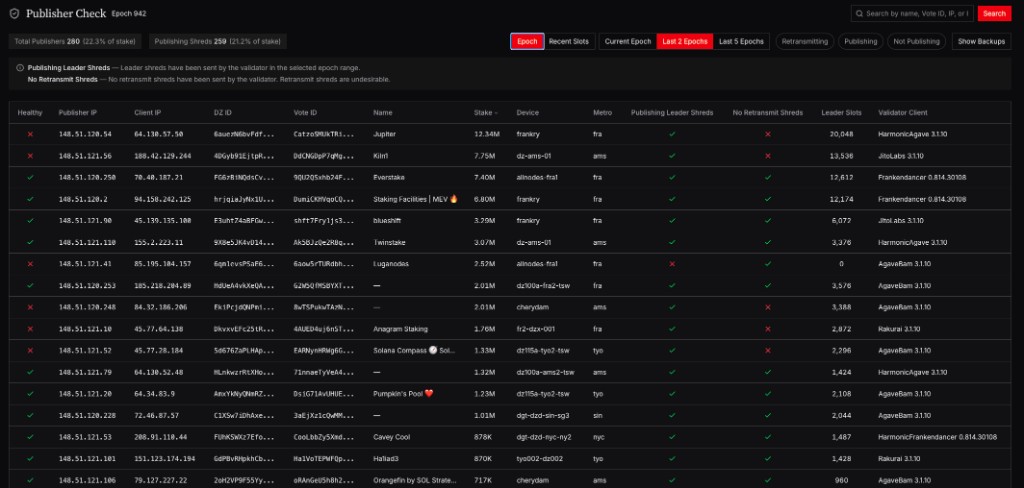
Once you are connected you may check [this dashboard](https://data.doublezero.xyz/dz/publisher-check) to confirm you are publishing shreds. You will not see confirmation until after you have published leader shreds for at least one slot.
## Multicast Endpoints (IP vs Port)
For shred traffic, the **IP address** selects the multicast feed and the **port** selects the UDP service.
All feeds below use UDP port `7733`.
You can discover the current group IPs with:
```bash
doublezero multicast group list
```
- `edge-solana-shreds` (leader): `233.84.178.1:7733`
- `edge-solana-retrans-eu`: `233.84.178.12:7733`
- `edge-solana-retrans-apac`: `233.84.178.13:7733`
- `edge-solana-retrans-amer`: `233.84.178.14:7733`
For API references and machine-readable data endpoints, see [https://data.doublezero.xyz/api/v1/docs](https://data.doublezero.xyz/api/v1/docs).
## 3. Validator Rewards
For each epoch where validators publish leader shreds, they will be proportionately rewarded for their contribution based on subscriptions. The specifics of this system will be announced, and detailed at a later date.
## Troubleshooting
### Not Publishing Leader Shreds:
The most common culprit in not transmitting shreds is client version:
You must be running Jito-Agave 3.1.9+, JitoBam 3.1.9+, Frankendancer, or Harmonic 3.1.11+. Other client versions will not work.
### Retransmitting:
1. A common cause of shred retransmission is a simple config. You may have the flag enabled to send retransmit shreds in your startup script; you will need to disable it.
The flag to remove in Jito-Agave is: `--shred-retransmit-receiver-address`.
1. Check the [publisher dashboard](https://data.doublezero.xyz/dz/publisher-check) and see if you have any retransmitted shreds. In the table, look at the **No Retransmit Shreds** column—a red X means you are retransmitting.
!!! note "epoch view"
Note that there are different time windows to view the publisher dashboard. If you see retransmit in the **2 epoch view**, but have made a recent change, try switching to the **recent slot** view.
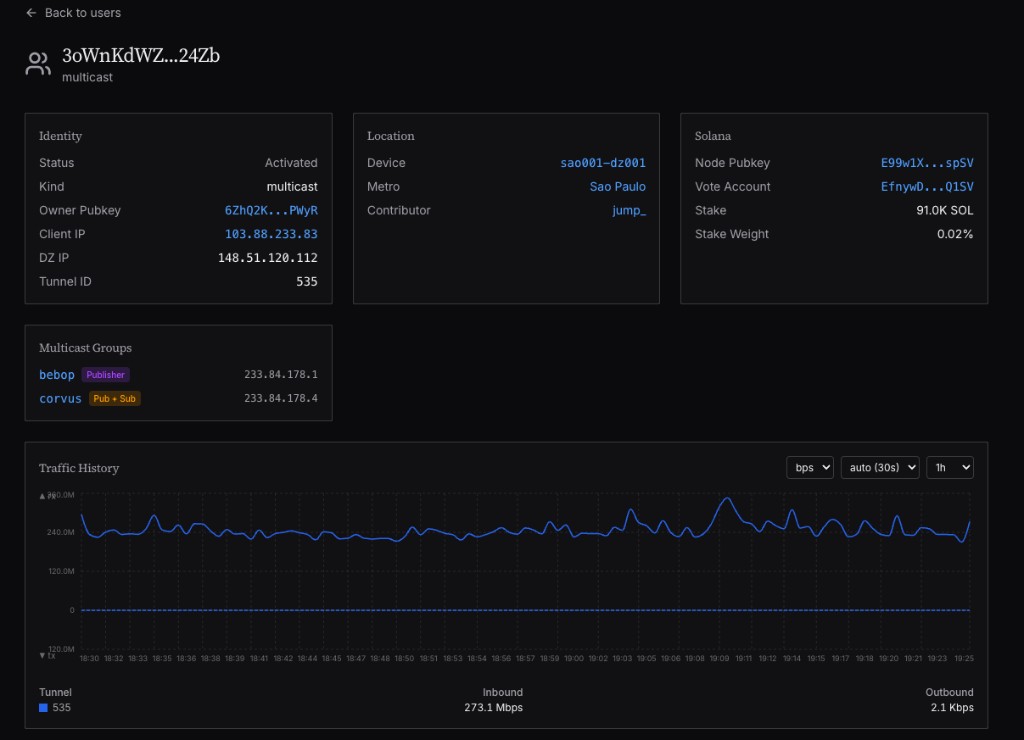
2. Find your client IP and look up your user in [DoubleZero Data](https://data.doublezero.xyz/dz/users).

3. Click on **Multicast** to open your multicast view.
The screenshot below shows: **Retransmitting** (undesirable) steady outbound traffic with no leader-slot pattern.
The screenshot below shows: **Healthy** (publishing only leader shreds) outbound traffic in spikes, known as a sawtooth pattern, which line up with your leader slots.
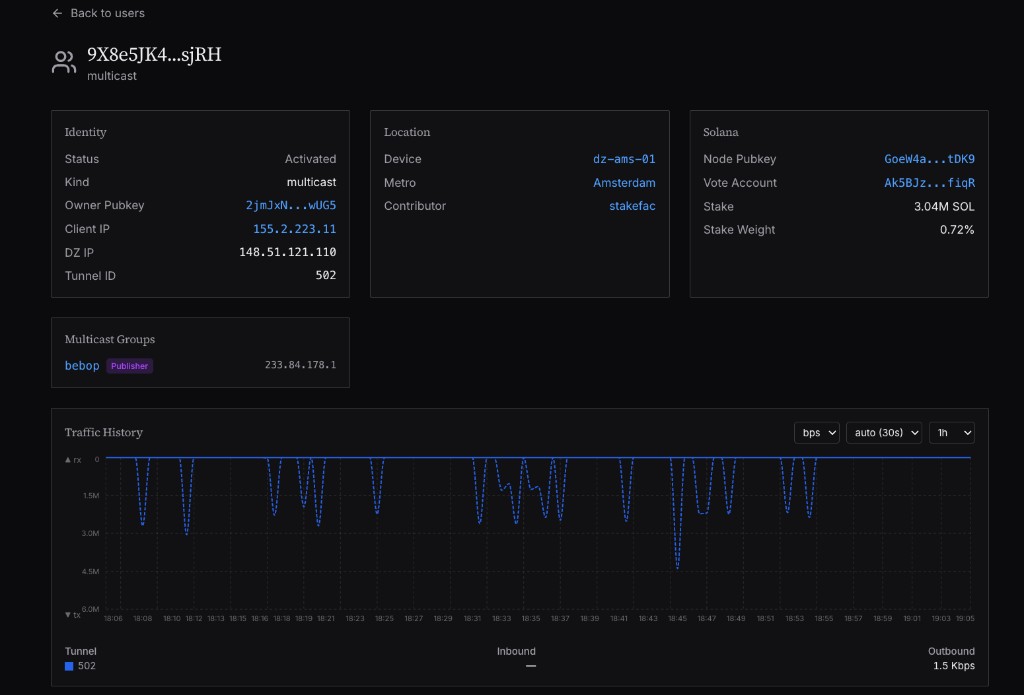
The chart shows whether you are sending only leader shreds. Traffic spikes should line up with when you have a leader slot. When you have no leader slot there should be no traffic. If you are retransmitting, you will see a steady flow of traffic instead of slot-aligned spikes.
---
# Subscribe to shreds (Edge)
Source: https://docs.doublezero.xyz/Edge%20Subscriber%20Connection/
# Edge Subscriber Connection
!!! warning "By connecting to DoubleZero I agree to the [DoubleZero Terms of Use](https://doublezero.xyz/terms-protocol). Please note that the data is for your internal purposes only and may not be retransmitted (see Section 2(e))."
!!! warning "Already on the CLI subscription?"
If you subscribed through the **CLI** (`doublezero-solana shreds pay` / escrow seats), use the [CLI subscription page](Edge Subscriber CLI.md) for those commands. That system is being **decommissioned on August 30, 2026**. New subscriptions follow this page.
## Step 1: DoubleZero Setup
### Complete Setup
Install the [Solana CLI](https://docs.anza.xyz/cli/install).
Follow the [setup](setup.md) instructions to install and configure the DoubleZero client.
If you have previously set up DoubleZero, ensure you have the latest Doublezero-Solana CLI with `sudo apt update && sudo apt install doublezero-solana`
### Configure the Firewall
Allow GRE, BGP, PIM, and shred traffic.
**iptables:**
```bash
sudo iptables -A OUTPUT -p gre -j ACCEPT
sudo iptables -A INPUT -i doublezero1 -s 169.254.0.0/16 -d 169.254.0.0/16 -p tcp --dport 179 -j ACCEPT
sudo iptables -A OUTPUT -o doublezero1 -s 169.254.0.0/16 -d 169.254.0.0/16 -p tcp --dport 179 -j ACCEPT
sudo iptables -A OUTPUT -o doublezero1 -p pim -j ACCEPT
sudo iptables -A INPUT -i doublezero1 -p udp --dport 7733 -j ACCEPT
sudo iptables -A INPUT -i doublezero0 -p udp --dport 44880 -j ACCEPT
```
**UFW:**
```bash
sudo ufw allow proto gre from any to any
sudo ufw allow in on doublezero1 from 169.254.0.0/16 to 169.254.0.0/16 port 179 proto tcp
sudo ufw allow out on doublezero1 from 169.254.0.0/16 to 169.254.0.0/16 port 179 proto tcp
sudo ufw allow out on doublezero1 proto pim from any to any
sudo ufw allow in on doublezero1 to any port 7733 proto udp
sudo ufw allow in on doublezero0 to any port 44880 proto udp
```
---
## Step 2: Choose a metro
Identify the lowest-latency location from the machine that will receive shreds:
```bash
doublezero latency
```
Note the metro / city from the lowest-latency result. You will select that city on the application form. See the [topology map](https://data.malbeclabs.com/topology/map?overlays=metroClustering%2Cbandwidth) for how metros are grouped.
### Pricing
Seats are billed **per month**, per machine, in the metro you select:
| Metros | Price |
|--------|-------|
| Frankfurt, Amsterdam | $1,500 / month |
| London, New York, Singapore, Tokyo | $900 / month |
| All other locations | $450 / month |
---
## Step 3: Submit Request
1. Go to [https://doublezero.xyz/edge/subscribe](https://doublezero.xyz/edge/subscribe).
2. Select **Solana Shreds**.
3. Select the **city** (metro) you need. Use the table above and `doublezero latency` to choose.
4. Finish the application form.
You will assign a DoubleZero ID (existing key, or generate a new one) to each feed request on the [accounts](https://doublezero.xyz/shreds/account) page. The matching **private key must be present on the machine that will receive shreds** — do not assign a pubkey whose private key you cannot move to that host.
You pick a **metro** and a **pubkey**. You do **not** bind a public IP at application time. During the subscription you can move access between IPs **within the chosen metros**.
Our team reviews applications and contacts you in a timely manner (expect **2 business days**).
---
## Step 4: Connect after approval
After we contact you, you receive an invoice, and that invoice is paid, connect on each approved machine:
```bash
doublezero connect multicast --subscribe-feed solana-shreds-full
```
Access is enabled on your chosen start date, after access is provisioned you may check the tunnel status with:
```bash
doublezero status
```
---
## Billing
Seats are charged **monthly**. Watch the seat expiration date.
You will be invoiced a few days before the seat expires. **Not paying leads to removal of the seat.**
---
## Shred Addresses (IP vs Port)
Leader Shreds and high-stake Retransmit Shreds will arrive over port `7733`, over the `doublezero1` interface. The `doublezero0` interface is for unicast traffic. Port `5765` is a heartbeat monitor from the shred publishers — this will not contain shreds.
For shred consumption, **IP address** identifies the multicast stream and **port** identifies the UDP service on that stream.
All shred streams below use UDP port `7733` on `doublezero1`.
You examine any multicast group's IPs with:
```bash
doublezero multicast group list
```
### Leader Shreds
- `edge-solana-shreds`: `233.84.178.1:7733`
### Root Shreds
- `edge-solana-root`: `233.84.178.16:7733`
### Retransmit Shreds
- `edge-solana-retrans-eu`: `233.84.178.12:7733`
- `edge-solana-retrans-apac`: `233.84.178.13:7733`
- `edge-solana-retrans-amer`: `233.84.178.14:7733`
## GRE Tunnel Header — XDP
!!! note "Shred traffic delivered over the network is GRE-encapsulated. You may need to strip the GRE header before feeding data into your existing pipeline (e.g. an XDP-based deshredder)."
---
## Tools and Dashboards
### [Edge Scoreboard](https://data.doublezero.xyz/dz/shreds/scoreboard)
Scoreboard benchmarks shred delivery speed across DoubleZero Edge and other providers, using slot-level data to compare performance in real time. Use this dashboard to see a view of Edge shreds win rates against other providers. You can view results for leader shreds only, in addition to full feed comparison. You can also drill down by region to see expected performance.
### [Edge Publishers](https://data.doublezero.xyz/dz/shreds/publishers)
The "Publishing Shreds" metric at the top left of the dashboard shows the total percent of stake weight of all Solana validators publishing leader shreds on DoubleZero Edge. You can see details for each publisher on the network.
### [Edge Subscribers, Devices and Activity](https://data.doublezero.xyz/dz/shreds/subscribers)
You can search your Client IP on this page for subscribed seats and view status. You can also view available devices on the [Devices](https://data.doublezero.xyz/dz/shreds/devices) page and all recent activity on the [Activity](https://data.doublezero.xyz/dz/shreds/activity) page.
### Data API Docs
For programmatic access to data endpoints, see the API documentation: [https://data.doublezero.xyz/api/v1/docs](https://data.doublezero.xyz/api/v1/docs).
---
## Troubleshooting
If you run into an issue not covered here, please reach out over your existing channel before working around it. If you do not have a channel, please search [Discord](https://discord.gg/U2fEb4Jq) and open a ticket if required.
### Ensure your Client is up to date:
Run: `sudo apt update && sudo apt install doublezero-solana`
### Tunnel not coming up
1. Verify the daemon is running: `sudo systemctl status doublezerod`
2. Verify firewall rules are in place (GRE, BGP, PIM, shred traffic on `doublezero1`, port 44880 on `doublezero0`)
3. Confirm the invoice for this seat is paid and the start date has passed
4. Run `doublezero connect multicast --subscribe-feed solana-shreds-full` on the machine that holds the assigned private key
5. Check your connection status: `doublezero status`
The DoubleZero ID used on the accounts page must match the key on this host.
### Seat expired or removed
Seats are monthly. If the invoice sent before expiry is not paid, the seat is removed and the tunnel will not stay up.
### "Multicast user already exists"
You already have an active subscription through a different path. Disconnect first with `doublezero disconnect`, then retry `doublezero connect multicast --subscribe-feed solana-shreds-full`.
---
# Permissioned / RPC
Source: https://docs.doublezero.xyz/Permissioned%20Connection/
# Non-Validator Permissioned Connection to DoubleZero in IBRL Mode
!!! warning "By connecting to DoubleZero I agree to the [DoubleZero Terms of Service](https://doublezero.xyz/terms-protocol)"
### Permissioned User Onboarding Overview
User onboarding is currently permissioned for non-validators and RPCs. To begin the permissioned flow, please fill out [this form](https://forms.fillout.com/t/s77k7wandMus?id=rec08iF4Z8kVFGm1z). Here is what to expect during this process:
- There may be fees associated with Permissioned User usage in the future.
- After form submission monitor your primary Telegram contact.
### Connecting to Mainnet-Beta and Testnet in IBRL Mode
!!! Note inline end
IBRL mode does not require restarting validator clients, because it uses your existing public IP address.
Permissioned Users will complete connection to DoubleZero Mainnet-beta, which is detailed on this page.
## 1. Confirm the client network
Please follow the [setup](setup.md) instructions before proceeding. Install the Mainnet-Beta or Testnet packages for the network you want — they use different package repos.
The last step in setup was to disconnect from the network. This is to ensure that only one tunnel is open on your machine to DoubleZero, and that tunnel is on the correct network.
Confirm with:
```bash
doublezero status
```
The `Network` column should match the network you intend to join. If it does not, use the copy-paste switch in [troubleshooting](troubleshooting.md#issue-wrong-doublezero-environment).
After about 30 seconds you will see the DoubleZero devices available:
```bash
doublezero latency
```
Example output (Testnet)
```bash
pubkey | code | ip | min | max | avg | reachable
2hPMFJHh5BPX42ygBvuYYJfCv9q7g3rRR3ZRsUgtaqUi | dz-ny7-sw01 | 137.239.213.162 | 1.74ms | 1.92ms | 1.84ms | true
ETdwWpdQ7fXDHH5ea8feMmWxnZZvSKi4xDvuEGcpEvq3 | dz-ny5-sw01 | 137.239.213.170 | 1.88ms | 4.39ms | 2.72ms | true
8J691gPwzy9FzUZQ4SmC6jJcY7By8kZXfbJwRfQ8ns31 | nyc002-dz002 | 38.122.35.137 | 2.45ms | 3.30ms | 2.74ms | true
8gisbwJnNhMNEWz587cAJMtSSFuWeNFtiufPuBTVqF2Z | dz-ny7-sw02 | 142.215.184.122 | 1.88ms | 5.13ms | 3.02ms | true
uzyg9iYw2FEbtdTHaDb5HoeEWYAPRPQgvsgyd873qPS | nyc001-dz002 | 4.42.212.122 | 3.17ms | 3.63ms | 3.33ms | true
FEML4XsDPN3WfmyFAXzE2xzyYqSB9kFCRrMik8JqN6kT | nyc001-dz001 | 38.104.167.29 | 2.33ms | 5.46ms | 3.39ms | true
9oKLaL6Hwno5TyAFutTbbkNrzxm1fw9fhzkiUHgsxgGx | dz-dc10-sw01 | 137.239.200.186 | 6.84ms | 7.01ms | 6.91ms | true
DESzDP8GkSTpQLkrUegLkt4S2ynGfZX5bTDzZf3sEE58 | was001-dz002 | 38.88.214.133 | 7.39ms | 7.44ms | 7.41ms | true
HHNCpqB7CwHVLxAiB1S86ko6gJRzLCtw78K1tc7ZpT5P | was001-dz001 | 66.198.11.74 | 7.67ms | 7.85ms | 7.76ms | true
9LFtjDzohKvCBzSquQD4YtL3HwuvkKBDE7KSzb8ztV2b | dz-mtl11-sw01 | 134.195.161.10 | 9.88ms | 10.01ms | 9.95ms | true
9M7FfYYyjM4wGinKPofZRNmQFcCjCKRbXscGBUiXvXnG | dz-tor1-sw01 | 209.42.165.10 | 14.52ms | 14.53ms | 14.52ms | true
```
Testnet output will be identical in structure, but with many more available devices.
## 2. Contact the DoubleZero Foundation
The DoubleZero foundation. You will need to provide your `DoubleZeroID`, your `Validator ID` (node ID), and the `public ipv4 address` you will be connecting from.
## 3. Connect in IBRL Mode
On the server, with the user which will connect to DoubleZero, run the `connect` command to establish the connection to DoubleZero.
```bash
doublezero connect ibrl
```
You should see output indicating provisioning, such as:
```
DoubleZero Service Provisioning
🔗 Start Provisioning User...
Public IP detected: 137.184.101.183 - If you want to use a different IP, you can specify it with `--client-ip x.x.x.x`
🔍 Provisioning User for IP: 137.184.101.183
User account created
Connected to device: nyc-dz001
The user has been successfully activated
Service provisioned with status: ok
✅ User Provisioned
```
Wait one minute for the tunnel to complete. Until the tunnel is completed, your status output may return "down" or "Unknown"
Verify your connection:
```bash
doublezero status
```
**Output:**
```bash
Tunnel status | Last Session Update | Tunnel Name | Tunnel src | Tunnel dst | DoubleZero IP | User Type
up | 2025-09-10 12:16:03 UTC | doublezero0 | 137.184.101.183 | 64.86.249.22 | 137.184.101.183 | IBRL
```
A status of `up` means you are successfully connected.
You will be able to view routes propagated by other users on DoubleZero by running:
```
ip route
```
Output:
```
default via 149.28.38.1 dev enp1s0 proto dhcp src 149.28.38.64 metric 100
5.39.216.186 via 169.254.0.68 dev doublezero0 proto bgp src 149.28.38.64
5.39.251.201 via 169.254.0.68 dev doublezero0 proto bgp src 149.28.38.64
5.39.251.202 via 169.254.0.68 dev doublezero0 proto bgp src 149.28.38.64
...
```
### Up Next: Multicast
If you have completed this setup and plan to use Multicast, proceed to the [next page](Other%20Multicast%20Connection.md).
---
# Other multicast
Source: https://docs.doublezero.xyz/Other%20Multicast%20Connection/
# Other Multicast Connection
!!! warning "By connecting to DoubleZero I agree to the [DoubleZero Terms of Service](https://doublezero.xyz/terms-protocol)"
Detailed connection information:
### 1. DoubleZero Client Installation
Please follow the [setup](setup.md) instructions to Install and configure the DoubleZero client.
### 2. Connection Instructions
Connect to DoubleZero in Multicast Mode
As a publisher:
```doublezero connect multicast --publish ```
or as a subscriber:
```doublezero connect multicast --subscribe ```
or to publish and subscribe:
```doublezero connect multicast --publish --subscribe ```
To publish or subscribe to multiple feeds you can include multiple feed names space separated.
This can also be use to publish and subscribe to publish feeds.
For example
```doublezero connect multicast --subscribe feed1 feed2 feed3```
You should see output similar to the following:
```
DoubleZero Service Provisioning
🔗 Start Provisioning User to devnet...
Public IP detected: 137.174.145.145 - If you want to use a different IP, you can specify it with `--client-ip x.x.x.x`
DoubleZero ID:
🔍 Provisioning User for IP:
Creating an account for the IP:
The Device has been selected:
Service provisioned with status: ok
✅ User Provisioned
```
### 3. Verify your active multicast connection.
Wait for 60 seconds and then run
```
doublezero status
```
Expected result:
- BGP Session Up on the correct DoubleZero Network
- If you are a publisher, your DoubleZero IP will be different than your Tunnel Src IP. This is expected.
- If you are a subscriber only, your DoubleZero IP will be the same as your Tunnel Src IP.
```
~$ doublezero status
Tunnel Status | Last Session Update | Tunnel Name | Tunnel Src | Tunnel Dst | Doublezero IP | User Type | Current Device | Lowest Latency Device | Metro | Network
BGP Session Up | 2026-02-11 20:46:20 UTC | doublezero1 | 137.174.145.145 | 100.0.0.1 | 198.18.0.1 | Multicast | ams-dz001 | ✅ ams-dz001 | Amsterdam | Testnet
```
Verify the groups you're connected to:
```
doublezero user list --client-ip
```
|account | user_type | groups | device | location | cyoa_type | client_ip | dz_ip | accesspass | tunnel_id | tunnel_net | status | owner |
|----|----|----|----|----|----|----|----|----|----|----|----|----|
|wQWmt7L6mTyszhyLywJeTk85KJhe8BGW4oCcmxbhaxJ | Multicast | P:mg02 | ams-dz001 | Amsterdam | GREOverDIA | 137.174.145.145 | 198.18.0.1 | Prepaid: (MAX) | 515 | 169.254.3.58/31 | activated | DZfHfcCXTLwgZeCRKQ1FL1UuwAwFAZM93g86NMYpfYan|
---
# Troubleshoot Edge
Source: https://docs.doublezero.xyz/troubleshooting/
# Troubleshooting
This guide will cover a variety of issues, and is ongoing. If you complete the guide you can seek further support in the [DoubleZero Tech](https://discord.com/channels/1341597747932958802/1344323790464880701) discord.
## Common Commands and Outputs
To begin, examine the output of the following commands, and their expected output. These will assist you in more detailed troubleshooting.
If you open a ticket, you may be asked for their output.
#### 1. Check Version
Command:
`doublezero --version`
Sample Output:
```
DoubleZero 0.6.3
```
[comment]: # (when repo is public add this link to check https://github.com/malbeclabs/doublezero)
#### 2. Check DoubleZero Address
Command:
`doublezero address`
Sample Output:
```
MTAwoHgKyTwwDGJo2dye6EWqyTn27JRwXxaDEaeMqe2
```
[comment]: # ()
#### 3. Verify your Access Pass
Sample pubkey: `MTAwoHgKyTwwDGJo2dye6EWqyTn27JRwXxaDEaeMqe2` replace this with your pubkey when running command.
Command:
`doublezero access-pass list | grep MTAwoHgKyTwwDGJo2dye6EWqyTn27JRwXxaDEaeMqe2`
Output: [note we use `doublezero access-pass list | awk 'NR==1 || /MTAwoHgKyTwwDGJo2dye6EWqyTn27JRwXxaDEaeMqe2/'` to show you the header now in this output]
```
account | accesspass_type | ip | user_payer | last_access_epoch | remaining_epoch | connections | status | owner
2XHCWm8Sef1GirhAhAJVA8WTXToPT6gFYP7fA9mWMShR | prepaid | 141.14.14.14 | MTAwoHgKyTwwDGJo2dye6EWqyTn27JRwXxaDEaeMqe2 | MAX | MAX | 0 | requested | DZfHh2vjXFqt8zfNbT1afm8PGuCm3BrQKegC5THtKFdn
```
[comment]: # ()
#### 4. Check DoubleZero Ledger Credits
Command:
`doublezero balance`
Sample Output:
```
0.78 Credits
```
[comment]: # (add section linked later for 0 balance mainnet/testnet)
#### 5. Check Connection Status
Command:
`doublezero status`
Sample Output:
```bash
Tunnel status | Last Session Update | Tunnel Name | Tunnel src | Tunnel dst | Doublezero IP | User Type | Current Device | Lowest Latency Device | Metro | Network
up | 2025-10-20 12:12:55 UTC | doublezero0 | 11.11.11.111 | 12.34.56.789 | 11.11.11.111 | IBRL | ams-dz001 | ✅ ams-dz001 | Amsterdam | testnet
```
[comment]: # (in next iteration add "up" "unknown" and "down" explainers, which then link to a sectino below for troubleshooting undesired states.)
#### 6. Check Latency
Command:
`doublezero latency`
Sample Output:
```
pubkey | code | ip | min | max | avg | reachable
6E1fuqbDBG5ejhYEGKHNkWG5mSTczjy4R77XCKEdUtpb | nyc-dz001 | 64.86.249.22 | 2.49ms | 2.61ms | 2.56ms | true
Cpt3doj17dCF6bEhvc7VeAuZbXLD88a1EboTyE8uj6ZL | lon-dz001 | 195.219.120.66 | 71.94ms | 72.11ms | 72.02ms | true
CT8mP6RUoRcAB67HjKV9am7SBTCpxaJEwfQrSjVLdZfD | lax-dz001 | 207.45.216.134 | 72.42ms | 72.51ms | 72.45ms | true
4Wr7PQr5kyqCNJo3RKa8675K7ZtQ6fBUeorcexgp49Zp | ams-dz001 | 195.219.138.50 | 76.50ms | 76.71ms | 76.60ms | true
29ghthsKeH2ZCUmN2sUvhJtpEXn2ZxqAuq4sZFBFZmEs | fra-dz001 | 195.219.220.58 | 83.00ms | 83.14ms | 83.08ms | true
hWffRFpLrsZoF5r9qJS6AL2D9TEmSvPUBEbDrLc111Y | fra-dz-001-x | 195.12.227.250 | 84.81ms | 84.89ms | 84.85ms | true
8jyamHfu3rumSEJt9YhtYw3J4a7aKeiztdqux17irGSj | prg-dz-001-x | 195.12.228.250 | 104.81ms | 104.83ms | 104.82ms | true
5tqXoiQtZmuL6CjhgAC6vA49JRUsgB9Gsqh4fNjEhftU | tyo-dz001 | 180.87.154.78 | 178.04ms | 178.23ms | 178.13ms | true
D3ZjDiLzvrGi5NJGzmM7b3YZg6e2DrUcBCQznJr3KfC8 | sin-dz001 | 180.87.102.98 | 227.67ms | 227.85ms | 227.75ms | true
```
[comment]: # ()
# Troubleshooting Examples
Now that we have examined basic outputs, and what is expected in a healthy deployment we can examine some common troubleshooting examples.
### Issue: ❌ Error creating user
This issue is generally related to a mismatch between the expected pubkey/IP pairing and the pubkey/IP pairing the user is trying to access DoubleZero with.
**Symptoms:**
- When connecting with `doublezero connect ibrl` the user encounters `❌ Error creating user`
**Solutions:**
1. Check
`doublezero address`
Sample Output:
```
MTAwoHgKyTwwDGJo2dye6EWqyTn27JRwXxaDEaeMqe2
```
2. verify that this address is allow listed:
`doublezero access-pass list | awk 'NR==1 || /MTAwoHgKyTwwDGJo2dye6EWqyTn27JRwXxaDEaeMqe2/'`
Sample Output:
```
account | accesspass_type | ip | user_payer | last_access_epoch | remaining_epoch | connections | status | owner
FHyoPs7U23MuSTtepEyXUtSAEffEpFpJGoYvug8X2sWY | prepaid | 141.14.14.14 | MTAwoHgKyTwwDGJo2dye6EWqyTn27JRwXxaDEaeMqe2 | MAX | MAX | 0 | requested | DZfHh2vjXFqt8zfNbT1afm8PGuCm3BrQKegC5THtKFdn
```
The pubkey from `doublezero address` must match the user_payer pubkey and the IP Address you are trying to connect from must match the ip in the Access-Pass.
`doublezero address` is sourced from the id.json file in in ~/.config/doublezero/ by default. See the [step 6 here]()
3. If the above looks correct and you are getting an error while connecting or if the above mapping is incorrect please contact support in [DoubleZero Tech](https://discord.com/channels/1341597747932958802/1344323790464880701)
### Issue: ❌ Error provisioning service: malformed stuff: cannot provision multiple tunnels at the same time
This error signifies that a device is already connected to DoubleZero.
**Symptoms:**
- User tries to connect to DoubleZero
- `❌ Error provisioning service: malformed stuff: cannot provision multiple tunnels at the same time` is encountered.
**Solutions:**
1. Check
`doublezero status`
Output:
```bash
Tunnel status | Last Session Update | Tunnel Name | Tunnel src | Tunnel dst | Doublezero IP | User Type | Current Device | Lowest Latency Device | Metro | Network
up | 2025-10-20 12:12:55 UTC | doublezero0 | 11.11.11.111 | 12.34.56.789 | 11.11.11.111 | IBRL | ams-dz001 | ✅ ams-dz001 | Amsterdam | testnet
```
2. -`up`- signifies a healthy connection.
3. The error appears because a tunnel to DoubleZero with the specific DoubleZero IP is already active on this machine.
This error is often encountered after a DoubleZero client upgrade. DoubleZero upgrades automatically restart the doublezerod service and will reconnect you if you were connected prior to the service restart.
### Issue: DoubleZero Status is unknown, or down
This issue is often related to the GRE tunnel being successfully activated between the server and the DoubleZero Device, but a firewall preventing BGP session establishment. Because of this you are not receiving routes from the network or sending traffic over DoubleZero.
**Symptoms:**
- `doublezero connect ibrl` was successful. However, `doublezero status` returns `down` or `unknown`
```
doublezero connect ibrl
DoubleZero Service Provisioning
🔗 Start Provisioning User...
Public IP detected: 111.11.11.11 - If you want to use a different IP, you can specify it with `--client-ip x.x.x.x`
🔍 Provisioning User for IP: 111.11.11.11
User account created
Connected to device: nyc-dz001
The user has been successfully activated
Service provisioned with status: ok
✅ User Provisioned
```
```bash
Tunnel status | Last Session Update | Tunnel Name | Tunnel src | Tunnel dst | Doublezero IP | User Type | Current Device | Lowest Latency Device | Metro | Network
up | 2025-10-20 12:12:55 UTC | doublezero0 | 11.11.11.111 | 12.34.56.789 | 11.11.11.111 | IBRL | ams-dz001 | ✅ ams-dz001 | Amsterdam | testnet
```
**Solutions:**
1. Check your firewall rules!
DoubleZero uses link local address space: 169.254.0.0/16 for the GRE tunnel interfaces between your machine and the DoubleZero Device. 169.254.0.0/16 is typically "non-routable" space and thus good security practices will recommend you blocking communications to/from this space. You will need to permit a rule in your firewall which enables src 169.254.0.0/16 to communicate with dst 169.254.0.0/16 on tcp port 179. That rule will need to be place above any rules that Deny traffic to 169.254.0.0/16.
In a firewall like ufw you can run `sudo ufw status` to view the firewalls rules and
Sample Output which may be something similar to what a Solana validator would have.
```
To Action From
-- ------ ----
22/tcp ALLOW Anywhere
8899/tcp ALLOW Anywhere
8000:10000/tcp ALLOW Anywhere
8000:10000/udp ALLOW Anywhere
11200:11300/udp ALLOW Anywhere
11200:11300/tcp ALLOW Anywhere
To Action From
-- ------ ----
10.0.0.0/8 DENY OUT Anywhere
169.254.0.0/16 DENY OUT Anywhere
172.16.0.0/12 DENY OUT Anywhere
192.168.0.0/16 DENY OUT Anywhere
```
In the above output you see all traffic to 169.254.0.0/16, except for the ports specified, is denied.
`sudo ufw insert allow proto tcp from 169.254.0.0/16 to 169.254.0.0/16 port 179` to insert the rule in the position. ie. if N = 1 then you will insert this rules as the first rule.
`sudo ufw status numbered` will show you the numerical ordering of rules.
### Issue: Nearest DoubleZero device has changed
This is not an error, but can be an optimization. Below is a best practice which can be run from time to time, or automated.
**Solutions:**
1. Check latency to the nearest device
- run `doublezero latency`
output
```
pubkey | code | ip | min | max | avg | reachable
2hPMFJHh5BPX42ygBvuYYJfCv9q7g3rRR3ZRsUgtaqUi | dz-ny7-sw01 | 137.239.213.162 | 1.80ms | 1.90ms | 1.84ms | true
ETdwWpdQ7fXDHH5ea8feMmWxnZZvSKi4xDvuEGcpEvq3 | dz-ny5-sw01 | 137.239.213.170 | 1.83ms | 2.10ms | 1.92ms | true
8gisbwJnNhMNEWz587cAJMtSSFuWeNFtiufPuBTVqF2Z | dz-ny7-sw02 | 142.215.184.122 | 1.87ms | 2.66ms | 2.15ms | true
8J691gPwzy9FzUZQ4SmC6jJcY7By8kZXfbJwRfQ8ns31 | nyc002-dz002 | 38.122.35.137 | 2.33ms | 2.39ms | 2.37ms | true
FEML4XsDPN3WfmyFAXzE2xzyYqSB9kFCRrMik8JqN6kT | nyc001-dz001 | 38.104.167.29 | 2.29ms | 2.59ms | 2.40ms | true
```
note above the nearest device is `dz-ny7-sw01 `
We want to connect to this device. :
2. Determine if you are already connected to the target device
- run `doublezero user list --env testnet | grep 111.11.11.11` replace `111.11.11.11` with your devices public ipv4 address which is connected to DoubleZero. You may also use your validator ID, or doublezero ID.
output
```
account | user_type | groups | device | location | cyoa_type | client_ip | dz_ip | accesspass | tunnel_id | tunnel_net | status | owner
6QRU1ivJnKGHpom2BdzH9PiTRkJ5WhunPNLtfYcqVisW | IBRL | | dz-ny7-sw01 | New York | GREOverDIA | 111.11.11.11 | 111.11.11.11 | Prepaid: (MAX) | 514 | 111.254.1.111/31 | activated | DZfHh2vjXFqt8zfNbT1afm8PGuCm3BrQKegC5THtKFdn
```
In this example, we are already connected to the nearest device. No more steps are needed, we can stop here.
Let us consider instead if the output was
```
account | user_type | groups | device | location | cyoa_type | client_ip | dz_ip | accesspass | tunnel_id | tunnel_net | status | owner
6QRU1ivJnKGHpom2BdzH9PiTRkJ5WhunPNLtfYcqVisW | IBRL | | fra-dz-001-x | New York | GREOverDIA | 111.11.11.11 | 111.11.11.11 | Prepaid: (MAX) | 514 | 111.254.1.111/31 | activated | DZfHh2vjXFqt8zfNbT1afm8PGuCm3BrQKegC5THtKFdn
```
This would be a sub-optimal connection. Let us consider if reconnection is needed.
Prior to connection, we will check if the device has available user tunnels.
3. Optional: examine the network for available devices
For educational purposes we will first:
- run `doublezero device list` for a full list of devices. We have pulled 2 devices as an example to explain the output.
output:
```
account | code | contributor | location | exchange | device_type | public_ip | dz_prefixes | users | max_users | status | mgmt_vrf | owner
GphgLkA7JDVtkDQZCiDrwrDvaUs8r8XczEae1KkV6CGQ | ams001-dz002 | jump_ | EQX-AM4 | ams | switch | 149.11.64.57 | 38.246.201.64/27 | 69 | 128 | activated | | H647kAwTcWsGXZUK3BTr1JyTBZmbNcYyCmRFFCEnXUVp
7FfrX8YbvbzM8A1ojNynP9BjiKpK9rrmhdEdchB2myhG | dz-fr5-sw01 | glxy | EQX-FR5 | fra | switch | 89.222.118.225 | 89.222.118.228/30 | 0 | 0 | activated | | 5YbNrJHJJoiRwVEvgAWRGdFRG9gRdZ47hLCKSym8bqbp
```
Note above that `ams001-dz002` has 69 users, and 128 max users. This device is able to add 59 users.
However, `dz-fr5-sw01` has 0 users, and 0 max users. You will not be able to connect to this device. With a max users of 0, the device is not accepting any connections.
Now let us return to connecting to our nearest device.
4. Determine if the target device has an available connection
- run `doublezero device list | grep dz-ny7-sw01` replace `dz-ny7-sw01` with your target device
output
```
2hPMFJHh5BPX42ygBvuYYJfCv9q7g3rRR3ZRsUgtaqUi | dz-ny7-sw01 | glxy | EQX-NY7 | nyc | switch | 137.239.213.162 | 137.239.216.164/31 | 29 | 128 | activated | | 5YbNrJHJJoiRwVEvgAWRGdFRG9gRdZ47hLCKSym8bqbp
```
here we can see that `dz-ny7-sw01` has available space for connection.
5. Connect to the nearest DoubleZero Device
We will disconnect, and then reconnect to doublezero.
First run
- `doublezero disconnect`
output
```
DoubleZero Service Provisioning
🔍 Decommissioning User
Public IP detected: 111.11.11.11 - If you want to use a different IP, you can specify it with `--client-ip x.x.x.x`
\ [00:00:00] [##########>-----------------------------] 1/4 deleting user account... 🔍 Deleting User Account for: 6QRU1ivJnKGHpom2BdzH9PiTRkJ5WhunPNLtfYcqVisW
🔍 User Account deleted
✅ Deprovisioning Complete
```
now we check the status to confirm our disconnection with
- `doublezero status`
output
```
Tunnel status | Last Session Update | Tunnel Name | Tunnel src | Tunnel dst | Doublezero IP | User Type
disconnected | no session data | | | | |
```
Last we will reconnect with
- `doublezero connect ibrl`
output
```
DoubleZero Service Provisioning
🔗 Start Provisioning User...
Public IP detected: 111.11.11.11 - If you want to use a different IP, you can specify it with `--client-ip x.x.x.x`
🔍 Provisioning User for IP: 111.11.11.11
User account created
Connected to device: dz-ny7-sw01
Service provisioned with status: ok
✅ User Provisioned
```
notice in the above output that we `Connected to device: dz-ny7-sw01` this is the desired result from our initial investigation in step 1, where we discovered that `dz-ny7-sw01` was the device with the lowest latency.
### Issue: wrong DoubleZero environment
Mainnet-Beta and Testnet use different package repos. `doublezero status` shows which network the client is on (`Network` column). If a user installed the wrong client, or the daemon is still pointed at the other env, use these copy-paste switches.
To configure the DoubleZero Client CLI (`doublezero`) and daemon (`doublezerod`) to connect to **DoubleZero testnet**:
```bash
DESIRED_DOUBLEZERO_ENV=testnet \
&& sudo mkdir -p /etc/systemd/system/doublezerod.service.d \
&& echo -e "[Service]\nExecStart=\nExecStart=/usr/bin/doublezerod -sock-file /run/doublezerod/doublezerod.sock -env $DESIRED_DOUBLEZERO_ENV" | sudo tee /etc/systemd/system/doublezerod.service.d/override.conf > /dev/null \
&& sudo systemctl daemon-reload \
&& sudo systemctl restart doublezerod \
&& doublezero config set --env $DESIRED_DOUBLEZERO_ENV > /dev/null \
&& echo "✅ doublezerod configured for environment $DESIRED_DOUBLEZERO_ENV"
```
To configure the DoubleZero Client CLI (`doublezero`) and daemon (`doublezerod`) to connect to **DoubleZero mainnet-beta**:
```bash
DESIRED_DOUBLEZERO_ENV=mainnet-beta \
&& sudo mkdir -p /etc/systemd/system/doublezerod.service.d \
&& echo -e "[Service]\nExecStart=\nExecStart=/usr/bin/doublezerod -sock-file /run/doublezerod/doublezerod.sock -env $DESIRED_DOUBLEZERO_ENV" | sudo tee /etc/systemd/system/doublezerod.service.d/override.conf > /dev/null \
&& sudo systemctl daemon-reload \
&& sudo systemctl restart doublezerod \
&& doublezero config set --env $DESIRED_DOUBLEZERO_ENV > /dev/null \
&& echo "✅ doublezerod configured for environment $DESIRED_DOUBLEZERO_ENV"
```
You should see: `✅ doublezerod configured for environment mainnet-beta` (or `testnet`). Then `doublezero status` should show the matching `Network`.
### Issue: `doublezero status` returns some fields with N/A
This issue is generally related to a mismatch between the current daemon and client, vs the daemon and client the connected DZ tunnel was established in.
**Symptoms:**
- When running `doublezero status` the user encounters `N/A` in some fields
**Solutions:**
1. Run
`doublezero status`
Example:
```
Tunnel status | Last Session Update | Tunnel Name | Tunnel src | Tunnel dst | Doublezero IP | User Type | Current Device | Lowest Latency Device | Metro | Network
up | 2025-10-20 20:06:18 UTC | doublezero0 | 149.28.38.64 | 64.86.249.22 | 149.28.38.64 | IBRL | N/A | ✅ dz-ny7-sw01 | N/A | mainnet-beta
```
Notice in our example output above that the `Tunnel status` is `up`. Our `Network` is `mainnet-beta` However, `Current Device` and `Metro` are `N/A`
This is indicative of an open tunnel on your machine which is not in your current environment.
In this case the `up` status, with no found `Current Device` on `mainnet-beta` reveals to us that our tunnel is on testnet!
2. Switch environment using the copy-paste commands in [wrong DoubleZero environment](#issue-wrong-doublezero-environment). Use the opposite of the `Network` value that is returning `N/A`.
3. Check your status
After switching environments run:
```
doublezero status
```
The expected output should be similar to:
```
Tunnel status | Last Session Update | Tunnel Name | Tunnel src | Tunnel dst | Doublezero IP | User Type | Current Device | Lowest Latency Device | Metro | Network
up | 2025-10-21 12:32:12 UTC | doublezero0 | 149.28.38.64 | 64.86.249.22 | 149.28.38.64 | IBRL | nyc-dz001 | ✅ nyc-dz001 | New York | testnet
```
With all fields populated you are now in the correct environment.
---
# Validator Rewards
Source: https://docs.doublezero.xyz/Validator%20Rewards/
# Validator Rewards
!!! warning "By connecting to DoubleZero, I agree to the [DoubleZero Terms of Use](https://doublezero.xyz/terms-protocol)"
## How it Works
Validators that publish leader shreds to DoubleZero Edge earn rewards each epoch. Before rewards can be paid, each validator must register **where** rewards go by configuring a `ValidatorPublisherRewards` account on Solana. That account stores:
- the **rewards mint** — the token rewards are paid in 2z (unless manually changed)
- the **rewards owner** — the wallet that owns the Associated Token Account (ATA) receiving rewards
The `configure` command will set these fields, and automatic payouts will occur on an epoch by epoch basis thereafter. You can re-run `configure` later to change either field.
!!! info "If you have not yet completed [Setup](setup.md), [Validator Mainnet-Beta Connection](DZ%20Mainnet-beta%20Connection.md), and [Validator Multicast Connection](Validator%20Multicast%20Connection.md), do that first."
## Prerequisites
- Validators publishing leader shreds - see [Validator Multicast Connection](Validator%20Multicast%20Connection.md).
- The latest `doublezero-solana` CLI: `sudo apt update && sudo apt install doublezero-solana`, at a minimum `0.5.6`.
- Access to the **validator identity keypair**, either on the same box or kept offline with the ability to sign a message.
- A destination wallet pubkey that will own the rewards ATA.
---
## 1. Configure to Claim Rewards
Run `configure` with the validator identity keypair as `-k`.
```bash
doublezero-solana shreds publisher-rewards configure \
--node-id \
--rewards-token-owner \
-k
```
Example Output
```bash
Shred subscription - Configure Validator Publisher Rewards
Node ID: ValidatorIdentity111111111111111111111111111
Rewards owner: ValidatorIdentity111111111111111111111111111
Rewards mint: J6pQQ3FAcJQeWPPGppWRb4nM8jU3wLyYbRrLh7feMfvd
Rewards ATA: 11111111111Pt3PatTj59dG5BhYuqPb9QJDUr1111111
Auth path: direct
Configured validator publisher rewards: 41111111ntmoBTnvcKcP1g2a1111111HPoN3z5uf11111112jjzBJsr1B2JrTRff4dSGe1pdM1111111TMADi3Nz
```
`Configured validator publisher rewards: ` outputs the txt you can view in a block explorer.
| Flag | Description |
|---|---|
| `--node-id` | Validator node identity pubkey. |
| `--rewards-token-owner` | Wallet that will own the receiving ATA. |
| `--rewards-token-mint` | The wallet token rewards will be received in `2z`. Supported tokens also include `usdc` and `wsol`. |
| `-k` | Path to the validator identity keypair. On the direct path, the keypair's pubkey must equal `--node-id` or the command will error out and tell you to switch to the offchain path. |
The ATA is auto-initialized in the same transaction if it doesn't yet exist.
!!! note "If Error is Returned"
If `-k` pubkey does not match `--node-id`
The fee-payer keypair you passed isn't the validator identity. Either pass the validator identity keypair as `-k`, or switch to the [offchain path](#apendix-offchain-path-alternative).
---
## 2. Verify the Configuration
```bash
doublezero-solana shreds publisher-rewards show --node-id
```
The command prints the `Node ID`, `Rewards owner`, `Rewards mint`, the resolved ATA address, and the ATA status. The **Resolved ATA** is the deterministic address derived from the rewards owner + rewards mint — it is where rewards will be deposited each epoch.
---
## Apendix: Offchain Path Alternative
Three sub-steps: prepare, sign, configure.
### 1. Prepare the offchain message
Run this anywhere — it's read-only and does not need the validator identity keypair. It prints the hex blob to sign and the absolute slot the signature expires at.
```bash
doublezero-solana shreds publisher-rewards prepare-offchain-message \
--node-id \
--rewards-token-owner \
--valid-for 1h
```
Example Output
```bash
Hex message: 123457fc138f556a2578bdb079dc923342cc4e4a376683dc4c6cb923051e0be3
Deadline slot: 422954444
Sign with:
solana sign-offchain-message 123457fc138f556a2578bdb079dc923342cc4e4a376683dc4c6cb923051e0be3 --keypair
Then submit:
doublezero-solana shreds publisher-rewards configure \
--node-id ValidatorIdentity111111111111111111111111111 --rewards-token-mint J6pQQ3FAcJQeWPPGppWRb4nM8jU3wLyYbRrLh7feMfvd --rewards-token-owner Wallet567Identity111111111111111111111111111 \
--deadline-slot 422954444 --signature
```
| Flag | Description |
|---|---|
| `--node-id` | Validator node identity pubkey. |
| `--rewards-token-owner` | Wallet that will own the receiving ATA. |
| `--rewards-token-mint` | The wallet token rewards will be received in `2z`. Supported tokens also include `usdc` and `wsol`. |
| `--valid-for` | Signature lifetime relative to the current slot. Accepts `s`, `m`, or `h`. Default: `1h`. |
| `--deadline-slot` | Alternative to `--valid-for`: absolute slot the authorization expires at. Mutually exclusive with `--valid-for`. |
| `--json` | Emit JSON (`{ hex, deadline_slot }`) instead of the human summary. |
The command prints the hex-encoded auth message, the resolved deadline slot, and ready-to-run shell snippets for the next two steps.
### 2. Sign the message
On the machine that holds the validator identity keypair:
```bash
solana sign-offchain-message <123457fc138f556a2578bdb079dc923342cc4e4a376683dc4c6cb923051e0be3> \
--keypair
```
This prints a base58 signature.
Example Output
```bash
SignatureTBUwGq511mPLMCEE4f5fNsmX1PQrozXBBJeCdSrcbhqSX1MwFp8NsNZbhCNMZ1kPWakjsLL9e3GUxxp
```
### 3. Submit `configure`
Back on the machine with your fee-payer wallet:
```bash
doublezero-solana shreds publisher-rewards configure \
--node-id \
--rewards-token-owner \
--signature \
--deadline-slot
```
`--signature` and `--deadline-slot` must be passed together. The values must match those produced in steps 2b.i and 2b.ii.
The ATA is auto-initialized in the same transaction if it doesn't yet exist.
Example Output
```bash
Shred subscription - Configure Validator Publisher Rewards
Node ID: ValidatorIdentity111111111111111111111111111
Rewards owner: ValidatorIdentity111111111111111111111111111
Rewards mint: J6pQQ3FAcJQeWPPGppWRb4nM8jU3wLyYbRrLh7feMfvd
Rewards ATA: 11111111111Pt3PatTj59dG5BhYuqPb9QJDUr1111111
Auth path: offchain
Configured validator publisher rewards: 41111111ntmoBTnvcKcP1g2a1111111HPoN3z5uf11111112jjzBJsr1B2JrTRff4dSGe1pdM1111111TMADi3Nz
```
---
!!! note "Note: If Signature is Expired"
Each offchain signature has a deadline slot. If too much time passes between `prepare-offchain-message` and `configure`, re-run `prepare-offchain-message`, re-sign, and re-submit. Default validity is 1 hour — extend with `--valid-for 4h` or similar if you need more time for an offline signing flow.
---
# Shelby
Source: https://docs.doublezero.xyz/shelby/
# Shelby
!!! warning "By connecting to DoubleZero I agree to the [DoubleZero Terms of Service](https://doublezero.xyz/terms-protocol)"
### Get your DoubleZeroID
You will need to provide your `DoubleZeroID`, and the `public ipv4 address` on this [form](https://forms.fillout.com/t/s77k7wandMus?id=rec08iF4Z8kVFGm1z)
- There may be fees associated with Permissioned User usage in the future.
- After form submission monitor your primary Telegram contact.
- At this moment Shelby is only able to connect to DoubleZero Testnet.
### Connecting to Testnet in IBRL Mode
Shelby permissioned users will complete connection to DoubleZero Testnet, which is detailed on this page.
## 1. Environment Configuration
Please follow the [setup](setup.md) instructions before proceeding.
The last step in setup was to disconnect from the network. This is to ensure that only one tunnel is open on your machine to DoubleZero, and that tunnel is on the correct network.
To configure the DoubleZero Client CLI (`doublezero`) to connect to the Shelby tenant on DoubleZero :
```bash
doublezero config set --tenant shelby
```
Apply additional Firewall rules specific to Shelby:
iptables:
```
sudo iptables -A INPUT -i doublezero0 -p tcp --dport 39431 -j ACCEPT
sudo iptables -A INPUT -p tcp --dport 39431 -j DROP
```
UFW:
```
sudo ufw allow in on doublezero0 to any port 39431 proto tcp
sudo ufw deny in to any port 39431 proto tcp
```
## 2. Contact the DoubleZero Foundation
The DoubleZero foundation. You will need to provide your `DoubleZeroID`, and the `public ipv4 address` you will be connecting from.
## 3. Connect in IBRL Mode
On the server, with the user which will connect to DoubleZero, run the `connect` command to establish the connection to DoubleZero.
```bash
doublezero connect ibrl
```
You should see output indicating provisioning, such as:
```
DoubleZero Service Provisioning
🔗 Start Provisioning User...
Public IP detected: 137.184.101.183 - If you want to use a different IP, you can specify it with `--client-ip x.x.x.x`
🔍 Provisioning User for IP: 137.184.101.183
User account created
Connected to device: nyc-dz001
The user has been successfully activated
Service provisioned with status: ok
✅ User Provisioned
```
Wait one minute for the tunnel to complete. Until the tunnel is completed, your status output may return "down" or "Unknown"
Verify your connection:
```bash
doublezero status
```
**Output:**
```bash
Tunnel status | Last Session Update | Tunnel Name | Tunnel src | Tunnel dst | DoubleZero IP | User Type
up | 2025-09-10 12:16:03 UTC | doublezero0 | 137.184.101.183 | 64.86.249.22 | 137.184.101.183 | IBRL
```
A status of `up` means you are successfully connected.
You will be able to view routes propagated by other users on DoubleZero by running:
```
ip route
```
Output:
```
default via 149.28.38.1 dev enp1s0 proto dhcp src 149.28.38.64 metric 100
5.39.216.186 via 169.254.0.68 dev doublezero0 proto bgp src 149.28.38.64
5.39.251.201 via 169.254.0.68 dev doublezero0 proto bgp src 149.28.38.64
5.39.251.202 via 169.254.0.68 dev doublezero0 proto bgp src 149.28.38.64
...
```
---
# Overview
Source: https://docs.doublezero.xyz/contribute-overview/
# Contributor Documentation
!!! info "Terminology"
New to DoubleZero? See the [Glossary](glossary.md) for definitions of key terms like [DZD](glossary.md#dzd-doublezero-device), [DZX](glossary.md#dzx-doublezero-exchange), and [CYOA](glossary.md#cyoa-choose-your-own-adventure).
Welcome to the DoubleZero contributor documentation. This section covers everything you need to become a network contributor.
!!! tip "Interested in becoming a network contributor?"
Review the [Requirements & Architecture](contribute.md) page to understand the hardware, bandwidth, and connectivity needed to contribute to the DoubleZero network.
---
## Onboarding Checklist
Use this checklist to track your progress. **All items must be complete before your contribution is technically operational.**
### Phase 1: Prerequisites
- [ ] DoubleZero CLI installed on a management server
- [ ] Hardware procured and meets [requirements](contribute.md#hardware-requirements)
- [ ] Data center rack space and power available (4U, 4KW recommended)
- [ ] DZD physically installed with management connectivity
- [ ] Public IPv4 block allocated for DZ protocol (**see [DZ Prefix Rules](#dz-prefix-rules)**)
### Phase 2: Account Setup
- [ ] Service keypair generated (`doublezero keygen`)
- [ ] Metrics publisher keypair generated
- [ ] Service key submitted to DZF for authorization
- [ ] Contributor account created onchain (verify with `doublezero contributor list`)
- [ ] Access granted to [malbeclabs/contributors](https://github.com/malbeclabs/contributors) repository
### Phase 3: Device Provisioning
- [ ] Base device configuration applied (from contributors repo)
- [ ] Device created onchain (`doublezero device create`)
- [ ] Device interfaces registered
- [ ] Loopback interfaces created (Loopback255 vpnv4, Loopback256 ipv4)
- [ ] CYOA/DIA interfaces configured (if edge/hybrid device)
### Phase 4: Link Establishment & Agent Installation
- [ ] WAN links created (if applicable)
- [ ] DZX link created (status: `requested`)
- [ ] DZX link accepted by peer contributor
- [ ] Config Agent installed and running
- [ ] Config Agent receiving configuration from controller
- [ ] Telemetry Agent installed and running
- [ ] Metrics publisher registered onchain
- [ ] Telemetry submissions visible on ledger
### Phase 5: Link Burn-in
- [ ] All links drained for 24-hour burn-in period
- [ ] [metrics.doublezero.xyz](https://metrics.doublezero.xyz) shows zero loss and zero errors for 24h
- [ ] Links undrained after clean burn-in
### Phase 6: Verification & Activation
- [ ] `doublezero device list` shows your device (with `max_users = 0`)
- [ ] `doublezero link list` shows your links
- [ ] Config Agent logs show successful config pulls
- [ ] Telemetry Agent logs show successful metric submissions
- [ ] **Coordinate with DZ/Malbec Labs** to run connectivity test (connect, receive routes, route over DZ)
- [ ] After test passes, set `max_users` to 96 via `doublezero device update`
---
## Getting Help
As part of onboarding, DZF will add you to the contributor Slack channels:
| Channel | Purpose |
|---------|---------|
| **#dz-contributor-announcements** | Official communications from DZF and Malbec Labs — CLI/agent upgrades, breaking changes, security announcements. Monitor for critical updates; ask questions in threads. |
| **#dz-contributor-incidents** | Unplanned service-impacting events. Incidents are posted automatically via the API/web form with severity and affected devices/links. Discussion and troubleshooting happens in threads. |
| **#dz-contributor-maintenance** | Planned maintenance activities (upgrades, repairs). Scheduled via the API/web form with planned start/end times. Discussion in threads. |
| **#dz-contributor-ops** | Open discussion for all contributors — operational questions, CLI help, sharing runbooks and playbooks. |
You will also get a **private DZ/Malbec Labs channel** for direct support for your organization.
---
## DZ Prefix Rules
!!! warning "Critical: DZ Prefix Pool Usage"
The DZ prefix pool you provide is **managed by the DoubleZero protocol for IP allocation**.
**How DZ prefixes are used:**
- **First IP**: Reserved for your device (assigned to Loopback100 interface)
- **Remaining IPs**: Allocated to specific user types connecting to your DZD:
- `IBRLWithAllocatedIP` users
- `EdgeFiltering` users
- Multicast publishers
- **IBRL users**: Do NOT consume from this pool (they use their own public IP)
**You CANNOT use these addresses for:**
- Your own network equipment
- Point-to-point links on DIA interfaces
- Management interfaces
- Any infrastructure outside the DZ protocol
**Requirements:**
- Must be **globally routable (public)** IPv4 addresses
- Private IP ranges (10.x, 172.16-31.x, 192.168.x) are rejected by the smart contract
- **Minimum size: /29** (8 addresses), larger prefixes preferred (e.g., /28, /27)
- The entire block must be available - do not pre-allocate any addresses
If you need addresses for your own equipment (DIA interface IPs, management, etc.), use a **separate address pool**.
---
## Quick Reference: Key Terms
New to DoubleZero? Here are the essential terms (see [full Glossary](glossary.md)):
| Term | Definition |
|------|------------|
| **DZD** | DoubleZero Device - your physical Arista switch running DZ agents |
| **DZX** | DoubleZero Exchange - metro interconnect point where contributors peer |
| **CYOA** | Choose Your Own Adventure - user connectivity method (GREOverDIA, GREOverFabric, etc.) |
| **DIA** | Direct Internet Access - internet connectivity required by all DZDs for controller and telemetry, commonly used as a CYOA type for user connectivity on edge/hybrid devices |
| **WAN Link** | Link between your own DZDs (same contributor) |
| **DZX Link** | Link to another contributor's DZD (requires mutual acceptance) |
| **Config Agent** | Polls controller, applies configuration to your DZD |
| **Telemetry Agent** | Collects TWAMP latency/loss metrics, submits to onchain ledger |
| **Service Key** | Your contributor identity key for CLI operations |
| **Metrics Publisher Key** | Key for signing telemetry submissions onchain |
---
---
## Documentation Structure
| Guide | Description |
|-------|-------------|
| [Requirements & Architecture](contribute.md) | Hardware specs, network architecture, bandwidth options |
| [Device Provisioning](contribute-provisioning.md) | Step-by-step: keys → repo access → device → links → agents |
| [Operations](contribute-operations.md) | Agent upgrades, link management, monitoring |
| [Geoprobe Deployment](contribute-geolocation.md) | Deploying and configuring geoProbe agents for geolocation |
| [Glossary](glossary.md) | All DoubleZero terminology defined |
---
## Network Basics for Non-Network Engineers
If you're not from a network engineering background, here's a primer on concepts used in this documentation:
### IP Addressing
- **IPv4 address**: A unique identifier for a device on a network (e.g., `192.168.1.1`)
- **CIDR notation** (`/29`, `/24`): Indicates subnet size. `/29` = 8 addresses, `/24` = 256 addresses
- **Public IP**: Routable on the internet; **Private IP**: Internal networks only (10.x, 172.16-31.x, 192.168.x)
### Network Layers
- **Layer 1 (Physical)**: Cables, optics, wavelengths
- **Layer 2 (Data Link)**: Switches, VLANs, MAC addresses
- **Layer 3 (Network)**: Routers, IP addresses, routing protocols
### Common Terms
- **MTU**: Maximum Transmission Unit - largest packet size (typically 9000 bytes for WAN links)
- **VLAN**: Virtual LAN - logically separates traffic on shared infrastructure
- **VRF**: Virtual Routing and Forwarding - isolates routing tables on same device
- **BGP**: Border Gateway Protocol - inter-network route exchange
- **GRE**: Generic Routing Encapsulation - tunneling protocol for overlay networks
- **TWAMP**: Two-Way Active Measurement Protocol - measures latency/loss between devices
### DoubleZero-Specific
- **Onchain**: In DoubleZero, device registrations, link configurations, and telemetry are recorded on the DoubleZero ledger — making network state transparent and verifiable by all participants
- **Controller**: Service that derives DZD configuration from onchain state on the DoubleZero ledger
---
Ready to begin? Start with [Requirements & Architecture](contribute.md).
---
# Requirements & Architecture
Source: https://docs.doublezero.xyz/contribute/
# Contributors Requirements & Architecture
## Summary
Anyone who wishes to monetize their underutilized fiber optic cables and network hardware may contribute to the DoubleZero network. Network contributors must provide dedicated bandwidth between two points, operate DoubleZero compatible devices (DZDs) at each end, and a connection to the public internet at each end. Network contributors must also run DoubleZero software on each DZD to provide services like multicast, user lookup, and edge filtration.
The DoubleZero smart contract is the cornerstone of ensuring that the network maintains high-quality links that can be measured and integrated into the topology, allowing our network controllers to develop the most efficient end-to-end path between our different users and endpoints. Upon execution of the smart contract and deployment of the network equipment and bandwidth, an entity is classified as a network contributor. See [DoubleZero Economics](https://economics.doublezero.xyz/overview) to further understand the economics behind participating in DoubleZero as a network contributor.
---
## Requirements to be a DoubleZero Network Contributor
- Dedicated bandwidth that can provide IPv4 connectivity and an MTU of 2048 bytes between two data centers
- DoubleZero Device (DZD) hardware that is compatible with the DoubleZero protocol
- Connectivity to the internet and other DoubleZero network contributors
- Installation of DoubleZero software on the DZD
## Quick Start Guide
As a network contributor, the simplest way to get started in DoubleZero is by identifying capacity in your network that can be dedicated for DoubleZero. Once identified, DZDs must be deployed, facilitating the DoubleZero overlay network which only requires IPv4 reachability and a minimum MTU of 2048 bytes as its dependencies from the contributor's network.
Figure 1 highlights the simplest model for contributing bandwidth and packet sending and processing services. A DZD is deployed in each data center, interfacing with the network contributor's internal network to provide DoubleZero WAN connectivity. This is complemented by local internet, typically a Direct Internet Access (DIA) solution, that is used as on-ramps for DoubleZero users. While it is expected that DIA will be the preferred option for facilitating access to users of DoubleZero, numerous connectivity models are possible e.g. physical cabling to servers, network fabric extension, etc. We refer to these options as Choose Your Own Adventure (CYOA), providing the contributor flexibility to connect local or remote users in a way that best fits their internal network policies.
As with any network, reachability is a fundamental part of the architecture as network contributors cannot live in isolation. As such, the DZD *must* have a link to a DoubleZero Exchange (DZX) to create a contiguous network between participants.
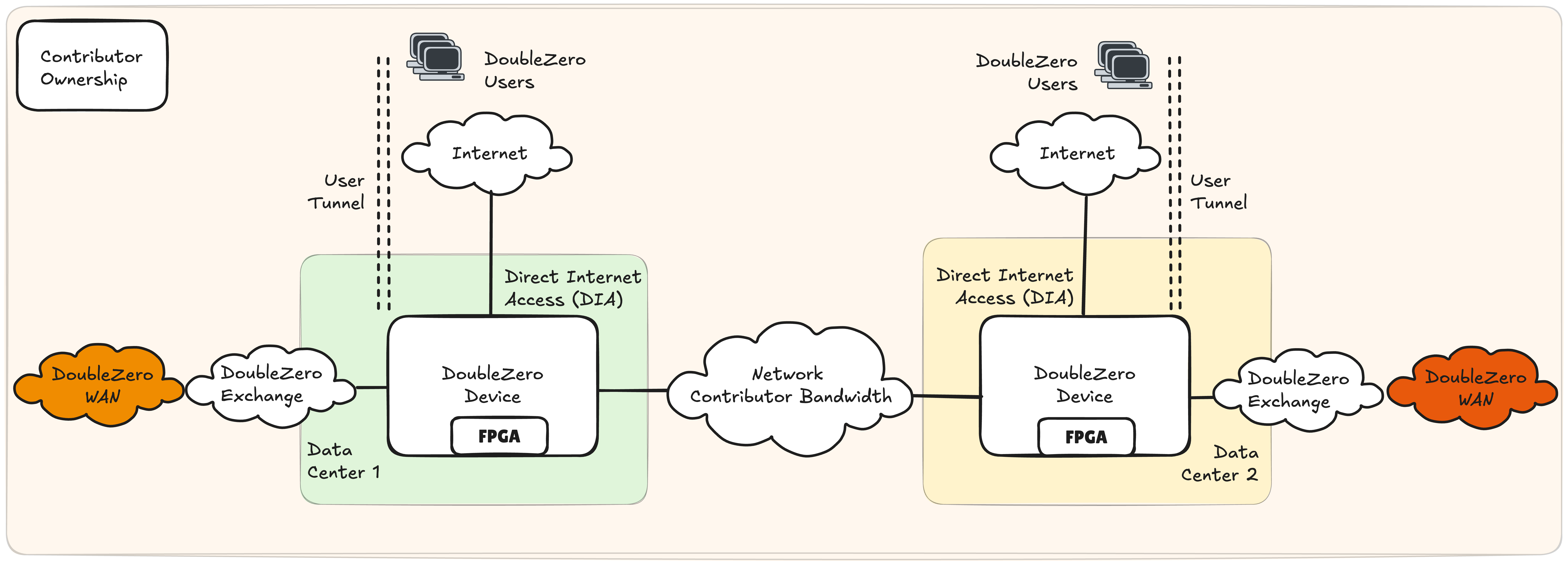{ width="800" }
Figure 1: DoubleZero Network Bandwidth Contribution Between 2 Data Centers - Single Contributor
### Example Contributions
The ways in which a network contributor can grow their DoubleZero contributions are many, including:
- Improve the performance characteristics of their existing contributions: increase bandwidth, reduce latency
- Add multiple links between the same data centers
- Add a new link from an existing data center to a new data center
- Add a new, independent link between two new data centers
#### Example 1: Single Contributor, 3 Data Centers, Two Links
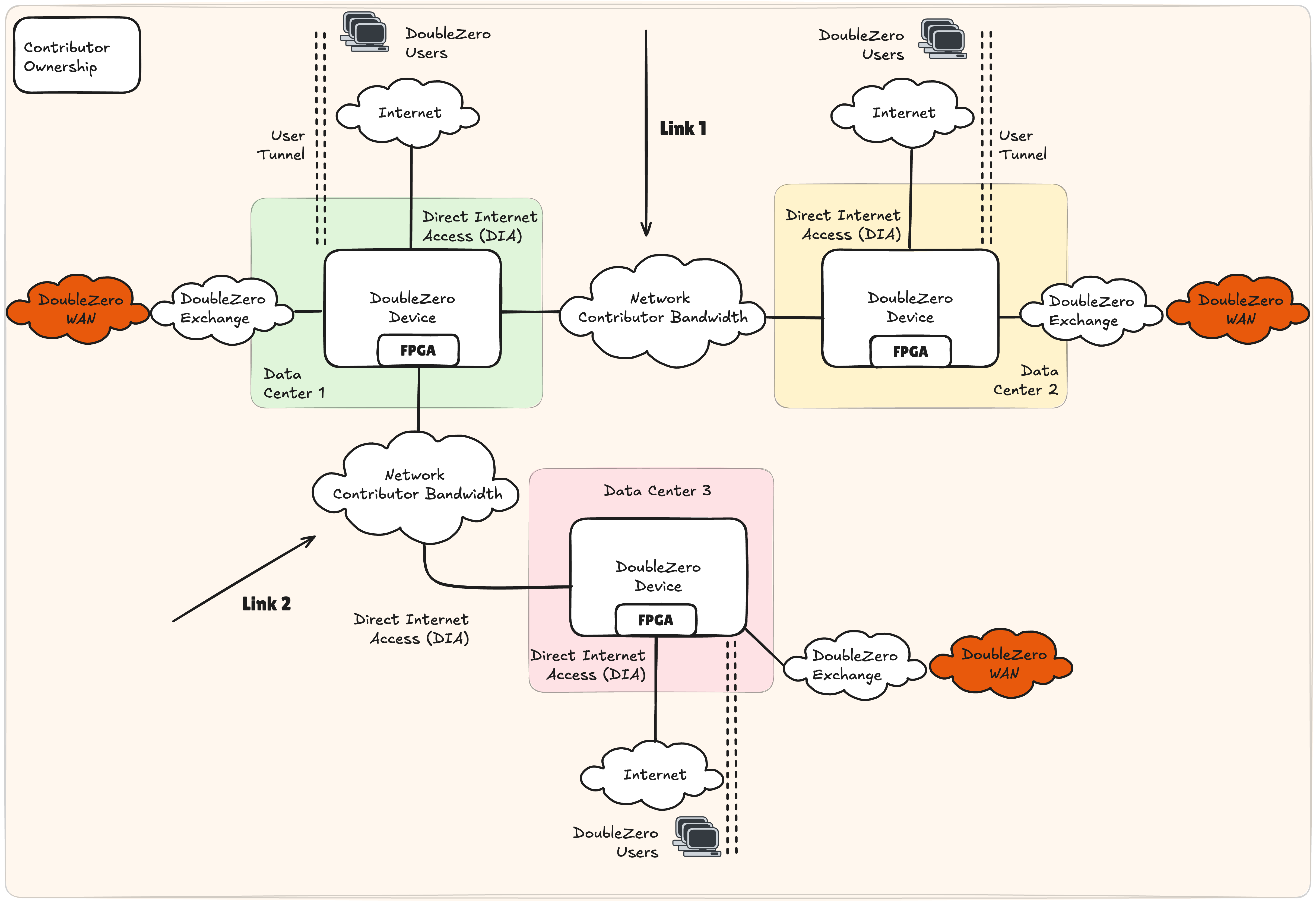{ width="800" }
Figure 2: DoubleZero Network Bandwidth Contribution Between 3 Data Centers - Single Contributor
A single DZD can support multiple links contributed to DoubleZero. Figure 2 illustrates a potential topology if a single data center, denoted as 1, terminates bandwidth to two different remote data centers 2 and 3. In this scenario, each data center contains only 1 DZD. All DZDs are using DIA for user on-ramps as their CYOA interface.
#### Example 2: Single Contributor, 3 Data Centers, Three Links
Figure 3 describes the DoubleZero topology when a single contributor deploys three links in a triangle topology between 3 data centers. In a scenario similar to example 1, a single DZD is deployed in data centers 1, 2 and 3, each supporting 2 independent network links. The resulting topology is a triangle or ring between data centers.
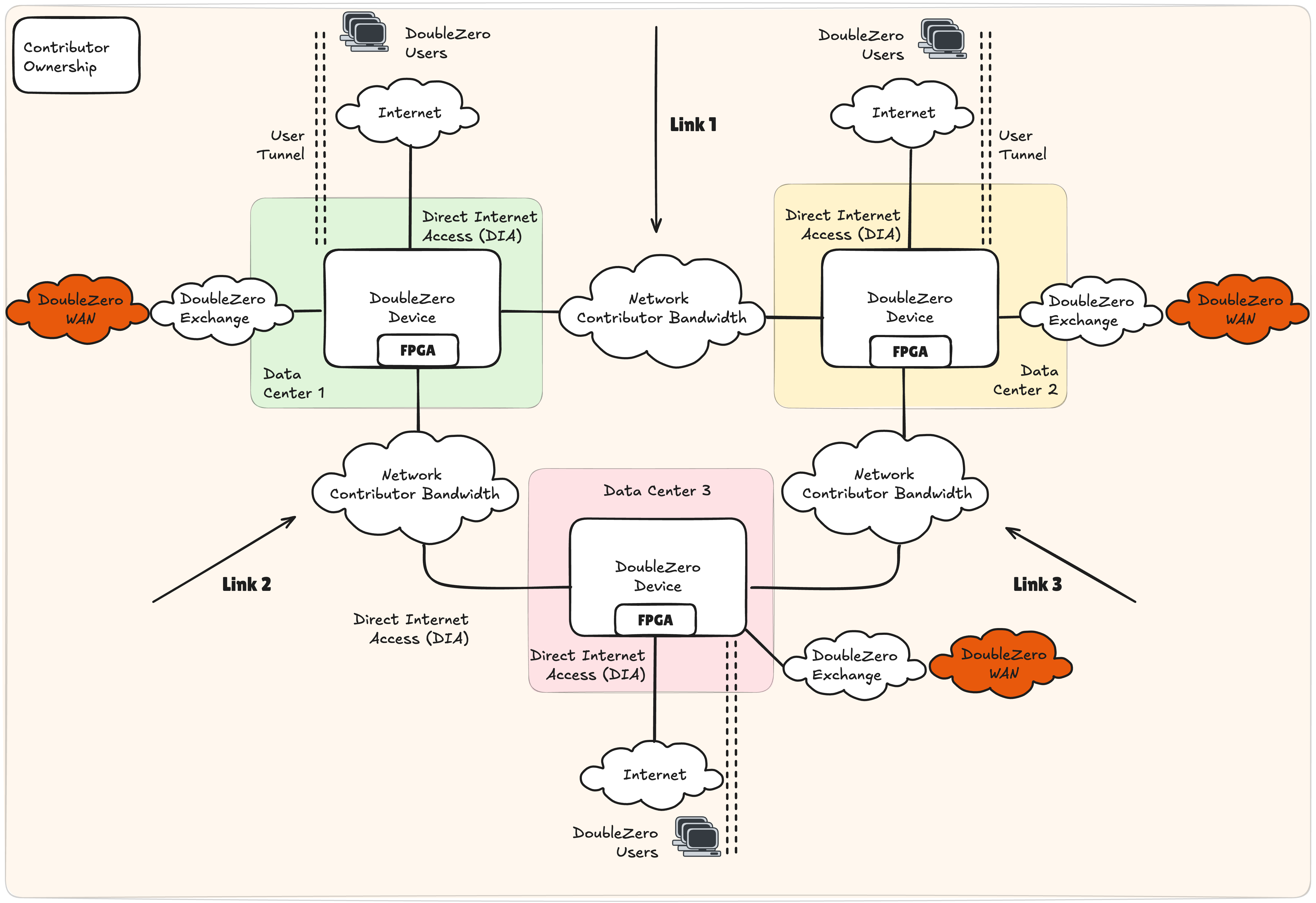{ width="800" }
Figure 3: DoubleZero Network Bandwidth Contribution Between 3 Data Centers - Single Contributor
### DoubleZero Exchange
The creation of a contiguous network is a fundamental building block of the DoubleZero architecture. Contributors interface via a DoubleZero Exchange (DZX) within a metropolitan area, which is a city such as New York (NYC), London (LON) or Tokyo (TYO). A DZX is a network fabric similar to an Internet Exchange, allowing peering and route exchange.
In figure 4, network contributor 1 operates in data centers 1, 2 and 3, while network contributor 2 operates in data centers 2, 4 and 5. By interconnecting in data center 2, the DoubleZero network reach increases to 5 contiguous data centers.
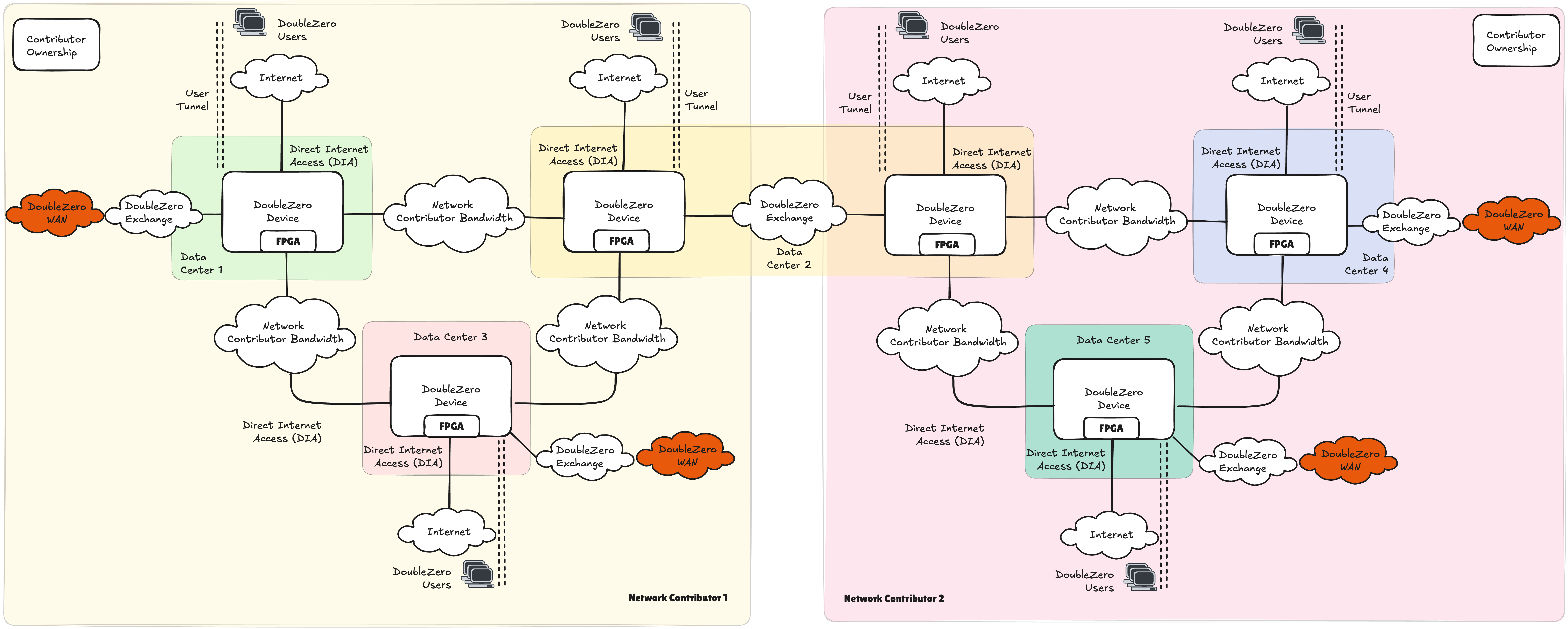{ width="1000" }
Figure 4: DoubleZero Network Bandwidth Contribution Between 2 Network Bandwidth Contributors
### Bandwidth Contribution Options
DoubleZero requires a network contributor to offer integrated connectivity via a guaranteed bandwidth, latency and jitter profile between DZDs at two terminating data centers expressed via a smart contract. DoubleZero does not mandate how a network contributor implements their contribution, however, in the following sections we provide indicative options for use at their sole discretion.
Important areas to consider for a network contributor might be:
- Ability to guarantee network performance of the DoubleZero service: bandwidth, latency, and jitter
- Segregation from their existing internal network services
- IPv4 addressing clashes, specifically with the tunnel underlay address space
- Uptime and availability
- CAPEX and OPEX considerations
#### Layer 1 Bandwidth
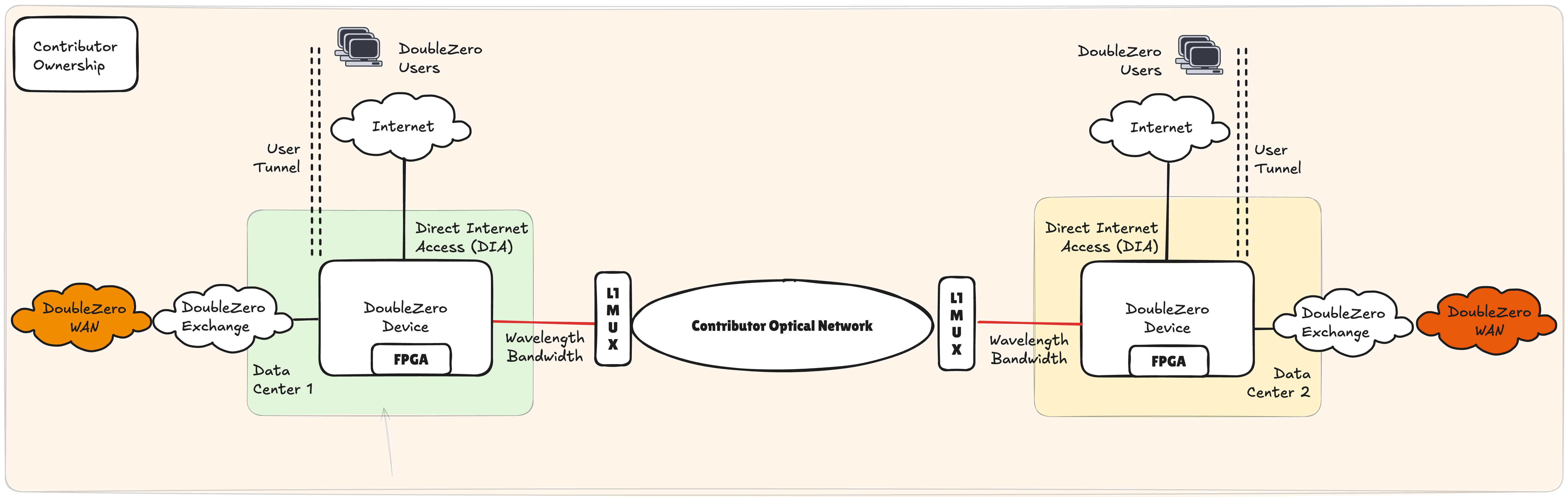{ width="800" }
Figure 5: Layer 1 Optical Services
Layer 1 bandwidth, more formally described as wavelength services, may see dedicated capacity provisioned on an existing optical infrastructure, such as DWDM, CWDM or via optical multiplexers (MUX). In figure 5, the DZDs use a colored optic that is cabled to an L1 MUX, which interleaves the DZD wavelength on to an existing dark fiber.
This solution has numerous benefits for network contributors who already operate an existing core network. The iterative operational changes, as well as additional CAPEX and OPEX requirements, are modest. This option is particularly robust in offering segregation from the network contributor's network services.
#### Packet Switched Bandwidth
Packet switched networks can be considered a typical enterprise network, running standard routing and switching protocols supporting business applications. There are numerous networking technologies that achieve connectivity, for example, layer 2 (L2) extensions using VLAN tags.
##### L2 Extension
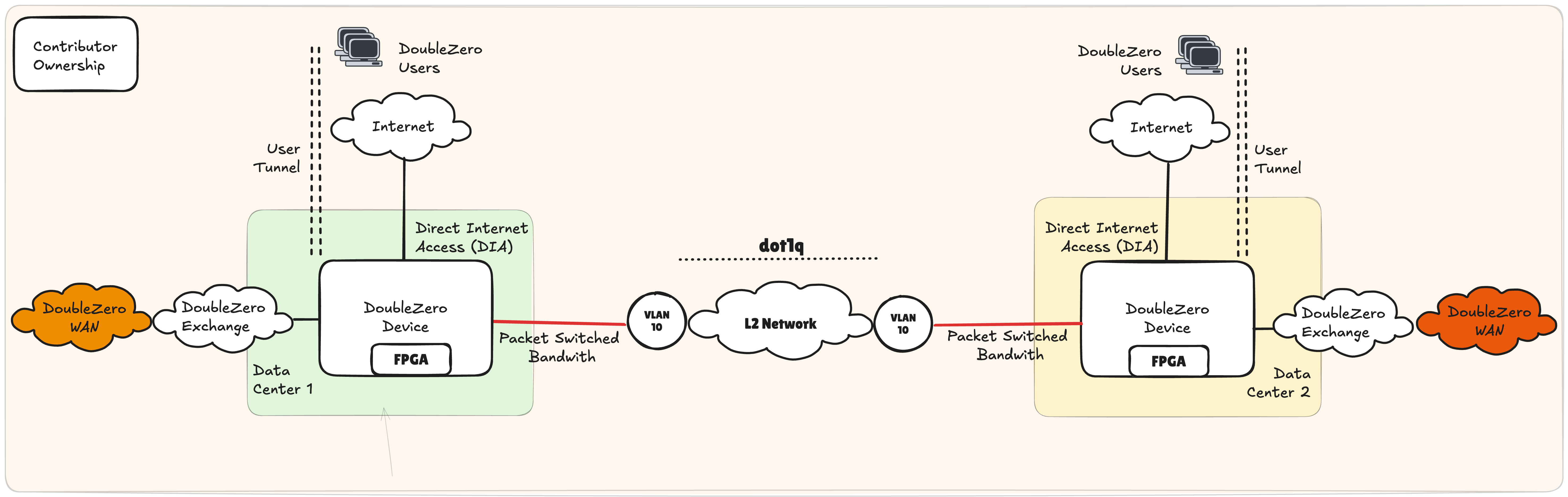{ width="800" }
Figure 6: Packet Switched Networks - L2 Extension
An L2 extension as shown in Figure 6 can be facilitated through VLAN tagging. A DZD's port can be cabled to a contributor's internal network switch, with the switch port being set as an access port in, for example, VLAN 10. Through 802.1q tagging, this VLAN can be carried over multiple switch-hops on the contributor's network, terminating at the switch interfacing with the remote DZD.
This solution benefits from being widely supported and relatively easy to implement while creating segmentation between DoubleZero and internal layer 3 services. Bandwidth can be controlled based on the interface speed of the contributor's internal switch or router. Careful consideration must be given to performance across the shared internal L2 network through technologies such as Quality of Service (QoS) or other traffic management policies. However, additional CAPEX and OPEX investments should be modest if existing capacity is available within the contributor's core network.
#### Dedicated 3rd Party Bandwidth
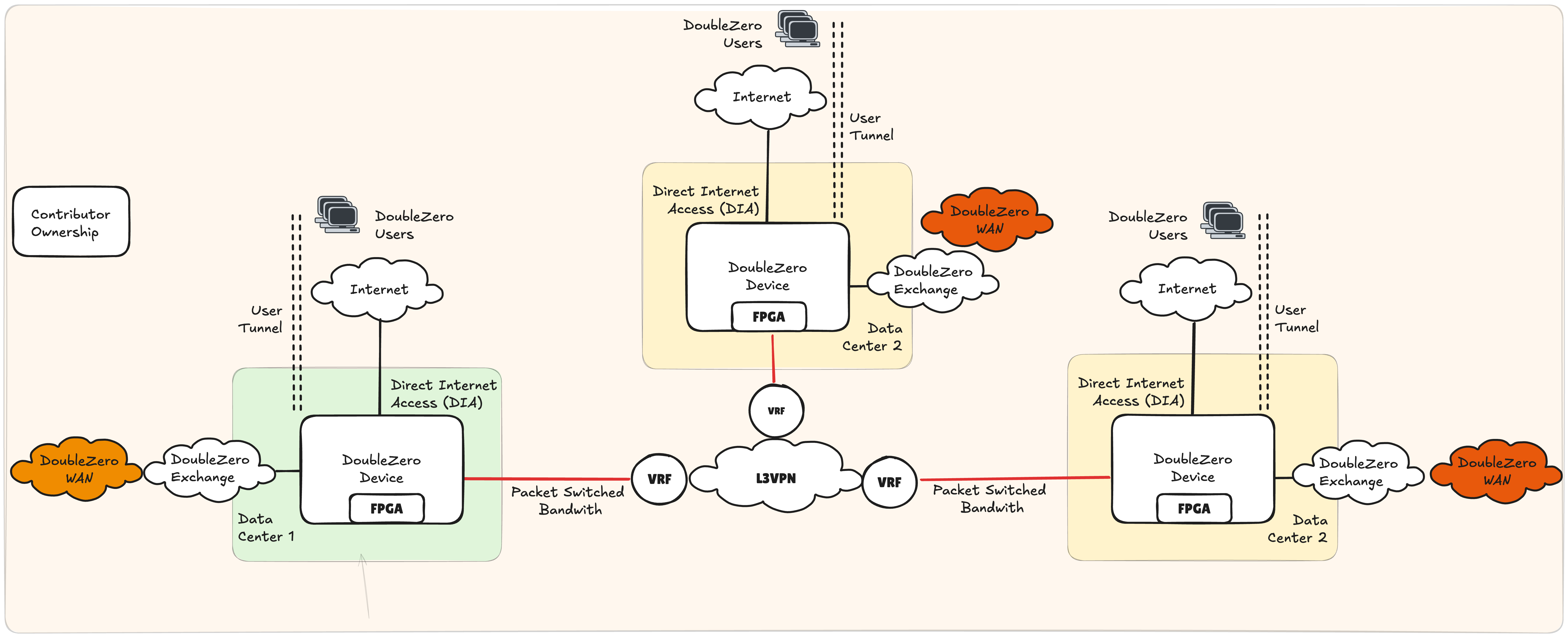{ width="800" }
Figure 7: Dedicated 3rd Party Bandwidth
While reusing available capacity will be attractive to many network contributors, one can also dedicate newly acquired bandwidth to DoubleZero. In such a scenario, the DZD would connect directly to the 3rd party carrier without any internal devices of the contributor sitting inline (figure 7).
This option is attractive as it ensures dedicated bandwidth for DoubleZero, is simple operationally and ensures complete segmentation from any other network services. This option will likely have the highest OPEX increase and requires new service contracts with 3rd party carriers.
---
## Hardware Requirements
### 100Gbps Bandwidth Contribution
Note that quantities below reflect equipment needed in two data centers, i.e. the total required hardware necessary to deploy 1 fiber optic cable for bandwidth contribution.
??? warning "*All FPGAs are subject to final testing. 10G contributions may be supported using Arista 7130LBR switches with inbuilt dual Virtex® UltraScale+™ FPGAs (if you have any questions, DoubleZero Foundation / Malbec Labs are happy to provide more information)."
#### Function & Port Requirements
| Function | Port Speed | DZ Requirement | QTY | Note |
|-----------------------------|------------|----------------|-----|-------------------------------------------------------------------------------------------------------------------------------------------------------------------|
| Private Bandwidth | 100G | Yes | 1 | |
| Direct Internet Access (DIA) | 10G | Yes | 2 | |
| DoubleZero eXchange (DZX) | 100G | Yes* | 1 | Must be supported once more than 3 providers operate in the same metro area, preceding this, cross-connects or other peering arrangements can be used to interconnect to other providers. |
| Management | | No | 1 | Determined by contributor's own internal management policies. |
| Console | | No | 1 | Determined by contributor's own internal management policies. |
#### DZD Network Hardware
| Make | Model | Part Number | DZ Requirement | QTY | Note |
|----------|-----------------|----------------------|----------------|-----|-----------------------------------------------------------|
| AMD* | V80* | 24540474 | Yes | 4 | |
| Arista | 7280CR3A | DCS-7280CR3A-32S | Yes | 2 | Alternatives may be possible if lead times are challenging. |
---
#### Optics - 100G
| Make | Model | Part Number | DZ Requirement | QTY | Note |
|--------|-------------|----------------|----------------|-----|-------------------------------------------------------------|
| Arista | 100GBASE-LR | QSFP-100G-LR | No | 16 | Cabling and optic choice available at contributor's discretion. 100G required to connect FPGAs. |
---
#### Optics - 10G
| Make | Model | Part Number | DZ Requirement | QTY | Note |
|--------|-------------|----------------|----------------|-----|-------------------------------------------------------------|
| Arista | 10GBASE-LR | SFP-10G-LR | No | 2 | Cabling and optic choice available at contributor's discretion. |
| Finisar | DynamiX QSA™ | MAM1Q00A-QSA | No | 2 | Cabling and optic choice available at contributor's discretion. |
---
#### IP Addressing
| IP Addressing | Minimum Subnet Size | DZ Requirement | Note |
|--------------|-------------------|----------------|----------------------------------------------------------|
| Public IPv4 | /29 | Yes (for edge/hybrid DZDs) | Must be routable via DIA. We may eliminate the need for this over time. |
Please ensure that the full /29 pool is available for the DZ protocol. Any requirements for point-to-point addressing, e.g., on DIA interfaces, should be managed via a different address pool.
### 10Gbps Bandwidth Contribution
Note that quantities reflect two data centers' equipment i.e. the total required hardware necessary to deploy 1 bandwidth contribution.
#### Function & Port Requirements
| Function | Port Speed | DZ Requirement | QTY | Note |
|-----------------------------|------------|----------------|-----|-------------------------------------------------------------------------------------------------------------------------------------------------------------------|
| Private Bandwidth | 10G | Yes | 1 | |
| Direct Internet Access (DIA) | 10G | Yes | 2 | |
| DoubleZero eXchange (DZX) | 100G | Yes* | 1 | Must be supported once more than 3 providers operate in the same metro area; preceding this, cross-connects or other peering arrangements can be used to interconnect to other providers. |
| Management | | No | 1 | Determined by contributor's own internal management policies. |
| Console | | No | 1 | Determined by contributor's own internal management policies. |
---
#### Hardware
| Make | Model | Part Number | DZ Requirement | QTY | Note |
|----------|-----------------|----------------------|----------------|-----|-----------------------------------------------------------|
| AMD* | V80* | 24540474* | Yes | 4 | | |
| Arista | 7280CR3A | DCS-7280CR3A-32S | Yes | 2 | Alternatives may be possible if lead times are challenging. |
---
#### Optics - 100G
| Make | Model | Part Number | DZ Requirement | QTY | Note |
|--------|-------------|----------------|----------------|-----|-------------------------------------------------------------|
| Arista | 100GBASE-LR | QSFP-100G-LR | No | 14 | Cabling and optic choice available at contributor's discretion. 100G required to connect FPGAs. |
---
#### Optics - 10G
| Make | Model | Part Number | DZ Requirement | QTY | Note |
|--------|-------------|----------------|----------------|-----|-------------------------------------------------------------|
| Arista | 10GBASE-LR | SFP-10G-LR | No | 4 | Cabling and optic choice available at contributor's discretion. |
Finisar | DynamiX QSA™ | MAM1Q00A-QSA | No | 4 | Cabling and optic choice available at contributor's discretion. |
---
#### IP Addressing
| IP Addressing | Minimum Subnet Size | DZ Requirement | Note |
|--------------|-------------------|----------------|----------------------------------------------------------|
| Public IPv4 | /29 | Yes (for edge/hybrid DZDs) | Must be routable via DIA. We may eliminate the need for this over time. |
Please ensure that the full /29 pool is available for the DZ protocol. Any requirements for point-to-point addressing, e.g., on DIA interfaces, should be managed via a different address pool.
### Data Center Requirements
#### Rack & Power Requirements
| Requirement | Specification |
|-------------|--------------|
| Rack Space | 4U |
| Power | 4KW (recommended) |
---
## Next Steps
Ready to provision your first DZD? Continue to the [Device Provisioning Guide](contribute-provisioning.md).
---
# Device Provisioning
Source: https://docs.doublezero.xyz/contribute-provisioning/
# Device Provisioning Guide
This guide walks you through provisioning a DoubleZero Device (DZD) from start to finish. Each phase matches the [Onboarding Checklist](contribute-overview.md#onboarding-checklist).
---
## How It All Fits Together
This guide walks you through registering your infrastructure on-chain so the DoubleZero network can route traffic through it. The more completely your device is registered, the more useful it is to the network. A full on-chain representation of your device enables better troubleshooting, capacity planning, and allows the controller to make informed decisions. Over time, the goal is for the controller to take on more of the configuration responsibility.
### Key concepts
**Interfaces**
Interfaces on a DZD come in different forms: Ethernet ports, port channels (LAGs made up of multiple Ethernet ports), and loopbacks. Each interface that plays a role in the network needs to be registered on-chain with the appropriate flags so the protocol knows what it does.
Ethernet ports and port channels can serve the following roles:
| Flag | What it means |
|------|---------------|
| `--interface-dia dia` | Marks the interface as the direct internet access uplink |
| `--interface-cyoa ` | Declares how users establish GRE tunnels through this interface (e.g. over the public internet, via a private peering link) |
| `--user-tunnel-endpoint true` | This interface carries a public IP that users terminate GRE tunnels on |
Interfaces used for WAN or DZX links do not carry a specific flag, they are registered with their bandwidth and then referenced when the link is created.
Loopback interfaces serve several purposes:
| Loopback | What it means |
|----------|---------------|
| **Loopback100 / 101** | Carry public IPs that users terminate GRE tunnels on. Registered with `--user-tunnel-endpoint true`. |
| **Loopback255** (`vpnv4`) | Registered so the controller can assign an IP used for BGP router ID, VPN-IPv4 peering (unicast), IS-IS identity, and segment routing |
| **Loopback256** (`ipv4`) | Registered so the controller can assign an IP used for IPv4 BGP peering (multicast) and MSDP sessions |
**Links**
Links are registered separately from interfaces, and interfaces must exist on-chain before a link can reference them. When you create a WAN or DZX link, you specify an already-registered interface as the link's physical endpoint. Not all interfaces are tied to a link: DIA, CYOA, and loopback interfaces are not connected to a link.
| Term | What it means |
|------|---------------|
| **WAN Link** | A link between two of your own DZDs |
| **DZX Link** | A link between your DZD and another contributor's DZD |
### Architecture overview
```mermaid
flowchart TB
subgraph Onchain
SC[DoubleZero Ledger]
end
subgraph Your Infrastructure
MGMT[Management Server DoubleZero CLI]
subgraph DZD[Your DZD]
CYOA["DIA · CYOA interface (user-facing uplink)"]
WAN_INTF["WAN link interface"]
DZX_INTF["DZX link interface"]
LO100["Loopback100/101 (user tunnel endpoint)"]
end
DZD2[Your other DZD]
end
subgraph Other Contributor
OtherDZD[Their DZD]
end
USERS["Users"]
MGMT -.->|Registers devices, links, interfaces| SC
WAN_INTF ---|WAN Link| DZD2
DZX_INTF ---|DZX Link| OtherDZD
USERS -.|GRE tunnel|.-> CYOA
CYOA ---|routes to| LO100
```
---
## Phase 1: Prerequisites
Before you can provision a device, you need the physical hardware set up and some IP addresses allocated.
### What You Need
| Requirement | Why It's Needed |
|-------------|-----------------|
| **DZD Hardware** | Arista 7280CR3A switch (see [hardware specs](contribute.md#hardware-requirements)) |
| **Rack Space** | 4U with proper airflow |
| **Power** | Redundant feeds, ~4KW recommended |
| **Management Access** | SSH/console access to configure the switch |
| **Internet Connectivity** | For metrics publishing and to fetch configuration from the controller |
| **Public IPv4 Block** | Minimum /29 for the DZ prefix pool (see below) |
### Install the DoubleZero CLI
The DoubleZero CLI (`doublezero`) is used throughout provisioning to register devices, create links, and manage your contribution. It should be installed on a **management server or VM** — not on the DZD switch itself. The switch only runs the Config Agent and Telemetry Agent (installed in [Phase 4](#phase-4-link-establishment-agent-installation)).
**Ubuntu / Debian:**
```bash
curl -1sLf https://dl.cloudsmith.io/public/malbeclabs/doublezero/setup.deb.sh | sudo -E bash
sudo apt-get install doublezero
```
**Rocky Linux / RHEL:**
```bash
curl -1sLf https://dl.cloudsmith.io/public/malbeclabs/doublezero/setup.rpm.sh | sudo -E bash
sudo yum install doublezero
```
Verify the daemon is running:
```bash
sudo systemctl status doublezerod
```
### Understanding Your DZ Prefix
Your DZ prefix is a block of public IP addresses that the DoubleZero protocol manages for IP allocation.
```mermaid
flowchart LR
subgraph "Your /29 Block (8 IPs)"
IP1["First IP Reserved for your device"]
IP2["IP 2"]
IP3["IP 3"]
IP4["..."]
IP8["IP 8"]
end
IP1 -->|Assigned to| LO[Loopback100 on your DZD]
IP2 -->|Allocated to| U1[User 1]
IP3 -->|Allocated to| U2[User 2]
```
**How DZ prefixes are used:**
- **First IP**: Reserved for your device (assigned to Loopback100 interface)
- **Remaining IPs**: Allocated to specific user types connecting to your DZD:
- `IBRLWithAllocatedIP` users
- `EdgeFiltering` users (future use-case)
- **IBRL users**: Do NOT consume from this pool (they use their own public IP)
!!! warning "DZ Prefix Rules"
**You CANNOT use these addresses for:**
- Your own network equipment
- Point-to-point links on DIA interfaces
- Management interfaces
- Any infrastructure outside the DZ protocol
**Requirements:**
- Must be **globally routable (public)** IPv4 addresses
- Private IP ranges (10.x, 172.16-31.x, 192.168.x) are rejected by the smart contract
- **Minimum size: /29** (8 addresses), larger prefixes preferred (e.g., /28, /27)
- The entire block must be available — do not pre-allocate any addresses
If you need addresses for your own equipment (DIA interface IPs, management, etc.), use a **separate address pool**.
---
## Phase 2: Account Setup
In this phase, you create the cryptographic keys that identify you and your devices on the network.
### Where to Run the CLI
!!! warning "Do NOT install the CLI on your switch"
The DoubleZero CLI (`doublezero`) should be installed on a **management server or VM**, not on your Arista switch.
```mermaid
flowchart LR
subgraph "Management Server/VM"
CLI[DoubleZero CLI]
KEYS[Your Keypairs]
end
subgraph "Your DZD Switch"
CA[Config Agent]
TA[Telemetry Agent]
end
CLI -->|Creates devices, links| BC[Blockchain]
CA -->|Pulls config| CTRL[Controller]
TA -->|Submits metrics| BC
```
| Install on Management Server | Install on Switch |
|-----------------------------|-------------------|
| `doublezero` CLI | Config Agent |
| Your service keypair | Telemetry Agent |
| Your metrics publisher keypair | Metrics publisher keypair (copy) |
### What Are Keys?
Think of keys like secure login credentials:
- **Service Key**: Your contributor identity - used to run CLI commands
- **Metrics Publisher Key**: Your device's identity for submitting telemetry data
Both are cryptographic keypairs (a public key you share, a private key you keep secret).
```mermaid
flowchart LR
subgraph "Your Keys"
SK[Service Key ~/.config/solana/id.json]
MK[Metrics Publisher Key ~/.config/doublezero/metrics-publisher.json]
end
SK -->|Used for| CLI[CLI Commands doublezero device create doublezero link create]
MK -->|Used for| TEL[Telemetry Agent Submits metrics onchain]
```
### Step 2.1: Generate Your Service Key
This is your main identity for interacting with DoubleZero.
```bash
doublezero keygen
```
This creates a keypair at the default location. The output shows your **public key** - this is what you'll share with DZF.
### Step 2.2: Generate Your Metrics Publisher Key
This key is used by the Telemetry Agent to sign metric submissions.
```bash
doublezero keygen -o ~/.config/doublezero/metrics-publisher.json
```
### Step 2.3: Submit Keys to DZF
Contact the DoubleZero Foundation or Malbec Labs and provide:
1. Your **service key public key**
2. Your **GitHub username** (for repo access)
They will:
- Create your **contributor account** onchain
- Grant access to the private **contributors repository**
### Step 2.4: Verify Your Account
Once confirmed, verify your contributor account exists:
```bash
doublezero contributor list
```
You should see your contributor code in the list.
### Step 2.5: Access the Contributors Repository
The [malbeclabs/contributors](https://github.com/malbeclabs/contributors) repository contains:
- Base device configurations
- TCAM profiles
- ACL configurations
- Additional setup instructions
Follow the instructions there for device-specific configuration.
---
## Phase 3: Device Provisioning
Now you'll register your physical device on the blockchain and configure its interfaces.
### Understanding Device Types
**Edge** — accepts user connections only
```mermaid
flowchart LR
subgraph EDZD[Edge DZD]
E_CYOA["DIA · CYOA interface"]
E_TUN["Loopback100/101
(user tunnel endpoint)"]
E_DZX["DZX link interface"]
E_CYOA --- E_TUN
end
EU["Users"] -.|GRE tunnel|.-> E_CYOA
E_DZX <-->|DZX Link| ED["DZD (different contributor)"]
```
**Transit** — moves traffic between devices, no user connections
```mermaid
flowchart LR
subgraph TDZD[Transit DZD]
T_WAN["WAN link interface"]
T_DZX["DZX link interface"]
end
T_WAN <-->|WAN Link| T2["DZD (same contributor)"]
T_DZX <-->|DZX Link| TD["DZD (different contributor)"]
```
**Hybrid** — user connections and backbone, most common
```mermaid
flowchart LR
subgraph HDZD[Hybrid DZD]
H_CYOA["DIA · CYOA interface"]
H_TUN["Loopback100/101
(user tunnel endpoint)"]
H_WAN["WAN link interface"]
H_DZX["DZX link interface"]
H_CYOA --- H_TUN
end
HU["Users"] -.|GRE tunnel|.-> H_CYOA
H_WAN <-->|WAN Link| H2["DZD (same contributor)"]
H_DZX <-->|DZX Link| HD["DZD (different contributor)"]
```
| Type | What It Does | When to Use |
|------|--------------|-------------|
| **Edge** | Accepts user connections only | Single location, user-facing only |
| **Transit** | Moves traffic between devices | Backbone connectivity, no users |
| **Hybrid** | Both user connections AND backbone | Most common - does everything |
### Step 3.1: Find Your Location and Exchange
Before creating your device, look up the codes for your data center location and nearest exchange:
```bash
# List available locations (data centers)
doublezero location list
# List available exchanges (interconnect points)
doublezero exchange list
```
### Step 3.2: Create Your Device Onchain
Register your device on the blockchain:
```bash
doublezero device create \
--code \
--contributor \
--device-type hybrid \
--location \
--exchange \
--public-ip \
--dz-prefixes
```
**Example:**
```bash
doublezero device create \
--code nyc-dz001 \
--contributor acme \
--device-type hybrid \
--location EQX-NY5 \
--exchange nyc \
--public-ip "203.0.113.10" \
--dz-prefixes "198.51.100.0/28"
```
**Expected output:**
```
Signature: 4vKz8H...truncated...7xPq2
```
Verify your device was created:
```bash
doublezero device list | grep nyc-dz001
```
**Parameters explained:**
| Parameter | What It Means |
|-----------|---------------|
| `--code` | A unique name for your device (e.g., `nyc-dz001`) |
| `--contributor` | Your contributor code (given by DZF) |
| `--device-type` | `hybrid`, `transit`, or `edge` |
| `--location` | Data center code from `location list` |
| `--exchange` | Nearest exchange code from `exchange list` |
| `--public-ip` | The public IP where users connect to your device via internet |
| `--dz-prefixes` | Your allocated IP block for users |
### Step 3.3: Create Required Loopback Interfaces
Every device needs two loopback interfaces for internal routing:
```bash
# VPNv4 loopback
doublezero device interface create Loopback255 --loopback-type vpnv4
# IPv4 loopback
doublezero device interface create Loopback256 --loopback-type ipv4
```
**Expected output (for each command):**
```
Signature: 3mNx9K...truncated...8wRt5
```
### Step 3.4: Create Physical Interfaces
Register the physical interfaces that will be used for WAN or DZX links. These interfaces must exist on-chain before you can create a link that references them. At this step you only register the interface and its bandwidth, the link is created in a later step.
```bash
doublezero device interface create \
--bandwidth
```
**Example:**
```bash
doublezero device interface create nyc-dz001 Ethernet1/1 \
--bandwidth 10Gbps
```
**Expected output:**
```
Signature: 7pQw2R...truncated...4xKm9
```
Repeat this for each interface that will be used as a WAN or DZX link endpoint. CYOA and DIA interfaces are registered separately in the next step.
### Step 3.5: Create CYOA Interface (for Edge/Hybrid devices)
Hybrid and edge DZDs need **two public IP addresses** that users terminate their GRE tunnels on. Users may connect via unicast, multicast, or both, and which IP serves which purpose rotates per user.
Both IPs must be registered with `--user-tunnel-endpoint true`, on either a physical interface or a loopback. This includes the IP you provided at device creation time, that IP still needs to be explicitly registered here.
If you are IP-constrained, you can use the first `/32` of your DZ prefix as one of the two IPs.
#### CYOA and DIA
| Type | Flag | Purpose |
|------|------|---------|
| DIA | `--interface-dia dia` | Marks the port as direct internet access |
| CYOA | `--interface-cyoa ` | Declares how users connect GRE tunnels to your device |
The CYOA flag is always set on a **physical interface** (Ethernet port or port channel). Never on a loopback.
| CYOA subtype | When to use |
|-------------|-------------|
| `gre-over-dia` | Users connect over the public internet. Most common. |
| `gre-over-private-peering` | Users connect via a direct cross-connect or private circuit |
| `gre-over-public-peering` | Users peer with you at an Internet Exchange (IX) |
| `gre-over-fabric` | Users are co-located and connect over a local fabric |
| `gre-over-cable` | Direct cable connection to a single dedicated user |
#### Scenario A: Single physical interface
One physical uplink to the ISP. Ethernet1/1 is the CYOA and DIA interface and carries one of the two public IPs. Loopback100 carries the second public IP.
```mermaid
flowchart LR
USERS(["End Users"])
subgraph DZD["DZD"]
E1["Eth1/1
203.0.113.1/30
CYOA · DIA · user tunnel endpoint"]
LO["Loopback100
198.51.100.1/32\n user tunnel endpoint"]
E1 --- LO
end
ISP["ISP Router
203.0.113.2/30"]
ISP -- "10GbE" --- E1
USERS -. "GRE tunnels" .-> E1
USERS -. "GRE tunnels" .-> LO
```
| Interface | `--interface-cyoa` | `--interface-dia` | `--ip-net` | `--bandwidth` | `--cir` | `--routing-mode` | `--user-tunnel-endpoint` |
|-----------|-------------------|------------------|------------|---------------|---------|-----------------|--------------------------|
| Ethernet1/1 | `gre-over-dia` | `dia` | contributor-assigned IP/subnet | port speed | committed rate | `bgp` or `static` | `true` |
| Loopback100 | — | — | your public /32 | `0bps` | — | — | `true` |
Example of commands to execute based on Scenario A:
```bash
doublezero device interface create mydzd-nyc01 Ethernet1/1 \
--interface-cyoa gre-over-dia \
--interface-dia dia \
--ip-net 203.0.113.1/30 \
--bandwidth 10Gbps \
--cir 1Gbps \
--routing-mode bgp \
--user-tunnel-endpoint true
doublezero device interface create mydzd-nyc01 Loopback100 \
--ip-net 198.51.100.1/32 \
--bandwidth 0bps \
--user-tunnel-endpoint true
```
#### Scenario B: Port channel (LAG)
The DZD connects to the upstream device via a port channel with an IP. The port channel carries one public IP and is the CYOA endpoint. Loopback100 carries the second public IP.
```mermaid
flowchart LR
USERS(["End Users"])
subgraph SW["Upstream Router / Switch"]
SWPC(["bond0
203.0.113.2/30"])
end
subgraph DZD["DZD"]
subgraph PC["Port-Channel1 · 203.0.113.1/30 · CYOA · DIA · user tunnel endpoint"]
E1["Eth1/1"]
E2["Eth2/1"]
end
LO["Loopback100
198.51.100.1/32\n user tunnel endpoint"]
PC --- LO
end
SWPC -- "2x 10GbE" --- PC
USERS -. "GRE tunnels" .-> PC
USERS -. "GRE tunnels" .-> LO
```
| Interface | `--interface-cyoa` | `--interface-dia` | `--ip-net` | `--bandwidth` | `--cir` | `--routing-mode` | `--user-tunnel-endpoint` |
|-----------|-------------------|------------------|------------|---------------|---------|-----------------|--------------------------|
| Port-Channel1 | `gre-over-dia` | `dia` | contributor-assigned IP/subnet | combined LAG speed | committed rate | `bgp` or `static` | `true` |
| Loopback100 | — | — | your public /32 | `0bps` | — | — | `true` |
Example of commands to execute based on Scenario B:
```bash
doublezero device interface create mydzd-fra01 Port-Channel1 \
--interface-cyoa gre-over-dia \
--interface-dia dia \
--ip-net 203.0.113.1/30 \
--bandwidth 20Gbps \
--cir 2Gbps \
--routing-mode bgp \
--user-tunnel-endpoint true
doublezero device interface create mydzd-fra01 Loopback100 \
--ip-net 198.51.100.1/32 \
--bandwidth 0bps \
--user-tunnel-endpoint true
```
#### Scenario C: Dual physical uplinks to separate routers
Each physical interface connects to a different upstream router. The two public IPs live on Loopback100 and Loopback101, both registered as user tunnel endpoints.
```mermaid
flowchart LR
USERS(["End Users"])
RA["Router A
203.0.113.2/30"]
RB["Router B
203.0.113.6/30"]
subgraph DZD["DZD"]
E1["Eth1/1
203.0.113.1/30
CYOA · DIA"]
E2["Eth2/1
203.0.113.5/30
CYOA · DIA"]
LO0["Loopback100
198.51.100.1/32\n user tunnel endpoint"]
LO1["Loopback101
198.51.100.2/32\n user tunnel endpoint"]
E1 --> LO0
E2 --> LO1
end
RA -- "10GbE" --- E1
RB -- "10GbE" --- E2
USERS -. "GRE tunnels" .-> LO0
USERS -. "GRE tunnels" .-> LO1
```
| Interface | `--interface-cyoa` | `--interface-dia` | `--ip-net` | `--bandwidth` | `--cir` | `--routing-mode` | `--user-tunnel-endpoint` |
|-----------|-------------------|------------------|------------|---------------|---------|-----------------|--------------------------|
| Ethernet1/1 | `gre-over-dia` | `dia` | contributor-assigned IP/subnet | port speed | committed rate | `bgp` or `static` | — |
| Ethernet2/1 | `gre-over-dia` | `dia` | contributor-assigned IP/subnet | port speed | committed rate | `bgp` or `static` | — |
| Loopback100 | — | — | your public /32 | `0bps` | — | — | `true` |
| Loopback101 | — | — | your public /32 | `0bps` | — | — | `true` |
Example of commands to execute based on Scenario C:
```bash
doublezero device interface create mydzd-ams01 Ethernet1/1 \
--interface-cyoa gre-over-dia \
--interface-dia dia \
--ip-net 203.0.113.1/30 \
--bandwidth 10Gbps \
--cir 1Gbps \
--routing-mode bgp
doublezero device interface create mydzd-ams01 Ethernet2/1 \
--interface-cyoa gre-over-dia \
--interface-dia dia \
--ip-net 203.0.113.5/30 \
--bandwidth 10Gbps \
--cir 1Gbps \
--routing-mode bgp
doublezero device interface create mydzd-ams01 Loopback100 \
--ip-net 198.51.100.1/32 \
--bandwidth 0bps \
--user-tunnel-endpoint true
doublezero device interface create mydzd-ams01 Loopback101 \
--ip-net 198.51.100.2/32 \
--bandwidth 0bps \
--user-tunnel-endpoint true
```
### Step 3.6: Verify Your Device
```bash
doublezero device list
```
**Example output:**
```
account | code | contributor | location | exchange | device_type | public_ip | dz_prefixes | users | max_users | status | health | mgmt_vrf | owner
7xKm9pQw2R4vHt3... | nyc-dz001 | acme | EQX-NY5 | nyc | hybrid | 203.0.113.10 | 198.51.100.0/28 | 0 | 14 | activated | pending | | 5FMtd5Woq5XAAg54...
```
Your device should appear with status `activated`.
---
## Phase 4: Link Establishment & Agent Installation
Links connect your device to the rest of the DoubleZero network.
### Understanding Links
```mermaid
flowchart LR
subgraph "Your Network"
D1[Your DZD 1 NYC]
D2[Your DZD 2 LAX]
end
subgraph "Other Contributor"
O1[Their DZD NYC]
end
D1 ---|WAN Link Same contributor| D2
D1 ---|DZX Link Different contributors| O1
```
| Link Type | Connects | Acceptance |
|-----------|----------|------------|
| **WAN Link** | Two of YOUR devices | Automatic (you own both) |
| **DZX Link** | Your device to ANOTHER contributor | Requires their acceptance |
### Step 4.1: Create WAN Links (if you have multiple devices)
WAN links connect your own devices:
```bash
doublezero link create wan \
--code \
--contributor \
--side-a \
--side-a-interface \
--side-z \
--side-z-interface \
--bandwidth 10000 \
--mtu 9000 \
--delay-ms 20 \
--jitter-ms 1
```
**Example:**
```bash
doublezero link create wan \
--code nyc-lax-wan01 \
--contributor acme \
--side-a nyc-dz001 \
--side-a-interface Ethernet3/1 \
--side-z lax-dz001 \
--side-z-interface Ethernet3/1 \
--bandwidth 10000 \
--mtu 9000 \
--delay-ms 65 \
--jitter-ms 1
```
**Expected output:**
```
Signature: 5tNm7K...truncated...9pRw2
```
### Step 4.2: Create DZX Links
DZX links connect your device directly to another contributor's DZD:
```bash
doublezero link create dzx \
--code \
--contributor \
--side-a \
--side-a-interface \
--side-z \
--bandwidth \
--mtu \
--delay-ms \
--jitter-ms
```
**Expected output:**
```
Signature: 8mKp3W...truncated...2nRx7
```
After creating a DZX link, the other contributor must accept it:
```bash
# The OTHER contributor runs this
doublezero link accept \
--code \
--side-z-interface
```
**Expected output (for the accepting contributor):**
```
Signature: 6vQt9L...truncated...3wPm4
```
### Step 4.3: Verify Links
```bash
doublezero link list
```
**Example output:**
```
account | code | contributor | side_a_name | side_a_iface_name | side_z_name | side_z_iface_name | link_type | bandwidth | mtu | delay_ms | jitter_ms | delay_override_ms | tunnel_id | tunnel_net | status | health | owner
8vkYpXaBW8RuknJq... | nyc-dz001:lax-dz001 | acme | nyc-dz001 | Ethernet3/1 | lax-dz001 | Ethernet3/1 | WAN | 10Gbps | 9000 | 65.00ms | 1.00ms | 0.00ms | 42 | 172.16.0.84/31 | activated | pending | 5FMtd5Woq5XAAg54...
```
Links should show status `activated` once both sides are configured.
---
### Agent Installation
Two software agents run on your DZD:
```mermaid
flowchart TB
subgraph "Your DZD"
CA[Config Agent]
TA[Telemetry Agent]
HW[Switch Hardware/Software]
end
CA -->|Polls for config| CTRL[Controller Service]
CA -->|Applies config| HW
HW -->|Metrics| TA
TA -->|Submits onchain| BC[DoubleZero Ledger]
```
| Agent | What It Does |
|-------|--------------|
| **Config Agent** | Pulls configuration from controller, applies it to your switch |
| **Telemetry Agent** | Measures latency/loss to other devices, reports metrics onchain |
### Step 4.4: Install Config Agent
#### Enable the API on your switch
Add to EOS configuration:
```
management api eos-sdk-rpc
transport grpc eapilocal
localhost loopback vrf default
service all
no disabled
```
!!! note "VRF Note"
Replace `default` with your management VRF name if different (e.g., `management`).
#### Download and install the agent
```bash
# Enter bash on the switch
switch# bash
$ sudo bash
# cd /mnt/flash
# wget AGENT_DOWNLOAD_URL
# exit
$ exit
# Install as EOS extension
switch# copy flash:AGENT_FILENAME extension:
switch# extension AGENT_FILENAME
switch# copy installed-extensions boot-extensions
```
#### Verify the extension
```bash
switch# show extensions
```
The Status should be "A, I, B":
```
Name Version/Release Status Extension
------------------------------------------- ------------------- ---------- ---------
AGENT_FILENAME MAINNET_CLIENT_VERSION/1 A, I, B 1
A: available | NA: not available | I: installed | F: forced | B: install at boot
```
#### Configure and start the agent
Add to EOS configuration:
```
daemon doublezero-agent
exec /usr/local/bin/doublezero-agent -pubkey -controller :
no shut
```
!!! info "Controller IP and port"
The controller IP and port can be found in the contributor repository you were given access to in Step 2.5.
!!! note "VRF Note"
If your management VRF is not `default` (i.e. the namespace is not `ns-default`), prefix the exec command with `exec /sbin/ip netns exec ns-`. For example, if your VRF is `management`:
```
daemon doublezero-agent
exec /sbin/ip netns exec ns-management /usr/local/bin/doublezero-agent -pubkey
no shut
```
Get your device pubkey from `doublezero device list` (the `account` column).
#### Verify it's running
```bash
switch# show agent doublezero-agent logs
```
You should see "Starting doublezero-agent" and successful controller connections.
### Step 4.5: Install Telemetry Agent
#### Copy the metrics publisher key to your device
```bash
scp ~/.config/doublezero/metrics-publisher.json :/mnt/flash/metrics-publisher-keypair.json
```
#### Register the metrics publisher onchain
```bash
doublezero device update \
--pubkey \
--metrics-publisher
```
Get the pubkey from your metrics-publisher.json file.
#### Download and install the agent
```bash
switch# bash
$ sudo bash
# cd /mnt/flash
# wget TELEMETRY_DOWNLOAD_URL
# exit
$ exit
# Install as EOS extension
switch# copy flash:TELEMETRY_FILENAME extension:
switch# extension TELEMETRY_FILENAME
switch# copy installed-extensions boot-extensions
```
#### Verify the extension
```bash
switch# show extensions
```
The Status should be "A, I, B":
```
Name Version/Release Status Extension
------------------------------------------- ------------------- ---------- ---------
TELEMETRY_FILENAME MAINNET_CLIENT_VERSION/1 A, I, B 1
A: available | NA: not available | I: installed | F: forced | B: install at boot
```
#### Configure and start the agent
Add to EOS configuration:
```
daemon doublezero-telemetry
exec /usr/local/bin/doublezero-telemetry --local-device-pubkey --env mainnet --keypair /mnt/flash/metrics-publisher-keypair.json
no shut
```
!!! note "VRF Note"
If your management VRF is not `default` (i.e. the namespace is not `ns-default`), add `--management-namespace ns-` to the exec command. For example, if your VRF is `management`:
```
daemon doublezero-telemetry
exec /usr/local/bin/doublezero-telemetry --management-namespace ns-management --local-device-pubkey --env mainnet --keypair /mnt/flash/metrics-publisher-keypair.json
no shut
```
#### Verify it's running
```bash
switch# show agent doublezero-telemetry logs
```
You should see "Starting telemetry collector" and "Starting submission loop".
---
## Phase 5: Link Burn-in
!!! warning "All new links must burn in before carrying traffic"
New links must be **drained for at least 24 hours** before being activated for production traffic. This burn-in requirement is defined in [RFC12: Network Provisioning](https://github.com/malbeclabs/doublezero/blob/main/rfcs/rfc12-network-provisioning.md), which specifies ~200,000 DZ Ledger slots (~20 hours) of clean metrics before a link is ready for service.
With agents installed and running, monitor your links on [metrics.doublezero.xyz](https://metrics.doublezero.xyz) for at least 24 consecutive hours:
- **"DoubleZero Device-Link Latencies"** dashboard — verify **zero packet loss** on the link over time
- **"DoubleZero Network Metrics"** dashboard — verify **zero errors** on your links
Only undrain the link once the burn-in period shows a clean link with zero loss and zero errors.
---
## Phase 6: Verification & Activation
Run through this checklist to confirm everything is working.
!!! warning "Your device starts locked (`max_users = 0`)"
When a device is created, `max_users` is set to **0** by default. This means no users can connect to it yet. This is intentional — you must verify everything works before accepting user traffic.
**Before setting `max_users` above 0, you must:**
1. Confirm all links have completed their **24-hour burn-in** with zero loss/errors on [metrics.doublezero.xyz](https://metrics.doublezero.xyz)
2. **Coordinate with DZ/Malbec Labs** to run a connectivity test:
- Can a test user connect to your device?
- Does the user receive routes over the DZ network?
- Can the user route traffic over the DZ network end-to-end?
3. Only after DZ/ML confirms the tests pass, set max_users to 96:
```bash
doublezero device update --pubkey --max-users 96
```
### Device Checks
```bash
# Your device should appear with status "activated"
doublezero device list | grep
```
**Expected output:**
```
7xKm9pQw2R4vHt3... | nyc-dz001 | acme | EQX-NY5 | nyc | hybrid | 203.0.113.10 | 198.51.100.0/28 | 0 | 14 | activated | pending | | 5FMtd5Woq5XAAg54...
```
```bash
# Your interfaces should be listed
doublezero device interface list | grep
```
**Expected output:**
```
nyc-dz001 | Loopback255 | loopback | vpnv4 | none | none | 0 | 0 | 1500 | static | 0 | 172.16.1.91/32 | 56 | false | activated
nyc-dz001 | Loopback256 | loopback | ipv4 | none | none | 0 | 0 | 1500 | static | 0 | 172.16.1.100/32 | 0 | false | activated
nyc-dz001 | Ethernet1/1 | physical | none | none | none | 0 | 0 | 1500 | static | 0 | | 0 | false | activated
```
### Link Checks
```bash
# Links should show status "activated"
doublezero link list | grep
```
**Expected output:**
```
8vkYpXaBW8RuknJq... | nyc-lax-wan01 | acme | nyc-dz001 | Ethernet3/1 | lax-dz001 | Ethernet3/1 | WAN | 10Gbps | 9000 | 65.00ms | 1.00ms | 0.00ms | 42 | 172.16.0.84/31 | activated | pending | 5FMtd5Woq5XAAg54...
```
### Agent Checks
On the switch:
```bash
# Config agent should show successful config pulls
switch# show agent doublezero-agent logs | tail -20
# Telemetry agent should show successful submissions
switch# show agent doublezero-telemetry logs | tail -20
```
### Final Verification Diagram
```mermaid
flowchart TB
subgraph "Verification Checklist"
D[Device Status: activated?]
I[Interfaces: registered?]
L[Links: activated?]
CA[Config Agent: pulling config?]
TA[Telemetry Agent: submitting metrics?]
end
D --> PASS
I --> PASS
L --> PASS
CA --> PASS
TA --> PASS
PASS[All Checks Pass] --> NOTIFY[Notify DZF/Malbec Labs You are technically ready!]
```
---
## Troubleshooting
### Device creation fails
- Verify your service key is authorized (`doublezero contributor list`)
- Check location and exchange codes are valid
- Ensure DZ prefix is a valid public IP range
### Link stuck in "requested" status
- DZX links require acceptance by the other contributor
- Contact them to run `doublezero link accept`
### Config Agent not connecting
- Verify management network has internet access
- Check VRF configuration matches your setup
- Ensure device pubkey is correct
### Telemetry Agent not submitting
- Verify metrics publisher key is registered onchain
- Check the keypair file exists on the switch
- Ensure device account pubkey is correct
---
## Next Steps
- Review the [Operations Guide](contribute-operations.md) for agent upgrades and link management
- Check the [Glossary](glossary.md) for term definitions
- Contact DZF/Malbec Labs if you encounter issues
---
# Operations
Source: https://docs.doublezero.xyz/contribute-operations/
# Operations Guide for Contributors
This guide covers the ongoing operational tasks for maintaining your DoubleZero Devices (DZDs), including agent upgrades, device/interface updates, and link management.
## Incident & Maintenance Logging
Any planned maintenance or unplanned link/device issue should be logged in the [OPS Management portal](contribute-ops-management.md). This gives all contributors visibility into what is happening across the network and avoids duplicate investigation.
- **Planned work** (e.g. replacing an optic, scheduled carrier maintenance): create a maintenance record before you start.
- **Unplanned issues** (e.g. link down, interface errors, packet loss): open an incident as soon as you begin investigating.
See the [OPS Management guide](contribute-ops-management.md) for onboarding steps and how to create tickets.
---
**Prerequisites**: Before using this guide, ensure you have:
- Completed the [Device Provisioning Guide](contribute-provisioning.md)
- Your DZD is fully operational with both Config and Telemetry agents running
---
## Device Updates
Use `doublezero device update` to modify device settings after initial provisioning.
```bash
doublezero device update --pubkey [OPTIONS]
```
**Common update options:**
| Option | Description |
|--------|-------------|
| `--device-type ` | Change operating mode: `hybrid`, `transit`, `edge` (see [Device Types](contribute-provisioning.md#understanding-device-types)) |
| `--location ` | Move device to a different location |
| `--metrics-publisher ` | Change the metrics publisher key |
---
## Interface Updates
Use `doublezero device interface update` to modify existing interfaces. This command accepts the same options as `interface create`.
```bash
doublezero device interface update [OPTIONS]
```
For the full list of interface options including CYOA/DIA settings, see [Creating Interfaces](contribute-provisioning.md#step-35-create-cyoa-interface-for-edgehybrid-devices).
**Example - Add CYOA settings to an existing interface:**
```bash
doublezero device interface update lax-dz001 Ethernet1/2 \
--interface-cyoa gre-over-dia \
--interface-dia dia \
--bandwidth 10000 \
--cir 1000
```
### List Interfaces
```bash
doublezero device interface list # All interfaces across all devices
doublezero device interface list # Interfaces for a specific device
```
---
## Config Agent Upgrade
When a new version of the Config Agent is released, follow these steps to upgrade.
### 1. Download the latest version
```
switch# bash
$ sudo bash
# cd /mnt/flash
# wget AGENT_DOWNLOAD_URL
# exit
$ exit
```
### 2. Shutdown the agent
```
switch# configure
switch(config)# daemon doublezero-agent
switch(config-daemon-doublezero-agent)# shutdown
switch(config-daemon-doublezero-agent)# exit
switch(config)# exit
```
### 3. Remove the old version
First, find the filename of the old version:
```
switch# show extensions
```
Run the following commands to remove the old version. Replace `` with the old version from the output above:
```
switch# delete flash:doublezero-agent__linux_amd64.rpm
switch# delete extension:doublezero-agent__linux_amd64.rpm
```
### 4. Install the new version
```
switch# copy flash:AGENT_FILENAME extension:
switch# extension AGENT_FILENAME
switch# copy installed-extensions boot-extensions
```
### 5. Unshut the agent
```
switch# configure
switch(config)# daemon doublezero-agent
switch(config-daemon-doublezero-agent)# no shutdown
switch(config-daemon-doublezero-agent)# exit
switch(config)# exit
```
### 6. Verify the upgrade
The Status should be "A, I, B".
```
switch# show extensions
```
### 7. Verify Config Agent Log Output
```
show agent doublezero-agent log
```
---
## Telemetry Agent Upgrade
When a new version of the Telemetry Agent is released, follow these steps to upgrade.
### 1. Download the latest version
```
switch# bash
$ sudo bash
# cd /mnt/flash
# wget TELEMETRY_DOWNLOAD_URL
# exit
$ exit
```
### 2. Shutdown the agent
```
switch# configure
switch(config)# daemon doublezero-telemetry
switch(config-daemon-doublezero-telemetry)# shutdown
switch(config-daemon-doublezero-telemetry)# exit
switch(config)# exit
```
### 3. Remove the old version
First, find the filename of the old version:
```
switch# show extensions
```
Run the following commands to remove the old version. Replace `` with the old version from the output above:
```
switch# delete flash:doublezero-device-telemetry-agent__linux_amd64.rpm
switch# delete extension:doublezero-device-telemetry-agent__linux_amd64.rpm
```
### 4. Install the new version
```
switch# copy flash:TELEMETRY_FILENAME extension:
switch# extension TELEMETRY_FILENAME
switch# copy installed-extensions boot-extensions
```
### 5. Unshut the agent
```
switch# configure
switch(config)# daemon doublezero-telemetry
switch(config-daemon-doublezero-telemetry)# no shutdown
switch(config-daemon-doublezero-telemetry)# exit
switch(config)# exit
```
### 6. Verify the upgrade
The Status should be "A, I, B".
```
switch# show extensions
```
### 7. Verify Telemetry Agent Log Output
```
show agent doublezero-telemetry log
```
---
## Monitoring
> ⚠️ **Important:**
>
> 1. For the configuration examples below, please be mindful of whether your agents are using a management VRF.
> 2. The configuration agent and telemetry agent use the same listening port (:8080) for their metrics endpoint by default. If you are enabling metrics on both, use the `-metrics-addr` flag to set unique listening ports for each agent.
### Config Agent Metrics
The configuration agent on the DoubleZero device has the ability to expose prometheus compatible metrics by setting the `-metrics-enable` flag in the `doublezero-agent` daemon configuration. The default listening port is tcp/8080 but can be changed to suit the environment via the `-metrics-addr`:
```
daemon doublezero-agent
exec /usr/local/bin/doublezero-agent -pubkey $PUBKEY -controller $CONTROLLER_ADDR -metrics-enable -metrics-addr 10.0.0.11:2112
no shutdown
```
The following DoubleZero specific metrics are exposed along with go-specific runtime metrics:
```
$ curl -s 10.0.0.11:2112/metrics | grep doublezero
# HELP doublezero_agent_apply_config_errors_total Number of errors encountered while applying config to the device
# TYPE doublezero_agent_apply_config_errors_total counter
doublezero_agent_apply_config_errors_total 0
# HELP doublezero_agent_bgp_neighbors_errors_total Number of errors encountered while retrieving BGP neighbors from the device
# TYPE doublezero_agent_bgp_neighbors_errors_total counter
doublezero_agent_bgp_neighbors_errors_total 0
# HELP doublezero_agent_build_info Build information of the agent
# TYPE doublezero_agent_build_info gauge
doublezero_agent_build_info{commit="4378018f",date="2025-09-23T14:07:48Z",version="0.6.5~git20250923140746.4378018f"} 1
# HELP doublezero_agent_get_config_errors_total Number of errors encountered while getting config from the controller
# TYPE doublezero_agent_get_config_errors_total counter
doublezero_agent_get_config_errors_total 0
```
#### High Signal Errors
- `up` - This is the timeseries metric automatically generated by prometheus if the scrape instance is healthy and reachable. If it is not, either the agent is not reachable or the agent is not running.
- `doublezero_agent_apply_config_errors_total` - The configuration attempting to be applied by the agent failed. In this situation, users will not be able to onboard to the device and onchain configuration changes will not be applied until this is resolved.
- `doublezero_agent_get_config_errors_total` - This signals that the local configuration agent can't talk to the DoubleZero controller. In most cases, this can be due to an issue with management connectivity on the device. Similar to the metric above, users will not be able to onboard to the device and onchain configuration changes will not be applied until this is resolved.
### Telemetry Agent Metrics
The telemetry agent on the DoubleZero device has the ability to expose prometheus compatible metrics by setting the `-metrics-enable` flag in the `doublezero-telemetry` daemon configuration. The default listening port is tcp/8080 but can be changed to suit the environment via the `-metrics-addr`:
```
daemon doublezero-telemetry
exec /usr/local/bin/doublezero-telemetry --local-device-pubkey $PUBKEY --env $ENV --keypair $KEY_PAIR -metrics-enable --metrics-addr 10.0.0.11:2113
no shutdown
```
The following DoubleZero specific metrics are exposed along with go-specific runtime metrics:
```
$ curl -s 10.0.0.11:2113/metrics | grep doublezero
# HELP doublezero_device_telemetry_agent_build_info Build information of the device telemetry agent
# TYPE doublezero_device_telemetry_agent_build_info gauge
doublezero_device_telemetry_agent_build_info{commit="4378018f",date="2025-09-23T14:07:45Z",version="0.6.5~git20250923140743.4378018f"} 1
# HELP doublezero_device_telemetry_agent_errors_total Number of errors encountered
# TYPE doublezero_device_telemetry_agent_errors_total counter
doublezero_device_telemetry_agent_errors_total{error_type="peer_discovery_program_load"} 7
doublezero_device_telemetry_agent_errors_total{error_type="submitter_failed_to_write_samples"} 8
doublezero_device_telemetry_agent_errors_total{error_type="collector_submit_samples_on_close"} 0
doublezero_device_telemetry_agent_errors_total{error_type="peer_discovery_getting_local_interfaces"} 0
doublezero_device_telemetry_agent_errors_total{error_type="peer_discovery_finding_local_tunnel"} 0
doublezero_device_telemetry_agent_errors_total{error_type="peer_discovery_link_tunnel_net_invalid"} 0
doublezero_device_telemetry_agent_errors_total{error_type="submitter_failed_to_initialize_account"} 0
doublezero_device_telemetry_agent_errors_total{error_type="submitter_retries_exhausted"} 0
# HELP doublezero_device_telemetry_agent_peer_discovery_not_found_tunnels Number of local tunnel interfaces not found during peer discovery
# TYPE doublezero_device_telemetry_agent_peer_discovery_not_found_tunnels gauge
doublezero_device_telemetry_agent_peer_discovery_not_found_tunnels{local_device_pk="8PQkip3CxWhQTdP7doCyhT2kwjSL2csRTdnRg2zbDPs1"} 0
```
#### High Signal Errors
- `up` - This is the timeseries metric automatically generated by prometheus if the scrape instance is healthy and reachable. If it is not, either the agent is not reachable or the agent is not running.
- `doublezero_device_telemetry_agent_errors_total` with an `error_type` of `submitter_failed_to_write_samples` - This is a signal the telemetry agent can't write samples onchain, which could be do to management connectivity issues on the device.
---
## Link Management
### Link Draining
Link draining allows contributors to gracefully remove a link from active service for maintenance or troubleshooting. There are two drain states:
| Status | IS-IS Behavior | Description |
|--------|----------------|-------------|
| `soft-drained` | Metric set to 1,000,000 | Link is deprioritized. Traffic will use alternate paths if available, but will still use this link if it's the only option. |
| `hard-drained` | Set to passive | Link is completely removed from routing. No traffic will traverse this link. |
### State Transitions
The following state transitions are allowed:
```
activated → soft-drained ✓
activated → hard-drained ✓
soft-drained → hard-drained ✓
hard-drained → soft-drained ✓
soft-drained → activated ✓
hard-drained → activated ✗ (must go through soft-drained first)
```
> ⚠️ **Note:**
> You cannot go directly from `hard-drained` to `activated`. You must first transition to `soft-drained`, then to `activated`.
### Soft Drain a Link
Soft draining deprioritizes a link by setting its IS-IS metric to 1,000,000. Traffic will prefer alternate paths but can still use this link if necessary.
```bash
doublezero link update --pubkey --status soft-drained
```
### Hard Drain a Link
Hard draining removes the link from routing entirely by setting IS-IS to passive mode. No traffic will traverse this link.
```bash
doublezero link update --pubkey --status hard-drained
```
### Restore a Link to Active
To return a drained link to normal operation:
```bash
# From soft-drained
doublezero link update --pubkey --status activated
# From hard-drained (must go through soft-drained first)
doublezero link update --pubkey --status soft-drained
doublezero link update --pubkey --status activated
```
### Delay Override
The delay override feature allows contributors to temporarily change a link's effective delay without modifying the actual measured delay value. This is useful for temporary demoting a link from primary to secondary path.
### Set a Delay Override
To override a link's delay (making it less preferred in routing):
```bash
doublezero link update --pubkey --delay-override-ms 100
```
Valid values are `0.01` to `1000` milliseconds.
### Clear a Delay Override
To remove the override and return to using the actual measured delay:
```bash
doublezero link update --pubkey --delay-override-ms 0
```
> ⚠️ **Note:**
> When a link is soft-drained, both `delay_ms` and `delay_override_ms` are overridden to 1000ms (1 second) to ensure deprioritization.
---
# OPS Management
Source: https://docs.doublezero.xyz/contribute-ops-management/
# OPS Management
The DoubleZero OPS Management portal is where contributors log and track incidents (unplanned outages) and maintenance (planned work) across the network. All tickets are visible to all contributors.
**Portal:** [https://doublezero.xyz/ops-management](https://doublezero.xyz/ops-management)
## Portal vs Slack
The OPS Management portal and Slack work together. All incidents and maintenance are tracked as tickets, accessible via the portal or the API. Each ticket notifies the right Slack channels automatically and gives every contributor a shared view of what is happening on the network. Slack is where the conversation happens: sharing logs, coordinating with other contributors, and collaborating on active issues.
Tickets are the canonical record, whether created via the portal or the API. Slack threads are not: they don't update ticket status and aren't stored permanently. Always keep the ticket status current, even if the conversation is happening in Slack.
The portal and Slack serve different purposes. Use both, but for the right things.
| Use the portal (or API) for... | Use Slack for... |
|-------------------------------|-----------------|
| Opening, updating, and closing tickets | Conversation and collaboration on an active issue |
| Recording status transitions | Sharing logs, screenshots, or starting a call |
| Assigning or escalating a ticket | Getting eyes on a problem quickly |
| Setting root cause on close | Coordinating with other contributors |
---
## Onboarding
Complete these steps once before using the portal.
### 1. Set Your Ops Manager Key
Register a Solana wallet pubkey as your Ops Manager key. Supported wallets: Phantom, Solflare, Coinbase Wallet.
```bash
doublezero contributor update \
--ops-manager \
--pubkey
```
### 2. Connect Your Wallet on the Portal
1. Navigate to [https://doublezero.xyz/ops-management](https://doublezero.xyz/ops-management).
2. Click **Connect Your Wallet** and select your wallet.
3. Sign the message to prove ownership of your Ops Manager key.
Once authenticated, the **Incident Tracking Table** shows.
Account settings live behind the **Settings** menu (the gear icon, top right): API Key Management, User Management, and Escalation Contacts. The options you see depend on your role.
### 3. Create API Keys (Optional)
For programmatic access instead of the web form:
1. Open the **Settings** menu (gear icon) and choose **API Key Management**.
2. Create one or more API keys.
3. Download the API documentation from this page.
---
## Incidents
An incident is an unplanned service-impacting event.
### Severity Levels
Assign severity based on the impact to the DoubleZero network. You can update severity as the situation evolves.
| Severity | Impact | Response |
|----------|--------|----------|
| `sev1` | Full outage or major control/data plane breakage with no fallback | Drop everything immediately, even outside working hours. Escalate to DoubleZero Foundation immediately. |
| `sev2` | Partial but substantial impact; degraded service with possible fallback | Treat as urgent. Coordinate actively. Overnight response required for sustained degradation. |
| `sev3` | Limited or no user-visible impact; potential to escalate if unresolved | Top priority during working hours. Monitor closely. No after-hours escalation required unless impact increases. |
??? note "Severity examples"
**Sev1 examples**
- More than 10% of user traffic blackholed on DoubleZero, no fallback to public internet
- More than 80% of user onboarding, connect, or disconnect attempts failing
- More than 20% of DZDs reporting interface errors
- Controller returning valid but incorrect configs to DZD agents
**Sev2 examples**
- More than 20% of users unable to send/receive traffic over DoubleZero tunnels, but failing back to public internet
- 0–10% of user traffic blackholed on DoubleZero without fallback
- 20–80% of new user onboarding, connect, or disconnect attempts failing
- More than 20% of config agents failing to apply DZD config
- 0–20% of DZDs reporting interface errors
- Upstream issues causing observability loss (monitoring/alerting down)
- Onchain data pipeline down or producing incorrect data
- More than 20% of internet latency collection or submission failing
- Controller inaccessible by DZD agents
- Controller returning invalid configs to DZDs that will not be applied
**Sev3 examples**
- 0–20% of users unable to send/receive traffic over DoubleZero tunnels, with fallback to public internet
- 0–20% of DZDs reporting interface errors
- 0–20% of DZDs experiencing config agent failures
- 0–20% of user onboarding, connect, or disconnect attempts failing
- More than 20% of internet latency collection or submission failing for a single data provider
- 0–20% of internet latency collection or submission failing for all data providers
- Bugs or tech debt causing alerting noise that cannot be silenced
- DIA down or ledger RPC networking issues for 0–20% of devices for several hours
- Low-impact issues such as minor bugs, cosmetic errors, or isolated incidents not affecting customer traffic
- Small fraction of devices intermittently reporting errors without service disruption
### Opening an Incident
Click **Create New Record**, select Type = **Incident** on the portal, or submit via the API.
**Required:**
| Field | Description |
|-------|-------------|
| `title` | Short summary (max 100 characters) |
| `description` | Detailed explanation (max 500 characters) |
| `severity` | `sev1`, `sev2`, or `sev3` |
| `status` | Cannot be set to a terminal state (`resolved`, `closed`) on create |
| Device and/or Link | At least one required. On the web form, select from a dropdown of your device and link codes. When using the API, pass the corresponding pubkeys as `device_pubkey` and/or `affected_link_pubkey`. |
**Optional:**
| Field | Description |
|-------|-------------|
| `reporter_name` / `reporter_email` | Your contact details |
| `assignee` | Who is responsible for resolution |
| `internal_reference` | Your internal ticket ID (e.g. Jira, ServiceNow) |
| `start_at` | Defaults to creation time; editable |
Once created, a notification is posted to the contributor incidents Slack channel with the ticket ID, severity, affected devices/links, and contributor name.
### Updating an Incident
As the incident progresses, keep the ticket status current. This is the signal other contributors and DZ use to understand what's being worked on.
| Status | When to set it |
|--------|----------------|
| `open` | Initial state: issue reported, not yet being worked |
| `acknowledged` | You've seen it and taken ownership |
| `investigating` | Actively diagnosing: gathering logs, checking metrics |
| `mitigating` | Root cause known or suspected; applying a fix or workaround |
| `monitoring` | Fix applied; watching to confirm it holds |
| `resolved` | Issue confirmed fixed; **root cause required** |
| `closed` | Fully complete; no further action; **root cause required** |
```
open → acknowledged → investigating → mitigating → monitoring → resolved → closed
```
You can skip statuses if appropriate. For example, jump straight from `open` to `investigating` if you immediately start working it. Always use the most accurate status for the current state.
Each status update posts a reply in the original Slack notification thread.
### Closing an Incident
To move an incident to `resolved` or `closed`, a **root cause** must be set. You can set root cause at any earlier stage if you already know it; it becomes mandatory at close.
| Code | Description |
|------|-------------|
| `hardware` | Hardware repair, replacement, or upgrade (SFP, NIC, cable, device) |
| `software` | Software or firmware fix, update, or restart |
| `configuration` | Configuration change, fix, or rollback |
| `capacity` | Congestion, capacity limits, or traffic management |
| `carrier` | Circuit, wavelength, or cross-connect provider issue |
| `network_external` | External network issue outside contributor control |
| `facility` | Datacenter infrastructure issue (power, cooling) |
| `fiber_cut` | Physical fiber damage repaired |
| `security` | Security incident mitigated |
| `human_error` | Operational mistake corrected |
| `false_positive` | No actual issue found after investigation |
| `duplicate` | Already tracked in another ticket |
| `self_resolved` | Issue resolved without intervention |
| `dz_managed` | Issue with a DoubleZero-managed software component (activator, controller, etc.) |
---
## Maintenance
A maintenance record is a planned, time-bounded activity that may affect availability. Create it in advance so other contributors can see and avoid conflicting windows.
### Scheduling Maintenance
Click **Create New Record** > **Maintenance** on the portal, or submit via the API.
**Required:**
| Field | Description |
|-------|-------------|
| `title` | Short summary (max 100 characters) |
| `description` | Detailed explanation (max 500 characters) |
| `severity` | `sev1`, `sev2`, or `sev3`. Set it to the expected user impact (see note below). |
| `start_at` | Planned start time (UTC) |
| `end_at` | Planned end time (UTC); must be after `start_at` |
| Device and/or Link | At least one required. On the web form, select from a dropdown of your device and link codes. When using the API, pass the corresponding pubkeys as `device_pubkey` and/or `affected_link_pubkey`. |
Severity applies to maintenance the same way it does to incidents. Set it to the user impact you expect during the window, using the [severity levels above](#severity-levels).
Once created, a notification is posted to the contributor maintenance Slack channel with the ticket ID, affected devices/links, planned window, and contributor name.
### Managing Maintenance Status
Keep the status current as the window progresses.
| Status | When to set it |
|--------|----------------|
| `planned` | Scheduled, not yet started |
| `in-progress` | Work has begun |
| `completed` | Work finished successfully |
| `closed` | Auto-set 24 hours after `end_at` |
| `cancelled` | Called off before or during execution |
```
planned → in-progress → completed → closed (auto 24h after end_at)
↓ ↓
└──────────┴──→ cancelled
```
---
## Escalation Contacts
Escalation contacts tell DoubleZero and other contributors who to reach when your part of the network has a problem. You set up your own contacts for your organization. A contact can be a person or a team, such as your NOC. Each contact has one or more ways to reach it and a schedule for when it is on call.
Open the **Settings** menu (gear icon) and choose **Escalation Contacts**. Only ops managers can add or edit contacts.
### Adding a Contact
For each contact, set:
| Field | Description |
|-------|-------------|
| Name | A name for the contact, whether a person or a team such as your NOC |
| Timezone | The local timezone, used to read the schedule |
| Availability | **24/7**, or one or more weekly time slots when the contact is on call |
| Contact methods | One or more ways to reach the contact, in priority order |
Supported contact methods are email, phone, Slack, Telegram, and WhatsApp. Order matters: the first method is the one to try first.
### Availability and Coverage Gaps
A contact is either available around the clock (24/7) or available during weekly time slots you define, for example Monday to Friday, 09:00 to 17:00. Slots are entered in the contact's local timezone and shown in UTC, so daylight saving is handled for you.
The **coverage gaps** view shows the times each week when no one from your organization is on call. Use it to find and close gaps.
### Rotation Windows
The week is split into half-hour windows. For each window you can set the order in which your contacts are reached. This lets you run an on-call rotation without editing each contact.
### Visibility
You control who can see your contacts. DoubleZero can always see them. You choose who else can:
| Setting | Who else can see your contacts |
|---------|-------------------------------|
| DoubleZero only (default) | No other contributors |
| Everybody | All contributors |
| Some contributors | Only the contributors you select |
Your own team can always see your contacts. Visibility is set once for your whole organization and applies to all your contacts.
---
## User Management
By default, your Ops Manager key is the only account that can act for your organization. You can add team members so more than one person can manage your tickets.
Open the **Settings** menu (gear icon) and choose **User Management**. Only ops managers can add or remove team members.
For each team member, set:
| Field | Description |
|-------|-------------|
| Name | The person's name |
| Wallet pubkey | The Solana wallet they sign in with |
| Access level | **Read** or **Read-write** |
Access levels:
- **Read**: can view tickets and escalation contacts, and create read-only API keys. Cannot create, update, or close tickets.
- **Read-write**: full access to create, update, and close tickets, and can create API keys of any level.
Each team member signs in with their own wallet, the same way you connected your Ops Manager key.
---
## Permissions and Escalation
### What Contributors Can Do
- Create and manage tickets for their own devices and links only.
- Assign tickets to themselves or escalate to DZ/Malbeclabs.
- View all tickets across all contributors.
- Add team members and set their access level (ops managers only).
- Manage escalation contacts for their organization (ops managers only).
### What DZ/Malbeclabs Admins Can Do
- Create tickets for any contributor's devices and links.
- Assign or reassign tickets between contributors.
- Handle escalations and support requests.
### DZX Link Ownership
DZX links connect devices from two different contributors. The **A-side** contributor (first device in the link name) owns the link and is the only one who can create tickets for it.
**Example:** For link `deviceA:deviceB`, the contributor who owns `deviceA` owns the link.
**If the issue is on the Z-side:**
1. A-side contributor creates a ticket for the DZX link.
2. Assign the ticket to DZ/Malbeclabs.
3. DZ/Malbeclabs investigates and reassigns to the Z-side contributor if needed.
We recognise this workflow is limited. Z-side contributors currently cannot create tickets for DZX links they don't own, which means coordination has to go through DZ/Malbeclabs. We are working to improve this so that both sides of a DZX link can declare incidents and maintenance independently.
---
# Geolocation
Source: https://docs.doublezero.xyz/contribute-geolocation/
# Geoprobe Deployment
This guide covers deploying and configuring **geoProbe agents** — the servers that perform latency measurements for the DoubleZero [Geolocation](geolocation.md) service.
A geoProbe sits between [DZDs](glossary.md#dzd-doublezero-device) and target devices in the three-tier measurement chain. It receives signed LocationOffsets from parent DZDs and measures [RTT](glossary.md#rtt-round-trip-time) to registered targets via [TWAMP](glossary.md#twamp-two-way-active-measurement-protocol), signed TWAMP, or ICMP echo. Each geoProbe is registered onchain and linked to one or more parent DZDs.
For an overview of the geolocation architecture and measurement flows, see the [Geolocation user guide](geolocation.md).
---
## Prerequisites
!!! warning "DZD Telemetry Agent Version"
Parent DZDs must run **device telemetry agent version 0.17.0 or newer** to support the geolocation service. Earlier versions do not include the probe discovery, TWAMP pinging, and offset-publishing extensions required for geolocation. Verify agent versions before deploying a probe — a probe paired with an older DZD will not receive offsets.
Before deploying a geoProbe, ensure you have:
- **Bare metal Linux server** — A VPS can work, but are less ideal.
- **Network proximity to a DZD** — less than 1ms RTT between the probe and its parent DZD. Ideally 0.1ms or less.
- **`CAP_NET_RAW` capability** for the agent process (required for ICMP echo probing with raw sockets)
- **Ed25519 keypair** for the probe's signing identity
- **Foundation authorization** — probe registration is foundation-gated at the moment; coordinate with [DZF](glossary.md#dzf-doublezero-foundation) before proceeding
- **Parent DZD(s)** running telemetry agent v0.17.0+
---
## Installation
Install both the agent daemon and the doublezero CLI:
```bash
curl -1sLf https://dl.cloudsmith.io/public/malbeclabs/doublezero/setup.deb.sh | sudo -E bash
sudo apt install doublezero-geoprobe-agent doublezero
```
| Package | Purpose |
|---------|---------|
| `doublezero-geoprobe-agent` | Agent daemon that runs on the probe server, performing latency measurements and generating signed offsets |
| `doublezero` | CLI tool used for probe registration and management commands |
---
## Onchain Registration
Probe registration requires foundation authorization. Coordinate with DZF before proceeding.
### Step 1: Register the probe
```bash
doublezero geolocation probe create \
--code \
--exchange \
--public-ip \
--signing-pubkey
```
| Parameter | Description |
|-----------|-------------|
| `--code` | Unique identifier for the probe (e.g., `ams-tn-gp1`) — max 32 characters |
| `--exchange` | Public key of the Serviceability Exchange account this probe is associated with |
| `--public-ip` | Public IPv4 address where the probe listens |
| `--signing-pubkey` | Public key used to sign offsets and telemetry |
### Step 2: Link parent DZDs
```bash
doublezero geolocation probe add-parent \
--probe \
--device
```
Each parent DZD must be an activated device in the Serviceability Program. DZDs auto-discover child probes every 60 seconds — once linked, the DZD begins TWAMP measurements and offset generation automatically.
---
## Running the Agent
```bash
doublezero-geoprobe-agent \
--env mainnet-beta \
--keypair /etc/geoprobe/keypair.json \
--geoprobe-pubkey
```
### Required Flags
| Flag | Description |
|------|-------------|
| `--keypair` | Path to the Ed25519 keypair file for signing offsets |
| `--geoprobe-pubkey` | The probe's [onchain](glossary.md#onchain) public key (from `probe create`) |
| `--env` | Network environment: `testnet`, `devnet`, or `mainnet-beta` (sets the ledger RPC URL) |
Alternatively, use `--ledger-rpc-url` instead of `--env` to specify a custom Solana RPC endpoint.
### Optional Flags
| Flag | Default | Description |
|------|---------|-------------|
| `--twamp-listen-port` | 8925 | Port for TWAMP measurements from parent DZDs |
| `--signed-twamp-port` | 8924 | Port for signed TWAMP probes from inbound targets |
| `--udp-listen-port` | 8923 | Port for receiving LocationOffset datagrams from DZDs |
| `--probe-interval` | 30s | How often to measure each target |
| `--max-offset-age` | 1h | Maximum age of a cached DZD offset before it is discarded |
| `--verify-interval` | 29s | How often to re-verify target assignments from the ledger |
| `--verbose` | false | Enable verbose logging |
| `--metrics-enable` | false | Enable Prometheus metrics endpoint |
| `--metrics-addr` | — | Address for the Prometheus metrics endpoint (e.g., `0.0.0.0:9090`) |
---
## Ports and Firewall
The geoprobe agent requires several ports open:
| Port | Protocol | Direction | Purpose |
|------|----------|-----------|---------|
| 8923/udp | UDP | Inbound from DZDs | Receives signed LocationOffset datagrams |
| 8924/udp | UDP | Inbound from targets | Signed TWAMP reflector (inbound probe flow) |
| 8925/udp | UDP | Inbound from DZDs | TWAMP measurements from parent DZDs |
| ICMP | ICMP | Outbound to targets | ICMP echo requests for OutboundIcmp targets |
!!! note
The agent also needs outbound UDP to targets for TWAMP probing (outbound flow) and for delivering signed LocationOffset results to targets.
---
## Monitoring
Enable the Prometheus metrics endpoint for operational visibility:
```bash
doublezero-geoprobe-agent \
--keypair /etc/geoprobe/keypair.json \
--geoprobe-pubkey \
--env testnet \
--metrics-enable \
--metrics-addr 0.0.0.0:9090
```
Key metrics to monitor:
- **Probe availability** — uptime of the agent process
- **DZD-to-Probe latency** — should be less than 1ms; higher values indicate a placement problem
- **Active targets** — number of targets the probe is currently measuring
- **Signature verification failures** — non-zero values may indicate key misconfiguration or tampered packets
- **Offset cache hit rate** — a low hit rate means the probe is frequently waiting for fresh DZD offsets
See the [Operations guide](contribute-operations.md#monitoring) for general guidance on Prometheus scraping and alerting patterns used across DoubleZero agents.
---
## Probe Management Commands
The `doublezero geolocation` CLI provides the following subcommands for managing probes:
| Subcommand | Description |
|------------|-------------|
| `probe create` | Register a new geoProbe onchain |
| `probe get` | Get details of a specific probe by code |
| `probe list` | List all registered probes |
| `probe update` | Update probe configuration (IP, port, signing key) |
| `probe delete` | Delete a probe (requires no active target references) |
| `probe add-parent` | Link a parent DZD to the probe |
| `probe remove-parent` | Remove a parent DZD from the probe |
All subcommands accept `--env` or `--rpc-url` to select the network. Write operations (`create`, `update`, `delete`, `add-parent`, `remove-parent`) require `--keypair`.
??? note "Example: listing probes"
```bash
doublezero geolocation probe list
```
Returns all registered probes with their codes, public IPs, parent DZDs, and current status.
---
# Decommissioning
Source: https://docs.doublezero.xyz/contribute-decommission/
# Site Decommissioning Guide for Contributors
This guide describes how to decommission a DoubleZero Device (DZD) or exit a site: how to remove your devices and links from the network without disrupting connected users, then delete them onchain.
The process runs in three stages: cap the device 31 days before decommission day, notify connected users during a notice window so they can move, then drain and delete the links, interfaces, and device on decommission day.
> ⚠️ **Coordinate with DoubleZero first:**
> Always align with the DoubleZero team before decommissioning a device or site, and schedule your decommission date and time with us. We run a few steps on our side around that slot, so we need to be scheduled in. Agree on the dates and plan before you cap a device or drain a link.
> ⚠️ **DZX switches and links:**
> If the device you are decommissioning is a DZX switch, or has any DZX links, identify the affected contributors as early as possible and give them notice, since they may need to move or rebuild their links before your date. Also create a maintenance event in the [OPS portal](contribute-ops-management.md) for the decommission date.
---
## Overview
| When | Action | Who |
|------|--------|-----|
| 31 days before | Cap the device so no new users can attach (`--max-users 0`) | Contributor |
| 14 days before | Connected users are notified to move to another device | DoubleZero team |
| Notice window | Users reconnect themselves to other DZDs | Users |
| Decommission day | Drain and delete the links, interfaces, and device | Contributor |
Principles:
- **Stop new users early, move existing users gradually.** Capping the device early means it only loses users from that point on. Existing users keep working and migrate on their own schedule.
- **Keep everything live during the notice window.** Do not drain the links or the device until decommission day, so migrating users keep normal service.
- **The teardown order is enforced by the contract.** You cannot delete a link or device while it is active, so the steps below drain first and delete last.
> ⚠️ **Short notice:**
> If you have less than 31 days before the exit, start immediately. Cap the device now and shorten the windows to fit the available time. The step order does not change.
---
## Phase 1 — Cap the device (31 days before)
Cap the device so no new users can attach:
```bash
doublezero device update --pubkey --max-users 0
```
Existing users are untouched and keep working. Repeat for every device being decommissioned at the site. The links and the device stay fully active, so connected users keep normal service.
---
## Phase 2 — Notice window (14 days before)
The DoubleZero team notifies the connected users, asking them to reconnect to a different DZD before the decommission date. Coordinate with the team on who reaches out to which users.
Nothing is drained during this window, so users keep normal service. Users reconnect themselves at their own pace. Monitor the user count with:
```bash
doublezero device list
```
---
## Phase 3 — Decommission day
Before you start, work out exactly what needs to be removed: the device, the links connected to it, and the interfaces to clean up. You can find all of this with:
```bash
doublezero device list | grep # find your device: its code and pubkey
doublezero link list | grep # find the links connected to the device
doublezero device interface list # list the interfaces on the device to remove
```
Run these steps in order. Each step unlocks the next.
> ⚠️ **Before the final device deletion:**
> Notify the DoubleZero Foundation before running the last step. The Foundation removes any users who did not migrate in time, which would otherwise block the deletion, and completes any required foundation-side steps.
### 1. Drain the links
Soft-drain first, then hard-drain. See [Link Draining](contribute-operations.md#link-draining) for what each state does.
```bash
doublezero link update --pubkey --status soft-drained
# once traffic has moved off:
doublezero link update --pubkey --status hard-drained
```
Repeat for every link on the devices being removed.
### 2. Delete the links
```bash
doublezero link delete --pubkey
```
This frees the interfaces the links were using.
### 3. Delete the interfaces
```bash
doublezero device interface delete
```
Repeat for each interface on the device.
### 4. Drain the device
```bash
doublezero device update --pubkey --status drained
```
Draining removes the device from routing and closes any remaining user sessions. It also moves the device out of its active state so it can be deleted.
### 5. Delete the device
```bash
doublezero device delete --pubkey
```
The device can only be deleted once it is no longer active, has no links referencing it, and has no interfaces left, which the previous steps handle.
---
## Cancelling or postponing
Capping and draining are reversible until you begin deleting:
```bash
doublezero device update --pubkey --max-users # restore capacity
doublezero link update --pubkey --status soft-drained # from hard-drained
doublezero link update --pubkey --status activated # back to active
doublezero device update --pubkey --status activated # un-drain the device
```
Deleting the links, interfaces, or device is permanent: it closes the onchain accounts. Only start deleting once the exit is confirmed.
---
# Architecture
Source: https://docs.doublezero.xyz/architecture/
# Architecture
What makes up the different actors and components of the DoubleZero network?
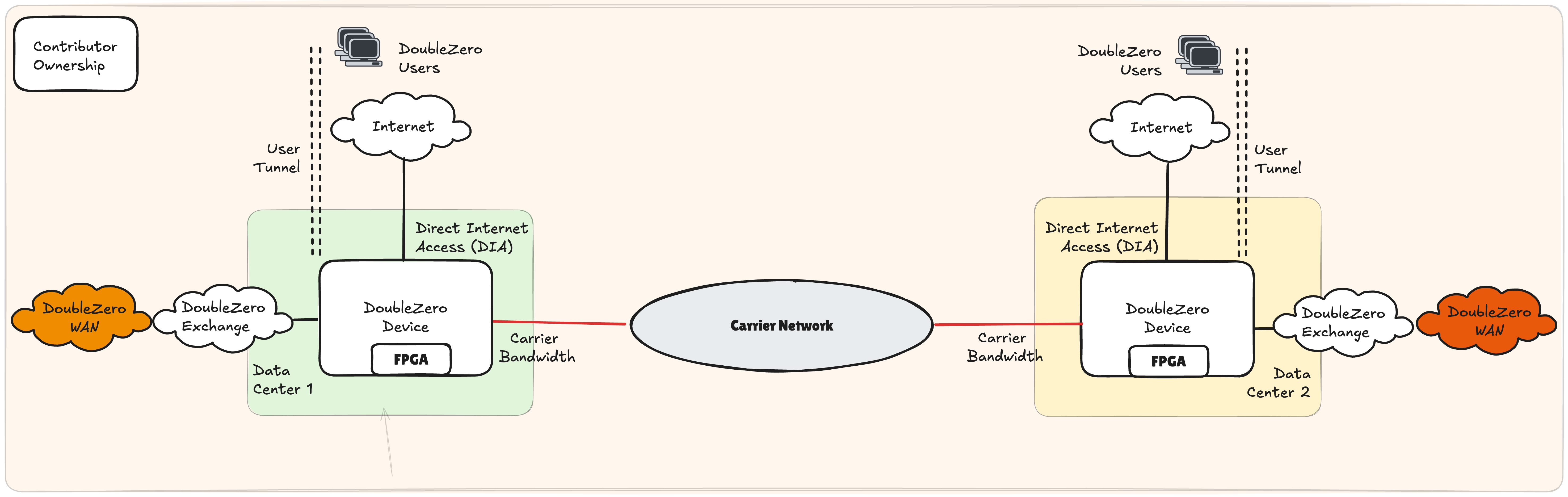{ width="800" }
Figure 1: Network architecture components
## Contributors
The DoubleZero network is made up of connectivity and packet processing contributions from a growing community of distributed network infrastructure providers in cities across the globe. Contributors bring fiber optic cable links and information processing resources to the protocol to provide the decentralized mesh network.
### Network Bandwidth Contributors
Network contributors must provide dedicated bandwidth between two points, operate DoubleZero compatible devices (DZDs) at each end, and a connection to the internet at each end. Network contributors must also run DoubleZero software on each DZD to provide services like multicast, user lookup, and edge filtration services.
The physical links of the DoubleZero network are provided in the form of fiber optic cables, commonly referred to as wavelength services. Network contributors commit underutilized network links, owned or leased from infrastructure providers, between two or more data centers. These links are terminated at both ends by DoubleZero Devices, which are physical network switching enclosures running instances of the DoubleZero Agent software.
#### DoubleZero Exchange (DZX / Cross-connect Site)
DoubleZero Exchanges (DZXs) are interconnect points in the mesh network where different contributor links are bridged together. DZXs are located in major metropolitan areas around the world where network intersections occur. Network contributors must cross-connect their links into the broader DoubleZero mesh network at the DZXs geographically located nearest their link endpoints.
### Computational Resource Contributors
Separate from network contributors, resource contributors are a decentralized group of network participants that perform various maintenance and monitoring duties necessary to sustain the technical integrity and ongoing functionality of the DoubleZero network. Specifically, they (i) track user transactions and payments; (ii) calculate fees for network contributors; (iii) record the results of (i) and (ii); (iv) administer, strictly on a non-discretionary basis, the smart contracts that control protocol tokenomics; (v) relay attestations to the applicable blockchain; and (vi) publish telemetry data regarding link quality and utilization to provide transparent, real-time performance metrics for all network contributors.
## Components
### DoubleZero Daemon
The DoubleZero Daemon software runs on servers needing to communicate over the DoubleZero network. The daemon interfaces with the host's kernel networking stack to create and manage tunnel interfaces, routing tables, and routes.
### Activator
The Activator service, hosted by one or more computational resource contributing members of the DoubleZero community, monitors contract events that require IP address allocations and state changes and manages those changes on behalf of the network.
### Controller
The Controller service, hosted by one or more computational resource contributors of the DoubleZero community, serves as the configuration interface for DoubleZero Device Agents to render their current configuration based on smart contract events.
### Agent
The Agent software runs directly on DoubleZero Devices and applies configuration changes to the devices as interpreted by the Controller service. The Agent software polls the Controller for configuration changes, computes any differences between the canonical on-chain version of the Device state and the active configuration on the device and applies the necessary changes to reconcile the active configuration.
### Device
The physical device enclosure providing the routing and link termination for the DoubleZero network. DZDs run the DoubleZero Agent software and are configured based on data read from the Controller service.
---
# Geolocation
Source: https://docs.doublezero.xyz/geolocation/
# Geolocation
The DoubleZero Geolocation service helps users determine the physical location of devices using latency measurements. [RTT](glossary.md#rtt-round-trip-time) (round-trip time) measurements between known-location infrastructure and a target device provide cryptographically-signed proof that a device is within a certain distance of a given point. Onchain recording of measurements to the DoubleZero Ledger is planned for a future release.
Use cases include regulatory compliance (e.g., GDPR — proving validators operate within the EU), geographic distribution audits, and any application that needs verifiable proof of where a device or IP is.
---
## How it works
```mermaid
flowchart LR
subgraph DZ["DoubleZero Network"]
DZD["DZD\n(known location)"]
Probe["geoProbe\n(bare metal server)"]
DZD -- "TWAMP\n(continuous latency)" --> Probe
end
subgraph Target["Target Device"]
T["Target\n(validator / server)"]
end
Probe -- "RTT measurement" --> T
T -- "RTT response" --> Probe
Probe -. "signed offset" .-> T
```
The following diagram shows the three probe flow types — Outbound, OutboundIcmp, and Inbound — which differ in how the geoProbe communicates with the target:
```mermaid
flowchart TB
subgraph out["Outbound Flow (TWAMP)"]
direction LR
P1["geoProbe"] -- "TWAMP probe" --> T1["Target"]
T1 -- "TWAMP reply" --> P1
end
subgraph icmp["OutboundIcmp Flow"]
direction LR
P3["geoProbe"] -- "ICMP Echo Request" --> T3["Target"]
T3 -- "ICMP Echo Reply" --> P3
end
subgraph in["Inbound Flow (NAT-friendly)"]
direction LR
T2["Target"] -- "signed packets" --> P2["geoProbe"]
P2 -- "reply" --> T2
end
```
Geolocation uses a three-tier measurement chain:
```
DZD (known location) ◄──TWAMP──► geoProbe ◄──RTT──► Target device
```
- **[DZD](glossary.md#dzd-doublezero-device) <-> geoProbe**: [TWAMP](glossary.md#twamp-two-way-active-measurement-protocol) continuously measures latency between the DoubleZero Device and the probe. DZDs have known, fixed geographic coordinates registered on the DZ Ledger.
- **geoProbe <-> Target**: RTT is measured between the probe and the device being located.
Offset results are cryptographically signed, and delivered via UDP to the target or a user-specified alternate destination.
**Important:** Geolocation reports RTT only — not inferred distance or coordinates. A common way to use this would be to divide the RTT by 2, and then multiply by the speed of light through glass (~200km/ms) to provide a radius around the DZD coordinates that the target is located within. How you interpret RTT (e.g., computing a maximum-distance radius) is up to you.
### Probe flow types
There are three ways a probe can measure a target:
| Flow | Who initiates | Protocol | Use when |
|------|---------------|----------|----------|
| **Outbound** | Probe -> Target | [TWAMP](glossary.md#twamp-two-way-active-measurement-protocol) | Target has a public IP, open inbound port, and can run a TWAMP reflector |
| **OutboundIcmp** | Probe -> Target | ICMP echo | Target has a public IP but cannot run a TWAMP reflector (or TWAMP is blocked by firewall) |
| **Inbound** | Target -> Probe | Signed TWAMP | Target cannot accept inbound connections, or want to verify location of a signing key |
In all cases, the DZD <-> geoProbe measurement happens the same way. Only the direction and protocol of the geoProbe <-> target communication differs.
!!! info "Technical Specification"
For the full technical specification of the geolocation verification system, including cryptographic signing details and the measurement protocol, see [RFC 16: Geolocation Verification](https://github.com/malbeclabs/doublezero/blob/main/rfcs/rfc16-geolocation-verification.md).
---
## Prerequisites
### 1. DoubleZero ID with credits
Geolocation users need a funded DoubleZero ID. You do not need to connect to the DoubleZero network (no access pass required), but your key needs credits on the DoubleZero ledger to create a user account and manage targets — each add/remove target operation costs credits.
If you don't have a DoubleZero ID:
```bash
doublezero keygen
doublezero address # get your pubkey
```
Contact the DoubleZero team with your pubkey to get your ID funded. Fund it to a higher-than-typical amount if you expect to add and remove targets dynamically.
### 2. 2Z token account
You need a [2Z token](glossary.md#2z-token) account. Service fees are deducted from this account on a per-epoch basis.
---
## Installation
On a management computer:
```bash
curl -1sLf https://dl.cloudsmith.io/public/malbeclabs/doublezero/setup.deb.sh | sudo -E bash
sudo apt install doublezero
```
On a target for Inbound or TWAMP Outbound:
```bash
curl -1sLf https://dl.cloudsmith.io/public/malbeclabs/doublezero/setup.deb.sh | sudo -E bash
sudo apt install doublezero-geoprobe-target
```
This installs the `doublezero-geoprobe-target` (outbound) and `doublezero-geoprobe-target-sender` (inbound)
!!! note "ICMP Outbound"
`outbound-icmp` targets do not require any software installed.
---
## Check your balance
```bash
doublezero balance
```
---
## Setup
### Step 1: Create a geolocation user
```bash
doublezero geolocation user create \
--env testnet \
--code \
--token-account
```
- `--code`: a short, unique identifier for your account (e.g. `myorg`)
- `--token-account`: the public key of your [2Z token](glossary.md#2z-token) account — service fees are deducted from here
!!! note "Account activation"
After creating a user, contact the DoubleZero Foundation to activate your account. Payment status must be marked active before probing begins.
### Step 2: List available probes
```bash
doublezero geolocation probe list
```
Note the **code** or **public_ip**, and the **signing_pubkey** (for inbound targets) of the probe you want to use.
### Step 3: Add a target
=== "Outbound (probe sends TWAMP to target)"
Use this flow if your target has a public IP, an open inbound port, and can run a [TWAMP](glossary.md#twamp-two-way-active-measurement-protocol) reflector.
```bash
doublezero geolocation user add-target \
--user \
--type outbound \
--probe \
--target-ip
```
`--probe`: the code of the geoProbe that will measure the target (e.g. `ams-mn-gp1`)
`--ip-address`: the public IPv4 address of the target device
=== "OutboundIcmp (probe pings target)"
Use this flow if your target has a public IP but cannot run a TWAMP reflector, or if TWAMP traffic is blocked by firewall. The target only needs to respond to ICMP echo (ping) requests — no additional software required.
```bash
doublezero geolocation user add-target \
--user \
--type OutboundIcmp \
--probe \
--ip-address
```
`--probe`: the code of the geoProbe that will measure the target (e.g. `ams-mn-gp1`)
`--ip-address`: the public IPv4 address of the target device
!!! Warning "Result Destination"
Outbound ICMP targets only work if your user has an alternate result destination set. (See Step 3b)
=== "Inbound (target sends to probe)"
Use this flow if your target is behind NAT or cannot accept inbound connections.
```bash
doublezero geolocation user add-target \
--user \
--type inbound \
--probe \
--target-pk
```
`--probe`: the code of the geoProbe that will measure the target (e.g. `ams-mn-gp1`)
`--target-pk`: public key of the keypair the target will use to sign messages — the probe only accepts messages from registered public keys
### Step 3b: Set a result destination (optional)
Configure an alternate `host:port` where composite LocationOffset results are delivered for any Outbound target types. This replaces sending the LocationOffset to the target and is configured on a per-user basis. If different per-target behavior is needed, it is required to set up two users, one for each desired behavior type.
The alternate destination is useful for aggregating results from multiple targets to a single endpoint. It is required for ICMP probing.
```bash
doublezero geolocation user set-result-destination \
--user \
--destination
```
`--destination`: a publicly routable IPv4 address or valid domain name with port (e.g., `203.0.113.10:9000` or `results.example.com:9000`). Pass an empty string to clear.
Use `user get` to verify your result destination:
```bash
doublezero geolocation user get --user
```
### Step 4: Run the target application
Both outbound and inbound flows require running an application on the target device. Reference implementations with examples are available in Go — you can run them directly or use them as a starting point for your own integration.
=== "Outbound"
For outbound probing, the target device must run a [TWAMP](glossary.md#twamp-two-way-active-measurement-protocol) reflector so the geoProbe can measure RTT. Run the target application on the device being measured:
```bash
doublezero-geoprobe-target
```
=== "Inbound"
For inbound probing, the target device must run software that sends signed messages to the probe.
On the device being measured:
```bash
doublezero-geoprobe-target-sender \
-probe-ip \
-probe-pk \
-keypair
```
`-probe-ip`: IP address of the geoProbe (from `probe list`)
`-probe-pk`: public key of the geoProbe (from `probe list`)
`-keypair`: path to the keypair whose public key was registered as `--target-pk` in Step 3
The target sender uses a two-probe-pair mechanism: it sends two pre-signed [TWAMP](glossary.md#twamp-two-way-active-measurement-protocol) probes in quick succession. The probe's reply to the second packet includes `SinceLastRxNs` — the time between the probe sending reply 0 and receiving probe 1 — which serves as the probe-measured [RTT](glossary.md#rtt-round-trip-time). This paired approach provides an accurate RTT measurement even when the target cannot perform precise kernel-level timestamping.
---
## Command reference
### `doublezero geolocation user`
| Subcommand | Description |
|------------|-------------|
| `create` | Create a new geolocation user account |
| `get` | Get details of a specific user |
| `list` | List all geolocation users |
| `delete` | Delete a user |
| `add-target` | Add a target to a user |
| `remove-target` | Remove a target from a user |
| `set-result-destination` | Set an alternate host:port for offset delivery |
| `update-payment` | Update payment status (foundation use) |
### `doublezero geolocation probe`
| Subcommand | Description |
|------------|-------------|
| `create` | Register a new geoProbe |
| `get` | Get details of a specific probe |
| `list` | List all probes |
| `update` | Update probe configuration |
| `delete` | Delete a probe |
| `add-parent` | Link a DZD as a parent of the probe |
| `remove-parent` | Remove a parent DZD |
### Global flags
| Flag | Description |
|------|-------------|
| `--env` | Network environment: `testnet`, `devnet`, or `mainnet-beta` |
| `--rpc-url` | Custom DoubleZero RPC endpoint |
| `--keypair` | Path to signing keypair (required for write operations) |
---
# Glossary
Source: https://docs.doublezero.xyz/glossary/
# Glossary
This page defines DoubleZero-specific terminology used throughout the documentation.
---
## Network Infrastructure
### DZD (DoubleZero Device)
The physical network switching hardware that terminates DoubleZero links and runs the DoubleZero Agent software. DZDs are deployed at data centers and provide routing, packet processing, and user connectivity services. Each DZD requires specific [hardware specifications](contribute.md#dzd-network-hardware) and runs both the [Config Agent](#config-agent) and [Telemetry Agent](#telemetry-agent).
### DZX (DoubleZero Exchange)
Interconnect points in the mesh network where different [contributor](#contributor) links are bridged together. DZXs are located in major metropolitan areas (e.g., NYC, LON, TYO) where network intersections occur. Network contributors must cross-connect their links into the broader DoubleZero mesh at the nearest DZX. Similar in concept to an Internet Exchange (IX).
### WAN Link
A Wide Area Network link between two [DZDs](#dzd-doublezero-device) operated by the **same** contributor. WAN links provide backbone connectivity within a single contributor's infrastructure.
### DZX Link
A link between [DZDs](#dzd-doublezero-device) operated by **different** contributors, established at a [DZX](#dzx-doublezero-exchange). DZX links require explicit acceptance by both parties.
### DZ Prefix
IP address allocations in CIDR format assigned to a [DZD](#dzd-doublezero-device) for overlay network addressing. Specified during [device creation](contribute-provisioning.md#step-32-create-your-device-onchain) using the `--dz-prefixes` parameter.
---
## Device Types
### Edge Device
A [DZD](#dzd-doublezero-device) that provides user connectivity to the DoubleZero network. Edge devices leverage [CYOA](#cyoa-choose-your-own-adventure) interfaces to terminate users (validators, RPC operators) and connect them to the network.
### Transit Device
A [DZD](#dzd-doublezero-device) that provides backbone connectivity within the DoubleZero network. Transit devices move traffic between DZDs but do not terminate user connections directly.
### Hybrid Device
A [DZD](#dzd-doublezero-device) that combines both [edge](#edge-device) and [transit](#transit-device) functionality, providing both user connectivity and backbone routing.
---
## Connectivity
### CYOA (Choose Your Own Adventure)
Interface types that allow [contributors](#contributor) to register connectivity options for users to connect to the DoubleZero network. CYOA interfaces include various methods like [DIA](#dia-direct-internet-access), GRE tunnels, and private peering. See [Creating CYOA Interfaces](contribute-provisioning.md#step-35-create-cyoa-interface-for-edgehybrid-devices) for configuration details.
### DIA (Direct Internet Access)
A standard networking term for connectivity provided over the public internet. In DoubleZero, DIA is a [CYOA](#cyoa-choose-your-own-adventure) interface type where users (validators, RPC operators) connect to a [DZD](#dzd-doublezero-device) over their existing internet connection.
### IBRL (Increase Bandwidth Reduce Latency)
A connection mode that allows validators and RPC nodes to connect to DoubleZero without restarting their blockchain clients. IBRL uses the existing public IP address and establishes an overlay tunnel to the nearest [DZD](#dzd-doublezero-device). See [Mainnet-Beta Connection](DZ%20Mainnet-beta%20Connection.md) for setup instructions.
### Multicast
A one-to-many packet delivery method supported by DoubleZero. Multicast mode has two roles: **publisher** (sends packets across the network) and **subscriber** (receives packets from the publisher). Used by development teams for efficient data distribution. See [Other Multicast Connection](Other%20Multicast%20Connection.md) for connection details.
---
## Software Components
### doublezerod
The DoubleZero daemon service that runs on user servers (validators, RPC nodes). It manages the connection to the DoubleZero network, handles tunnel establishment, and maintains connectivity to [DZDs](#dzd-doublezero-device). Configured via systemd and controlled through the [`doublezero`](#doublezero-cli) CLI.
### doublezero (CLI)
The command-line interface for interacting with the DoubleZero network. Used for connecting, managing identities, checking status, and administrative operations. Communicates with the [`doublezerod`](#doublezerod) daemon.
### Config Agent
Software agent running on [DZDs](#dzd-doublezero-device) that manages device configuration. Reads configuration from the [Controller](#controller) service and applies changes to the device. See [Config Agent Installation](contribute-provisioning.md#step-44-install-config-agent) for setup.
### Telemetry Agent
Software agent running on [DZDs](#dzd-doublezero-device) that collects performance metrics (latency, jitter, packet loss) and submits them to the DoubleZero ledger. See [Telemetry Agent Installation](contribute-provisioning.md#step-45-install-telemetry-agent) for setup.
### Controller
A service that provides configuration to [DZD](#dzd-doublezero-device) agents. The Controller derives device configurations from [onchain](#onchain) state on the DoubleZero ledger.
---
## Link States
### Activated
The normal operational state for a link. Traffic flows through the link and it participates in routing decisions.
### Soft-Drained
A maintenance state where traffic will be discouraged on a specific link. Used for graceful maintenance windows. Can transition to [activated](#activated) or [hard-drained](#hard-drained).
### Hard-Drained
A maintenance state where the link is completely removed from service. No traffic flows through the link. Must transition to [soft-drained](#soft-drained) before returning to [activated](#activated).
---
## Organizations & Tokens
### DZF (DoubleZero Foundation)
DoubleZero Foundation is a memberless nonprofit Cayman Islands foundation company that was formed to support the development, decentralization, security and adoption of the DoubleZero network.
### 2Z Token
The native token of the DoubleZero network. Used for paying validator fees and distributed as rewards to [contributors](#contributor). Validators can pay fees in 2Z via an onchain swap program. See [Swapping SOL to 2Z](Swapping-sol-to-2z.md).
### Contributor
A network infrastructure provider who contributes bandwidth and hardware to the DoubleZero network. Contributors operate [DZDs](#dzd-doublezero-device), provide [WAN](#wan-link) and [DZX](#dzx-link) links, and receive [2Z](#2z-token) token incentives for their contribution. See [Contributor Documentation](contribute-overview.md) to get started.
---
## Networking Concepts
### MTU (Maximum Transmission Unit)
The largest packet size (in bytes) that can be transmitted over a network link. DoubleZero WAN links typically use MTU 9000 (jumbo frames) for efficiency.
### VRF (Virtual Routing and Forwarding)
A technology that allows multiple isolated routing tables to exist on the same physical router. Contributors often use a separate management VRF to isolate switch management traffic from production traffic.
### GRE (Generic Routing Encapsulation)
A tunneling protocol that encapsulates network packets inside IP packets. Used by [IBRL](#ibrl-increase-bandwidth-reduce-latency) and [CYOA](#cyoa-choose-your-own-adventure) connections to create overlay tunnels between users and DZDs.
### BGP (Border Gateway Protocol)
The routing protocol used for exchanging routing information between networks on the internet. DoubleZero uses BGP internally with ASN 65342.
### ASN (Autonomous System Number)
A unique identifier assigned to a network for BGP routing. All DoubleZero devices use **ASN 65342** for the internal BGP process.
### Loopback Interface
A virtual network interface on a router/switch used for management and routing purposes. DZDs use Loopback255 (VPNv4) and Loopback256 (IPv4) for internal routing.
### CIDR (Classless Inter-Domain Routing)
A notation for specifying IP address ranges. The format is `IP/prefix-length` where the prefix length indicates network size (e.g., `/29` = 8 addresses, `/24` = 256 addresses).
### Jitter
Variation in packet latency over time. Low jitter is critical for real-time applications.
### RTT (Round-Trip Time)
The time for a packet to travel from source to destination and back. Used to measure network latency between devices.
### TWAMP (Two-Way Active Measurement Protocol)
A protocol for measuring network performance metrics like latency and packet loss. The [Telemetry Agent](#telemetry-agent) uses TWAMP to collect metrics between DZDs.
### IS-IS (Intermediate System to Intermediate System)
A link-state routing protocol used internally by the DoubleZero network. IS-IS metrics are adjusted during [link draining](#soft-drained) operations.
---
## Geolocation
### Geolocation
A DoubleZero service that verifies the physical location of devices using latency measurements. [RTT](#rtt-round-trip-time) measurements between known-location infrastructure ([DZDs](#dzd-doublezero-device)) and target devices provide cryptographically signed proof that a device is within a certain distance of a reference point. Onchain recording of measurements is planned for a future release. See [Geolocation](geolocation.md) for user documentation.
### geoProbe
A bare metal server that acts as an intermediary for latency measurements in the [Geolocation](#geolocation) system. geoProbes are located within ~1ms of a [DZD](#dzd-doublezero-device), receive signed LocationOffsets from parent DZDs, and measure [RTT](#rtt-round-trip-time) to target devices via [TWAMP](#twamp-two-way-active-measurement-protocol), signed TWAMP, or ICMP echo. Each geoProbe is registered [onchain](#onchain) and linked to one or more parent DZDs. See [Geoprobe Deployment](contribute-geolocation.md) for contributor documentation.
### LocationOffset
A signed data structure containing a [DZD's](#dzd-doublezero-device) geographic location (latitude and longitude) and a chain of latency relationships between entities (DZD↔Probe or Probe↔Target). LocationOffsets are signed with Ed25519 and sent via UDP through the measurement chain. Composite offsets include references to previous measurements, creating an auditable trail.
---
## Blockchain & Keys
### Onchain
In the DoubleZero context, onchain refers to data and operations recorded on the DoubleZero ledger. Unlike traditional networks where device and link configurations live in centralized management systems, DoubleZero records device registrations, link configurations, and telemetry submissions onchain — making the network state transparent and verifiable by all participants.
### Service Key
A cryptographic keypair used to authenticate CLI operations. This is your contributor identity for interacting with the DoubleZero smart contract. Stored at `~/.config/solana/id.json`.
### Metrics Publisher Key
A cryptographic keypair used by the [Telemetry Agent](#telemetry-agent) to sign metric submissions to the blockchain. Separate from the service key for security isolation. Stored at `~/.config/doublezero/metrics-publisher.json`.
---
## Hardware & Software
### EOS (Extensible Operating System)
Arista's network operating system that runs on DZD switches. Contributors install [Config Agent](#config-agent) and [Telemetry Agent](#telemetry-agent) as EOS extensions.
### EOS Extension
A software package that can be installed on Arista EOS switches. DZ agents are distributed as `.rpm` files and installed via the `extension` command.
---
# Support
Source: https://docs.doublezero.xyz/support/
# Support
Need help connecting to or operating on DoubleZero? Start with live status, then reach the team if you still need a hand.
## Network link status
Check current link health and connectivity on the DoubleZero data portal:
**[Link status dashboard](https://data.doublezero.xyz/status/links)**
Use this page to confirm whether issues you are seeing are network-wide or local to your setup before changing configuration.
## Contact the team
If status looks healthy (or does not explain your issue), open a ticket with the DoubleZero team on Discord:
1. Join **[discord.gg/doublezerotech](https://discord.gg/doublezerotech)**
2. Open a **support ticket** and describe the problem
3. Include what you can: environment (mainnet / testnet), node type, **client IP**, recent commands, and any error output
!!! tip "Before you open a ticket"
The [Troubleshooting](troubleshooting.md) guide covers the most common connection failures. Checking that first often gets you unblocked faster.
---